How to Improve SEO WordPress
A practical step-by-step blueprint to boost your existing WordPress site’s rankings

Is your WordPress site already live but not getting the organic traffic you expected? Maybe you installed an SEO plugin, wrote a few blog posts, and still feel stuck on page two or three of Google. Improving SEO on an existing WordPress website requires a clear, repeatable process, not just random tweaks.
In this guide, you’ll learn a practical framework to audit your current SEO, fix technical issues, improve on-page content, and create an ongoing optimization workflow. If you’re completely new to the topic, you may want to first review a broader WordPress SEO complete beginner’s guide, then come back here to focus on improvement and long-term gains.
We’ll walk through each step using the standard WordPress dashboard with the Classic Editor and a theme like Jannah, but the principles apply to most setups and SEO plugins.
Prerequisites
Before you start changing SEO settings or editing content, make sure you have a safe environment and the right access. This prevents accidental downtime or lost traffic while you optimize.
- Administrator access to your WordPress dashboard (wp-admin).
- Access to your hosting control panel (cPanel, Plesk, or similar) or at least FTP/SSH.
- A recent full backup of your WordPress site (files + database) or an active backup plugin.
- An SEO plugin installed and activated (such as Yoast SEO, Rank Math, or All in One SEO).
- Google Search Console and Google Analytics (or GA4 via a plugin) connected to your site.
Step 1: Benchmark Your Current WordPress SEO
Improvement starts with measurement. If you don’t know where you stand now, you can’t tell whether your SEO changes are working later. In this step, you’ll capture a baseline of your traffic, rankings, and technical health.
1.1 Review organic performance in Search Console
In Google Search Console, open the Performance report and filter by Search type: Web. Check your total clicks, impressions, average CTR, and average position for the last 3–6 months.
- Identify top-performing pages by clicks and impressions.
- Look for pages with high impressions but low CTR (title/description issues).
- Spot keywords where you rank on page 2 or 3 (positions 11–30) – these are “quick win” targets.
1.2 Check technical coverage and indexing
Still in Search Console, open Pages (Indexing). Confirm that your key pages (home, main categories, important posts) are indexed. Note any URLs in the “Not indexed” section that should be indexed, as well as soft 404s and pages blocked by robots.txt.
1.3 Perform a lightweight content and URL audit
From your WordPress dashboard, go to Posts > All Posts and Pages > All Pages. Quickly scan for:
- Thin content (very short posts with little value).
- Duplicate or overlapping topics (multiple posts targeting the same keyword).
- Old posts with outdated information or screenshots.
Create a simple spreadsheet with three columns: URL, Status (Keep / Update / Merge / Delete), and Notes. This will guide your content optimization steps later.
Step 2: Fix Core Technical SEO Settings in WordPress
Technical SEO is about making sure search engines can crawl, index, and understand your website structure. WordPress makes this easier, but a few misconfigured settings can still hold you back.
2.1 Confirm your site is allowed to be indexed
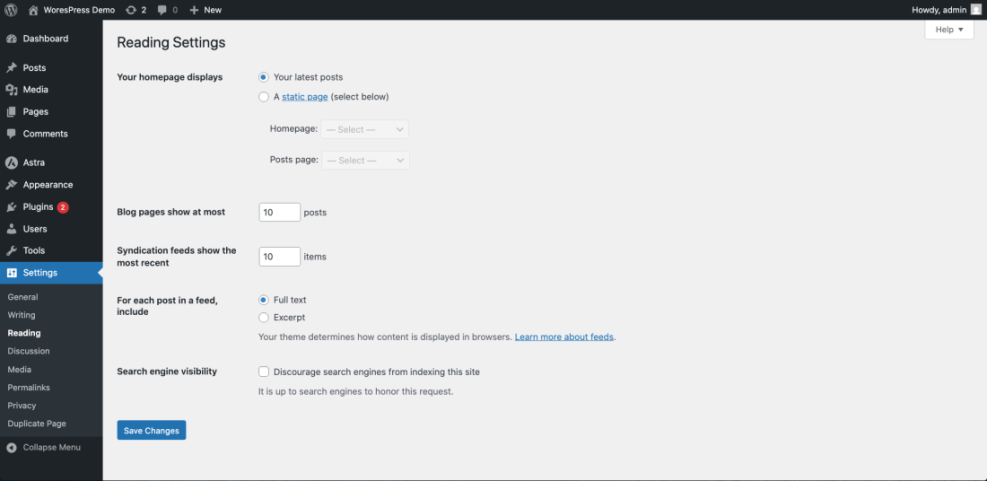
In the WordPress dashboard, go to Settings > Reading and make sure “Discourage search engines from indexing this site” is unchecked. If this box is checked on a live site, your SEO will suffer dramatically.
2.2 Use SEO-friendly permalinks
Go to Settings > Permalinks and select a structure such as Post name. This keeps URLs short and descriptive, which is better for users and search engines.
2.3 Configure your SEO plugin basics
Open your SEO plugin’s settings page (for example, SEO > Search Appearance or similar):
- Set a default title template that includes the post title and brand name.
- Enable XML sitemaps and verify that your sitemap URL is submitted in Google Search Console.
- Turn on breadcrumbs if your theme (like Jannah) supports them and add the breadcrumb shortcode in your templates where appropriate.
- Check that your site is set to the correct organization or person type for schema data.
2.4 Review robots.txt and basic crawl rules
You can usually edit robots.txt via your SEO plugin or directly on the server. A simple starting point looks like this (edit the domain to match your site):
Where to edit: Use your SEO plugin’s robots.txt editor or upload a robots.txt file to your site’s web root via FTP or your hosting file manager.
User-agent: *
Disallow: /wp-admin/
Allow: /wp-admin/admin-ajax.php

Sitemap: https://example.com/sitemap.xml
Make sure you’re not blocking important directories like /wp-content/uploads/ or your theme’s CSS and JS files, as this can affect how Google renders your pages.
Step 3: Improve On-Page SEO and Content Quality
Once your technical base is stable, on-page SEO is where you’ll see some of the fastest gains. On WordPress, this happens mainly in the post editor, your headings, and your internal links.
3.1 Assign a clear focus keyword per page
Based on your earlier audit, decide which keyword each important page should primarily target. In your SEO plugin’s meta box, set the focus keyphrase and use it to guide your optimization, not to force awkward repetition.
3.2 Optimize titles and meta descriptions
In the post editor, scroll to your SEO plugin’s snippet preview. Rewrite your SEO title and meta description to:
- Include the focus keyword naturally near the beginning.
- Communicate a clear benefit or outcome for the reader.
- Stay within character limits (roughly 50–60 for titles, up to 150–160 for descriptions).
Well-written snippets can dramatically improve CTR even before your rankings move.
3.3 Structure your content with proper headings
Use a single H1 for the main page title (WordPress usually handles this automatically), then structure your subtopics with H2 and H3 headings. Avoid using headings just for styling; each one should describe what the section is about.
3.4 Enhance readability and on-page signals
Go through each high-priority post and:
- Break long paragraphs into 2–3 sentence chunks.
- Add descriptive subheadings and bullet lists where helpful.
- Use relevant images with descriptive alt text (never stuffed with keywords).
- Ensure the main keyword and its close variants appear naturally throughout the content.
3.5 Deepen topic coverage with supporting content
If an important keyword requires more explanation than fits in one post, create related supporting articles and link them together. For detailed on-page tactics, follow the step-by-step guide to on-page SEO in WordPress to ensure you’re covering all the right elements on each page.
Step 4: Strengthen Internal Links and Site Structure
Internal links help search engines understand which pages are most important and how topics relate to each other. They also keep users on your site longer, which can indirectly support better rankings.
4.1 Map your content into logical topic clusters
From your earlier audit spreadsheet, group URLs into themes (for example, “WordPress SEO basics”, “speed optimization”, “WordPress security”). Within each cluster, assign one “pillar” page and several supporting posts.
4.2 Add contextual internal links
Open your most important posts in the Classic Editor and:
- Add links from supporting posts to the pillar page using descriptive anchor text (not “click here”).
- Link between related posts when it genuinely helps the reader get more detail.
- Update old posts to link to newer, more comprehensive guides where relevant.
4.3 Use navigation, categories, and breadcrumbs wisely
In Appearance > Menus, ensure your main categories and key landing pages are accessible within one or two clicks from the homepage. Use WordPress categories and tags in a focused way, not as a dumping ground for every idea.
Step 5: Boost Speed and Core Web Vitals for Better Rankings
Page speed and Core Web Vitals are not just “nice to have” – they affect user experience and SEO. Many WordPress sites lose rankings simply because they are slow or visually unstable.
5.1 Test your current performance
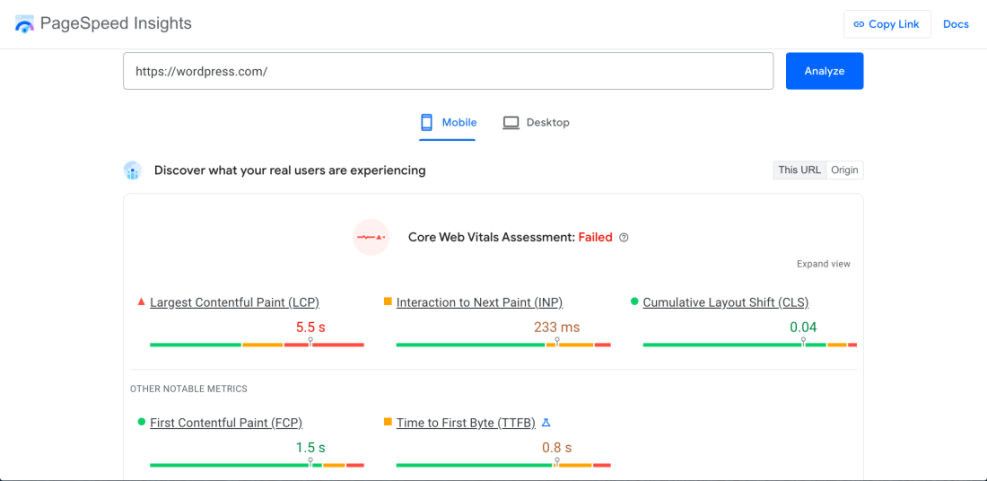
Use tools like PageSpeed Insights or WebPageTest to analyze your homepage and a few key posts. Pay attention to metrics like Largest Contentful Paint (LCP), Cumulative Layout Shift (CLS), and Total Blocking Time (TBT).
5.2 Fix the biggest speed bottlenecks
Common WordPress performance issues include unoptimized images, too many plugins, and heavy page builders. Start with the changes that offer the best “impact for effort”:
- Install and configure a caching plugin to serve static HTML to visitors.
- Compress and resize images before upload, and enable lazy loading.
- Disable or remove unused plugins, especially those loading assets on every page.
- Use a lightweight theme or optimize your existing Jannah setup (remove unused demos and widgets).
To understand how performance fits into SEO, follow the beginner guide to WordPress speed and Core Web Vitals and apply those recommendations to your own site.
5.3 Keep WordPress, themes, and plugins updated
Outdated code can hurt both security and performance. Consider using WP-CLI from your hosting control panel or SSH terminal to update plugins in bulk:
Where to run: SSH into your server, navigate to your WordPress root, and run:
wp plugin update --all
Step 6: Create an Ongoing SEO Improvement Workflow
SEO on WordPress is not a one-time project. The sites that win over the long term have a simple, consistent process to review performance, refresh content, and publish new articles.
6.1 Set a monthly SEO review routine
At least once a month, schedule an hour to:
- Check new Search Console queries and pages gaining impressions.
- Identify posts that dropped in clicks or position and review whether they need updates.
- Scan for new technical issues (indexing errors, 404s, server errors).
6.2 Refresh and republish key content
Pick a few high-value posts each month and:
- Update statistics, screenshots, and examples.
- Add new internal links to and from recent posts.
- Improve headings, introductions, and calls to action.
6.3 Track KPIs and adjust your strategy
Define a handful of SEO KPIs that matter most for your business (organic sessions, conversions from organic traffic, rankings for a few target keywords) and track them over time. If certain content types or topics perform better, double down on those in your editorial calendar.
Turn Your WordPress Site into a Growing SEO Asset
Improving SEO on WordPress isn’t about one magic plugin or secret setting. It’s the combination of a clean technical foundation, well-structured content, strong internal links, and a consistent optimization routine.
By benchmarking your current performance, fixing core settings, upgrading on-page content, improving speed, and reviewing results regularly, you transform your WordPress site from “just another blog” into a durable organic traffic engine. Start with your highest-impact pages, apply the steps in this guide, and build momentum one optimized post at a time.
Further Reading
- How to Do SEO for a WordPress Website
- Best WordPress SEO Plugins and Tools
- Internal Linking Strategies for WordPress
- Beginner Guide to WordPress Speed Optimization
- How to Add SEO Keywords to a WordPress Website
Frequently Asked Questions
My WordPress site is indexed but barely getting traffic. What should I fix first?
How long does it take to see results after improving WordPress SEO?
How often should I update my WordPress content for SEO?
Can changing permalinks or slugs hurt my WordPress SEO?
Do I need a developer or agency to improve SEO on WordPress?