How to Find Your WordPress Login URL
Simple ways to reach your wp-admin screen every time

If you cannot remember your WordPress login URL, it becomes hard to manage your site or fix urgent problems. The good news is that your login URL always follows a simple pattern, unless a plugin or developer changed it on purpose.
This guide shows you how to find your login URL in the most common setups, including root domains, subfolders, and hidden login pages. You will also see how to recover access if your login URL changed, and how to save it so you never lose it again.
Default WordPress Login URL Basics
On a normal self hosted site, your login URL uses one of two standard paths. You can usually reach your login screen with either the wp login file or the admin area path.
Standard WordPress Login URL Patterns
Start with these common patterns and replace example.com with your domain. You can also review the official WordPress login documentation if you want more background on how the login screen works.
- https://example.com/wp-login.php
- https://example.com/wp-admin/ (redirects to the login screen if you are not logged in)
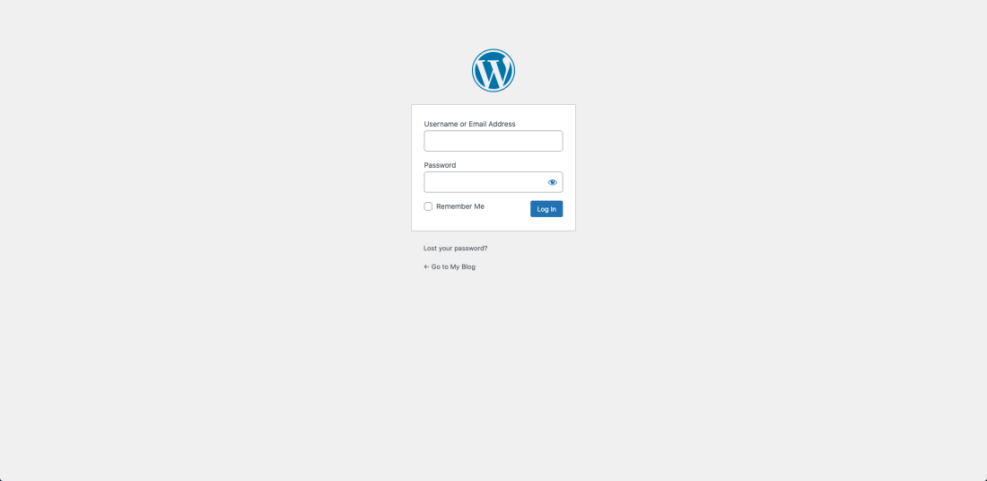
Type one of these into your browser and press Enter. If WordPress is installed in the root of your domain and not hidden, you should see the familiar login form right away.
WordPress Installed in a Subfolder
Sometimes WordPress is not installed at the root of your domain. It might live in a folder like /blog/ or /store/. In that case, the login URL adds the folder name before the wp login path.
- https://example.com/blog/wp-login.php
- https://example.com/blog/wp-admin/
If you know that visitors see your site at a URL like https://example.com/blog/, add /wp-login.php to the end of that exact address to reach the login page.
SEO and UX, and where you will see it in daily work.”>Subdomain WordPress Installs
Many site owners run WordPress on a subdomain, such as blog.example.com or shop.example.com. In that case, the login URL works the same way as on a root domain.
- https://blog.example.com/wp-login.php
- https://blog.example.com/wp-admin/
Always start from the address where visitors see your WordPress site and then add /wp-login.php or /wp-admin/ to find the login screen.
How to Use Your Site Address to Find the Login URL
If you are not sure where WordPress is installed, you can often guess the correct login URL by looking at the public pages of your site.
Step 1: Start From Your Home Page
- Open your browser and visit your normal website URL.
- Look at the address in the browser bar.
- Note whether there is a folder after the domain, such as /blog/ or /news/.
The login URL will almost always use the same base address that you see when you load your home page.
Step 2: Add the Login Path
- Take the full URL of your home page.
- Add /wp-login.php to the end of that address.
- Press Enter and see if the login form appears.
For example, if your home page is at https://example.com/blog/, your login URL will likely be https://example.com/blog/wp-login.php. This simple pattern works for most sites that use default login settings.
When Your WordPress Login URL Is Hidden
Many site owners hide the default login URL for security. Security plugins often change the login path so that automated bots cannot guess it easily. This is helpful, but it can be confusing if you forget the new address.
Common Plugins That Change the Login URL
Some popular security and hardening plugins can change the login URL. If you or your developer installed one of these, your login path might be customized.
- Plugins that hide wp-admin or wp-login
- Full security suites that include login page protection
- Custom maintenance or coming soon plugins that add a new login link
You might remember seeing options like “Custom login URL” or “Hide login page” in your dashboard. If so, that setting likely changed the path from wp-login.php to something else, such as /my-login/ or /secure-login/.
How to Check for a Custom Login URL
You still have ways to find a custom login URL, even when you cannot log in yet.
- Log in to your hosting control panel or cPanel.
- Open the File Manager and go to public_html or the folder where WordPress is installed.
- Open the wp-content folder, then open the plugins folder.
- Look for plugin names that mention “login,” “hide login,” or “security.”
- Search online for that plugin’s documentation to see how it changes the login URL format.
If you find the plugin that hides the default login page, you can usually learn the new path format from its documentation. Then you can try likely paths, or ask your developer to confirm the exact URL.
What to Do If You Still Cannot Find Your Login URL
Sometimes the standard patterns do not work and you cannot guess the new login path. In that case, your best option is to use your hosting company or a developer to restore access to your WordPress admin area.
Ask Your Hosting Support for the Login URL
Most shared hosting support teams deal with WordPress every day. They can often check your file structure and confirm where WordPress is installed and how to reach the login screen.
Support staff can also fix file permission problems, a broken .htaccess file, or redirect rules that may block access to wp-admin.
Temporarily Disable a Problem Plugin
If a plugin broke the login URL, you can sometimes fix it by disabling that plugin through your file manager.
- Open File Manager in your hosting control panel.
- Go to wp-content/plugins/.
- Find the folder for the plugin you suspect is hiding or blocking access.
- Rename the folder, for example from hide-login to hide-login-disabled.
- Try visiting the standard login URL again, such as /wp-login.php.
Renaming the plugin folder usually deactivates the plugin. If the plugin caused the problem, your default WordPress login URL will start working again.
Save Your WordPress Login URL for Next Time
Once you find the correct login URL, do not rely on memory again. Save it in a few safe places so you can always reach your admin dashboard when you need it.
Bookmark the Login Page in Your Browser
The easiest way to save that login URL is to bookmark it.
- Go to your working login URL.
- Use your browser’s bookmark shortcut (such as Ctrl+D or Command+D).
- Give the bookmark a clear name, such as “Site Admin Login.”
- Save it in a folder you will actually use.
This simple habit saves time and prevents stress, especially when you manage more than one WordPress site with different login URLs.
Add a Login Link to Your Site Menu or Footer
You can also add a login link somewhere on your site. This makes it easy for you, and sometimes for other team members, to find the login page.
- Log in to your dashboard and go to Appearance > Menus.
- Add a Custom Link that points to your login page.
- Use a clear label such as “Admin Login” or “Site Login.”
- Place it in a footer menu or a small utility menu, not the main public navigation.
This keeps the login link easy to find without confusing visitors who do not need to access wp-admin.
Store the URL in Your Password Manager
Most password managers can save both the login URL and your username and password. This keeps your WordPress login URL ready while also storing your credentials securely. If you do not use one yet, you can read a basic introduction to password managers in guides like Google’s help article on password managers.
Fixing Common WordPress Login URL Errors
Even when you use the correct WordPress login URL, you might still see error messages. The most common issues are 404 errors, redirect loops, and mixed content warnings after an SSL or domain change.
404 Error on wp-login.php
A 404 error means the server cannot find the login script at that path. This can happen if WordPress is not installed where you think it is, or if a security plugin rewrites the login URL.
- Confirm that WordPress files exist in the folder you expect.
- Check that your domain’s document root points to the correct folder.
- Look for plugins that may hide or block the default login page.
If you cannot fix a 404 on your login URL, open a support ticket with your host and share the exact URL you are trying to use.
Redirect Loop When Logging In
Sometimes you reach the login page, enter your credentials, and then get sent back to the login form again. This kind of redirect loop is not a login URL problem, but it feels similar.
- Clear your browser cache and cookies for your domain.
- Make sure your site address and WordPress address match in Settings > General.
- Check your .htaccess file for incorrect redirect rules.
When you fix these issues, the login URL will take you into the dashboard instead of sending you back to the form.
Best Practices for a Safer WordPress Login
Finding your login URL is only the first step. You also want that login page to be secure so attackers cannot guess your password and break into your site.
Use a Strong Admin Password
Always use a strong, unique password for your main admin account. A password manager can generate and store this for you. Never reuse passwords from other websites on your WordPress admin account.
Limit Login Attempts
A simple security plugin that limits login attempts can stop many brute force attacks. These plugins block IP addresses that fail to log in too many times in a short period of time.
Consider Two Factor Authentication
Two factor authentication adds a second step to your WordPress login URL. After entering your password, you must also enter a code from your phone or app. This extra step makes it much harder for someone to break in, even if they know your password.
FAQ: WordPress Login URL
What is the default WordPress login URL?
Why does my WordPress login URL show a 404 error?
Can I change my WordPress login URL for security?
Is my WordPress login URL the same as my hosting login?
What if I still cannot find my WordPress login URL?