Knowing how to duplicate WordPress page layouts is a huge time saver. Instead of rebuilding the same design for every service, location, or landing page, you can copy an existing page and just change the content.
In this step by step tutorial, you will learn how to duplicate WordPress page designs using a duplicate page plugin, the Block Editor, and page builders. By the end, you will be able to copy any page layout, adjust the text and images, and publish it without breaking your design or creating confusing duplicates.
What You Need Before Duplicating a Page
- Access to your WordPress admin dashboard with an Administrator or Editor account.
- At least one existing page whose layout you want to reuse (for example a service, sales, or location page).
- Basic familiarity with the WordPress dashboard, especially Pages and Plugins.
- A recent full backup of your site from your host or a backup plugin before installing new plugins or changing URLs.
- Optional but recommended: a staging site where you can practice how to duplicate WordPress page layouts before doing it on a busy live site.
Step 1: Plan the Page You Want to Duplicate
Before you actually duplicate anything, get clear on why you are copying the page. This helps you choose the right method and avoid accidental duplicate content.
- Open your WordPress dashboard and go to Pages » All Pages.
- Find the page you want to copy and click View in a new tab so you can see its layout.
- Decide whether you need an exact duplicate (title, layout, featured image, SEO settings) or just the layout and blocks.
- Note whether the page uses the Block Editor, the Classic Editor, or a page builder like Elementor or Divi.
- Write down a working title and target URL for the new page, so you do not publish it with the same title and slug as the original.
Verify success at this step by having a short note such as “Duplicate the Service Page layout for a new Service B page and change all text and images.” That clarity keeps your site tidy as you duplicate pages.
Common Reasons to Duplicate a WordPress Page
- Creating new service or product pages with the same proven layout.
- Building multiple location pages that share the same structure.
- Testing layout variations as drafts without modifying the live page.
- Quickly spinning up landing pages for ads or email campaigns.
Quick Comparison of WordPress Page Duplication Methods
Here’s a quick overview of the main ways you can use when deciding how to duplicate WordPress page layouts.
| Method | Where You Use It | Main Purpose |
|---|---|---|
| Duplicate Page Plugin | WordPress dashboard » Pages » All Pages | Safely duplicate an entire page including layout, featured image, and most settings in one click. |
| Copy Content Without Plugin | Page editor » Options menu » Copy all content | Reuse the block layout by copying and pasting content into a new draft manually. |
| Duplicate Page Builder Layout | Page builder editor » Duplicate or Save as template | Copy a page built with a visual builder and reuse the design as a template. |
| Duplicate on Staging Site | Staging dashboard » Pages » All Pages | Experiment with duplicated pages safely on staging before changing the live site. |
| Export and Import Layouts | Theme or builder tools » Export / Import | Move page layouts between sites using the same theme or builder. |
Step 2: Install a Duplicate Page Plugin
The easiest way to learn how to duplicate WordPress page content is to use a dedicated duplicate page plugin. These plugins add a Duplicate, Clone, or Copy to new draft link to your page list.
- From your dashboard, go to Plugins » Add New.
- Use the search bar to look for keywords such as duplicate page, duplicate post, or clone page.
- Pick a plugin with many active installs, recent updates, and good reviews.
- Click Install Now, then click Activate to enable the plugin.
- After activation, look for a Settings link under the plugin name, or a new menu item, and review options for what to copy (title, status, featured image, taxonomies) and default status (draft, pending, or published).
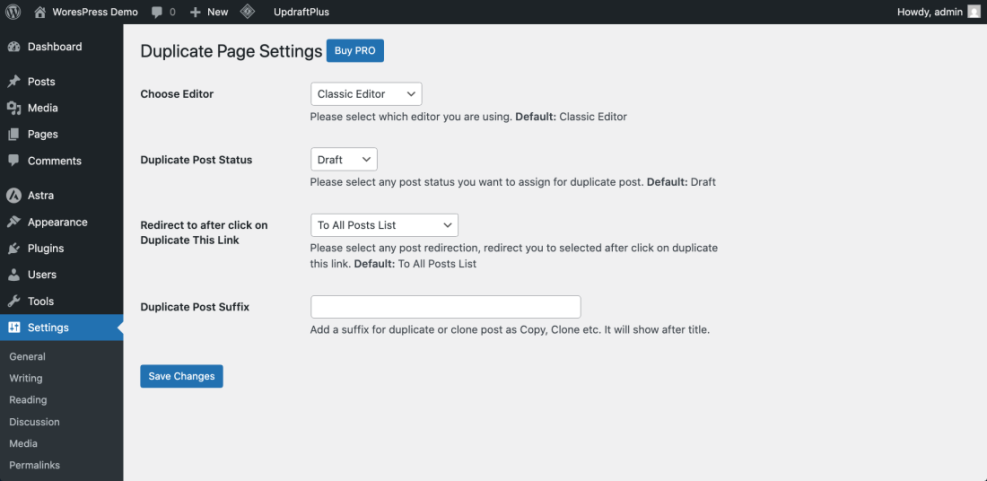
Verify success by returning to Pages » All Pages and checking that you see new links such as Clone, Duplicate, or New Draft under each page title.
Step 3: Duplicate a WordPress Page from the Pages Screen
Once your plugin is active, you can duplicate a page directly from the main Pages list. This is the main workflow for most site owners.
- Go to Pages » All Pages.
- Hover over the page you want to duplicate.
- Click the new link added by your plugin, such as Clone, Duplicate, or Copy to new draft.
- Depending on the plugin, WordPress will either create the duplicate and keep you on the list, or take you straight into the editor for the copied page.
- Open the duplicated page in the editor and confirm that the layout, blocks, featured image, and main settings look correct.
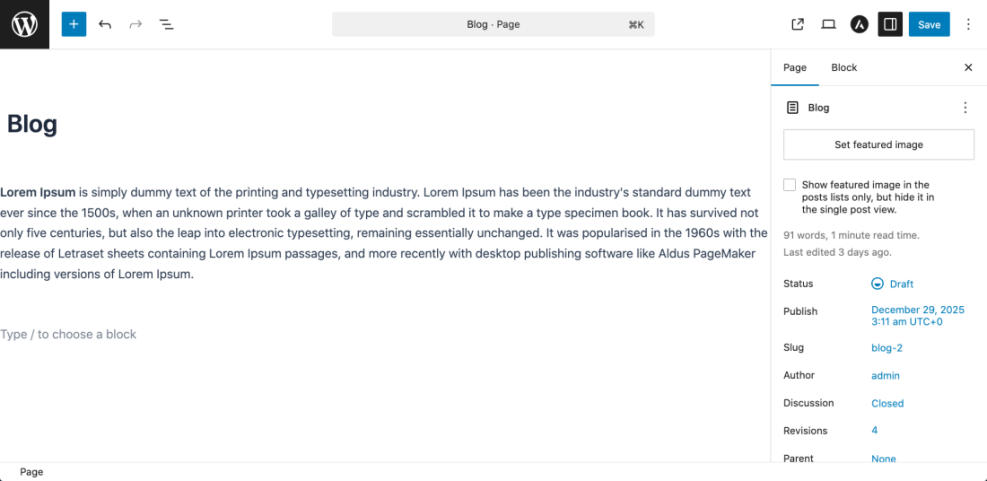
Verify success when you see a new draft page with almost the same title as the original (often with “Copy” or “Duplicate” added) and the same layout.
Step 4: Duplicate a Page Layout Without a Plugin
If you prefer not to add another plugin, you can still duplicate a page by copying its content in the editor. This is best when you mainly care about reusing the layout, not every setting.
- From the dashboard, go to Pages » All Pages and click the title of the page you want to copy.
- In the Block Editor, click the three dot menu in the top right corner.
- Choose Copy all blocks or Copy all content (wording may vary slightly).
- Go back to Pages » Add New to create a new page.
- Click inside the editor and paste the content (for example with Ctrl+V or Cmd+V).
Verify success when the new page shows the same blocks, sections, and layout as the original. Remember that this method may not copy featured images, SEO settings, or custom fields, so you will need to adjust those manually.
Step 5: Duplicate a Page Built with a Page Builder
If your layout was built with a page builder like Elementor, Divi, or WPBakery, you should use the builder’s own duplication tools for the most reliable results.
- Go to Pages » All Pages and find the builder based page you want to duplicate.
- Hover over the title and click Edit with Elementor, Edit with Divi, or your builder’s equivalent link.
- Inside the builder, look for options such as Save as Template, Duplicate, or Copy on sections or the entire page.
- Save the layout as a template or duplicate the page according to the builder’s workflow.
- Apply the template to a new page or edit the duplicated page to change text, images, and links.
Verify success when the new page or template looks identical to the original page inside the builder, but you can safely change the content without affecting the original.
Step 6: Edit and Publish Your Duplicated Page
Duplicating the layout is only half the work. You now need to update the important details so visitors and search engines see the page as unique and useful.
- Open the duplicated page in the editor and change the Title to match the new purpose (for example “Plumbing Services – City B”).
- Edit the URL slug or Permalink so it reflects the new page (for example change /service-a/ to /service-b/).
- Update all headings, paragraphs, and images so they describe the new service, product, or location.
- Check all buttons and internal links on the duplicated page to make sure they point to the correct targets and not back to the original page.
- Scroll to your SEO plugin box and update the SEO title and meta description so they match the new topic.
- Preview the page on desktop and mobile, then click Publish or Update when you are happy.
Once you follow this step, you are not just learning how to duplicate WordPress page layouts—you are turning each duplicate into a unique, optimized page.
Step 7: Troubleshoot Common WordPress Page Duplication Issues
Sometimes duplicating pages does not go as planned. Here are common problems and how to fix them.
- You do not see Duplicate or Clone links
Confirm that your duplicate page plugin is installed and activated. Open its settings and make sure pages are included (some plugins let you choose posts, pages, or both). - The duplicated page shows the wrong menu or language
If you use multilingual or menu plugins, check their settings. Some treat duplicated pages as new content that needs its own menu or language assignment. - The builder layout did not copy correctly
Use the page builder’s own Duplicate or Save as Template options rather than copying content in the Block Editor. Builders often store layout data in custom fields. - SEO plugin shows duplicate title or description
Open the duplicated page’s SEO settings and update the SEO title and meta description so they are unique to the new page. - Old duplicate URLs are still accessible
If you created test duplicates you no longer need, move them to the Trash or set up 301 redirects from any unwanted URLs to the final, correct page.
Further Reading on Duplicating WordPress Content
- Beginner guide to the WordPress Block Editor (Gutenberg).
- How to clone and reuse page templates in popular page builders.
- Checklist for cleaning up duplicate content in WordPress.
- WordPress SEO basics for service and location pages.
Frequently Asked Questions About Duplicating WordPress Pages
Is it safe to duplicate a WordPress page on a live site
Will duplicating pages hurt my SEO
Can I duplicate a WordPress page without a plugin
What is the difference between duplicating a page and using reusable blocks
Should I practice duplicating pages on a staging site first