If you build similar layouts often, learning how to Duplicate Pages in WordPress saves hours of manual work. Instead of rebuilding every section, you can safely clone an existing page, keep the design and blocks, then customize the copy for a new service, location, or campaign.
In this tutorial, you will learn multiple ways to duplicate pages in WordPress using a plugin, manual copy tools in both the Classic Editor and block editor, plus an optional code snippet for power users. By the end, you will be able to duplicate single pages or entire batches while protecting your SEO and site stability.
Quick Comparison of Page Duplication Methods in WordPress
Before you start, here is a quick comparison of the main ways you can duplicate pages in WordPress. Use this table to pick the method that fits your skills and hosting limits.
| Duplication Method | Best For | WordPress Setup Method | Notes |
|---|---|---|---|
| One-Click Plugin (Duplicate Page / Yoast Duplicate Post) | Most users who want fast, reliable cloning | Install plugin, enable for Pages, use “Duplicate” or “Clone” links | Keeps layout and blocks intact, supports bulk actions in some plugins |
| Manual Copy and Paste | Sites where installing plugins is restricted | Use “Copy all content/blocks” (block editor) or copy HTML in Classic Editor | Works everywhere, but slower and easier to make mistakes |
| Custom PHP Code Snippet | Developers who want no extra plugins and full control | Add duplication function in a child theme or code snippets plugin | Lightweight, customizable; must be tested carefully on staging first |
| Staging Workflow for Bulk Layouts | High-traffic or complex sites scaling many new pages | Duplicate and refine layouts on staging, then push changes to live | Safest way to test big changes without affecting real visitors |
What You Need to Start
- Administrator or Editor access to your WordPress dashboard.
- At least one existing page you want to use as a template.
- A recent full site backup so you can roll back changes if needed.
- Basic familiarity with navigating Pages and editing content.
- Optional but recommended access to a staging site for testing before changing your live site.
Step 1: Plan which pages you will duplicate
Before you install plugins or paste content, decide exactly which pages should be duplicated and why. Clear planning prevents clutter, duplicate content, and confusing navigation.
- Log in to your WordPress dashboard using your admin account.
- Navigate to Pages » All Pages.
- Identify high quality “source” pages that already have the layout, design, and structure you want to reuse.
- Note which elements must stay the same (header, footer, page builder layout) and which must change (titles, city name, prices).
- Optionally create a simple list or spreadsheet of “Source Page → New Page Name” pairs so you do not forget any copies you need.
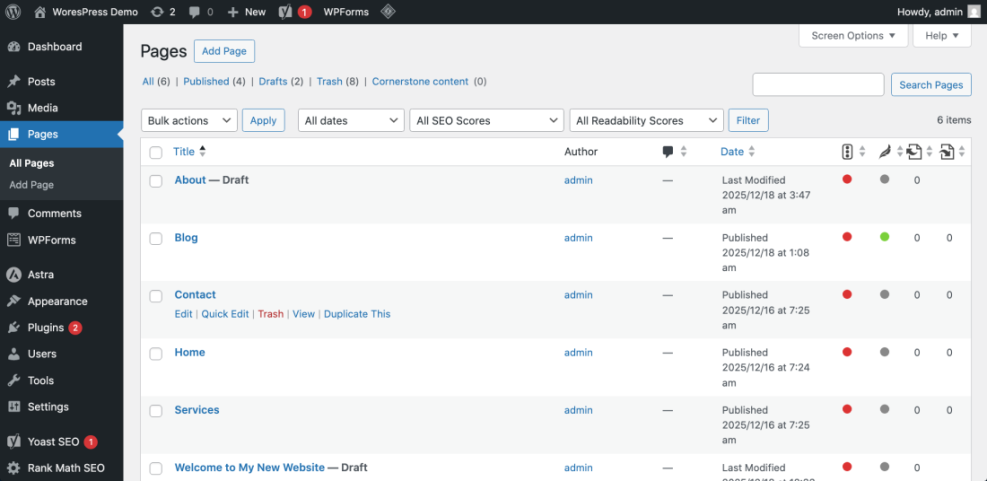
How to verify: You should have a short list of one or more source pages and a clear purpose for each duplicate (for example, new service pages or location pages).
Step 2: Install a duplicate pages plugin
For most users, a dedicated plugin is the safest and fastest way to duplicate pages. The Duplicate Page plugin from WordPress.org lets you clone a page with one click while keeping your layout intact.
- In the dashboard, go to Plugins » Add New.
- In the search box, type Duplicate Page.
- Locate the plugin named Duplicate Page by mndpsingh287.
- Click Install Now, then click Activate once installation finishes.
- After activation, go to Settings » Duplicate Page.
- Under the post type options, ensure Page is checked so pages can be duplicated.
- Set Duplicate Post Status to Draft so copies are created as drafts instead of immediately published.
- Click Save Changes at the bottom of the settings page.
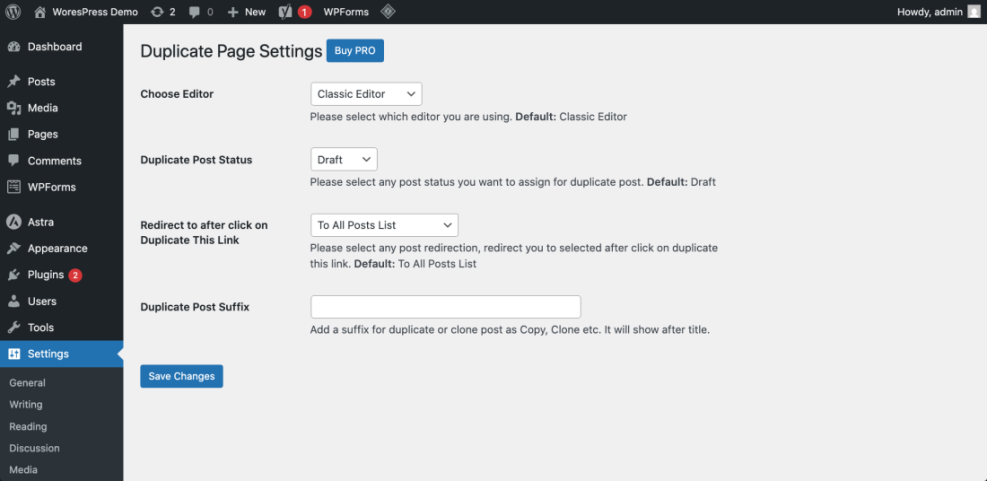
For more details, you can also review the plugin information on its official page at WordPress.org.
How to verify: Go to Pages » All Pages and hover over a page title. You should now see a Duplicate This (or similar) link in the row actions.
Step 3: Duplicate single and multiple pages
With the plugin active, you can now clone your source pages. Start with a single page to confirm everything works, then repeat the process or use a bulk-friendly plugin if you need many copies.
- Navigate to Pages » All Pages.
- Hover over the source page you want to duplicate.
- Click the Duplicate This link added by the plugin.
- Wait for WordPress to refresh the page list. You should see a new draft with the same title, often with “Copy” or similar text added.
- Click the duplicated page title to open it in the editor.
- Change the page Title to the new name you planned in Step 1.
- Update any content that must be unique, such as city names, pricing, or testimonials.
- Click Publish or Update when you are ready for the page to go live.
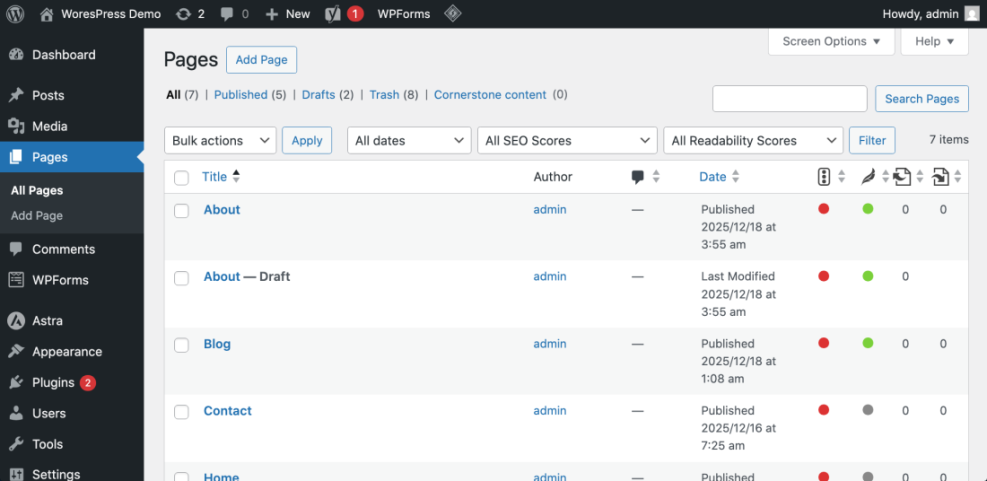
How to verify: Visit the new page on the front end. The layout and design should match the original, but the title and any unique content you edited should reflect your changes.
Step 4: Duplicate pages manually without plugins
If you cannot install plugins or prefer a minimal setup, you can still duplicate pages manually using built in copy tools in the WordPress editor. This method is slower but works on almost any site.
- Go to Pages » All Pages and click the title of the page you want to copy.
- In the block editor (Gutenberg), click the three dot Options menu in the top right corner of the editor.
- Under the Tools section, click Copy all blocks or Copy all content.
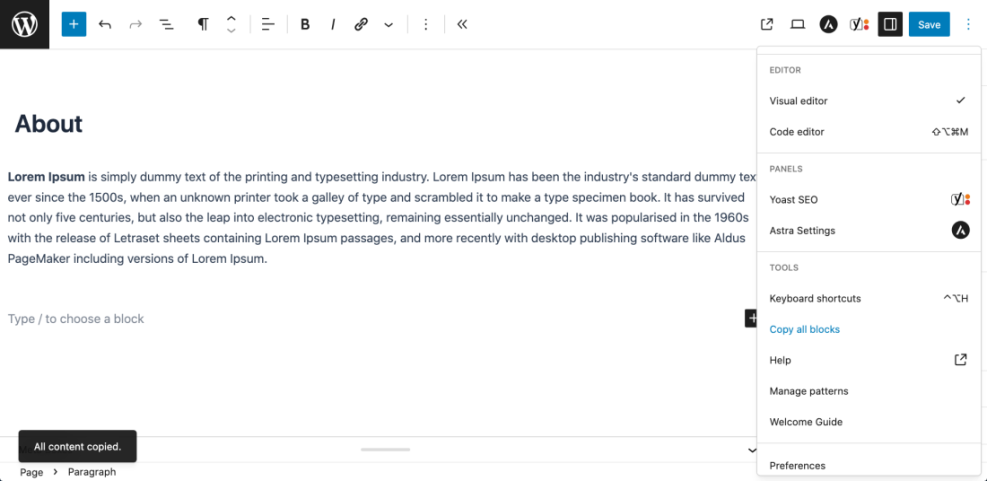
- In a new tab, navigate to Pages » Add New.
- Enter a new Title for your duplicate page.
- Click inside the content area, then paste using Ctrl + V (Windows) or Cmd + V (Mac).
- Review the pasted layout to ensure all blocks and styles appear as expected.
- Click Publish when you are ready.
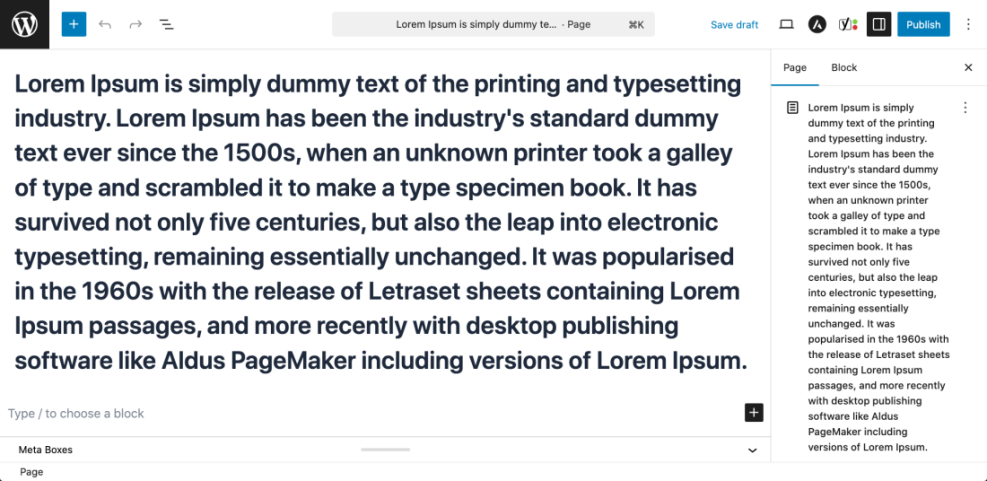
Classic Editor note: If you use the Classic Editor, switch to the Text tab, press Ctrl + A to select everything, then Ctrl + C to copy. Create a new page, switch to Text, paste the content, then switch back to Visual.
How to verify: Compare the original and new pages in separate browser tabs. All sections, images, and formatting should match before you start customizing the duplicate.
Step 5: Add an optional duplicate link with code
Advanced users can add their own Duplicate link to the page list using a small PHP snippet. This keeps your stack lightweight and gives you more control over who can duplicate pages.
- Install and activate a safe “code snippets” plugin, or open your child theme’s functions.php file in a code editor.
- Copy the following code snippet.
- Paste it into a new snippet or at the bottom of functions.php, then save your changes.
- Reload Pages » All Pages. You should see a new Duplicate action under each page title.
 * Add a Duplicate link to page rows and duplicate the page as a draft.
 */
function wph_duplicate_page_action() {
    if ( ! isset( $_GET['post'], $_GET['_wpnonce'] ) ) {
        return;
    }

    $post_id = absint( $_GET['post'] );

    if ( ! current_user_can( 'edit_page', $post_id ) ) {
        wp_die( 'You do not have permission to duplicate this page.' );
    }

    if ( ! wp_verify_nonce( $_GET['_wpnonce'], 'wph_duplicate_page_' . $post_id ) ) {
        wp_die( 'Nonce verification failed.' );
    }

    $post = get_post( $post_id );

    if ( ! $post || 'page' !== $post->post_type ) {
        wp_die( 'Invalid page.' );
    }

    $new_post_id = wp_insert_post(
        array(
            'post_title'   => $post->post_title . ' Copy',
            'post_content' => $post->post_content,
            'post_status'  => 'draft',
            'post_type'    => 'page',
        )
    );

    if ( $new_post_id ) {
        wp_redirect( admin_url( 'post.php?action=edit&post=' . $new_post_id ) );
        exit;
    }

    wp_die( 'Page could not be duplicated.' );
}
add_action( 'admin_action_wph_duplicate_page', 'wph_duplicate_page_action' );

/**
 * Add Duplicate link to the page row actions.
 */
function wph_add_duplicate_page_link( $actions, $post ) {
    if ( 'page' === $post->post_type && current_user_can( 'edit_page', $post->ID ) ) {
        $url = wp_nonce_url(
            admin_url( 'admin.php?action=wph_duplicate_page&post=' . $post->ID ),
            'wph_duplicate_page_' . $post->ID
        );
        $actions['wph_duplicate'] = '<a href="' . esc_url( $url ) . '">' . esc_html__( 'Duplicate', 'wph' ) . '</a>';
    }

    return $actions;
}
add_filter( 'page_row_actions', 'wph_add_duplicate_page_link', 10, 2 );
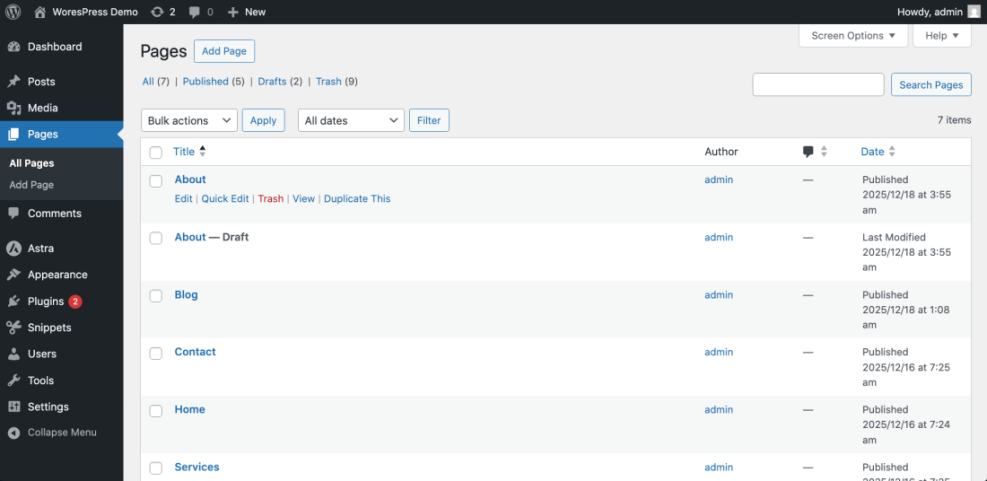
How to verify: Click the new Duplicate link under any page. WordPress should open an edit screen for a new draft whose title ends with “Copy”, and whose content matches the original page.
Step 6: Update titles slugs menus and SEO
After duplication, you must “de-template” each clone so it makes sense to visitors and search engines. Leaving multiple identical pages live can confuse users and dilute rankings.
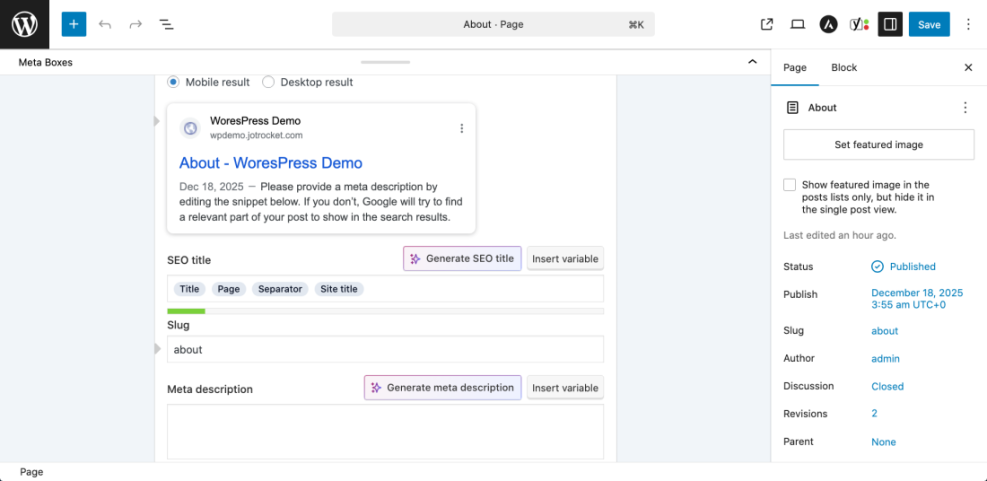
- Open your duplicated page and change the page Title to something unique and descriptive.
- Below the title, edit the Permalink or URL Slug so it matches the new page topic (for example,
/services/seo-audit/instead of copying the old slug). - Scroll to the page Content and update any headings, city names, prices, or calls to action that must be unique.
- If your theme uses page templates, check the Template option in the sidebar to ensure the duplicate uses the correct layout.
- Navigate to Appearance » Menus and add the new page to your navigation where appropriate.
- Review your SEO plugin fields (title, meta description, canonical URL) so they describe the new page, not the original.
How to verify: Visit both the original and new pages in your browser. The URLs, titles, and key content should all be different, but the core layout should remain consistent.
Conclusion You Are Ready to Go
You now have several reliable ways to duplicate pages in WordPress, from one click plugin cloning to manual copy and an advanced custom code link. Used correctly, duplication lets you scale your content while keeping design and branding consistent.
Before you publish any clone, remember to adjust titles, slugs, internal links, and SEO settings so each page serves a clear purpose. With a solid backup plan and a bit of discipline, duplicating pages becomes a safe, time saving part of your everyday WordPress workflow.
Further Reading
- How to Edit Pages in WordPress
- Beginner guide to WordPress speed optimization
- Beginner guide to WordPress speed optimization
- WordPress seo complete beginners guide
Frequently Asked Questions
Can I duplicate pages in WordPress without a plugin
Will duplicating pages hurt my SEO
How do I duplicate a page with all images and layout
Which user roles are allowed to duplicate pages
current_user_can() before creating a clone. Can I duplicate WooCommerce pages or custom post types