How to Duplicate Page in WordPress
A step-by-step guide to safely cloning WordPress pages (with and without plugins)

Need to reuse a layout, quickly spin up a new landing page, or test a redesign without breaking your live content? Duplicating a page in WordPress is the fastest way to start from a copy instead of a blank canvas.
In this guide, you’ll learn how to duplicate a page in WordPress using both plugin and no-plugin methods. We’ll cover the Block Editor (Gutenberg), the Classic Editor, and a simple plugin approach, plus how to clean up your URL, menus, and SEO settings afterwards so you don’t accidentally confuse visitors or search engines.
If you’re completely new to the dashboard and basic navigation, it can help to first review a general tutorial on how to use WordPress, then come back here for the duplication workflow.
Prerequisites
Before you duplicate any page, make sure you have these basics in place:
- Access to the WordPress admin area with at least Editor or Administrator permissions.
- A page you want to duplicate already created and published or saved as a draft.
- Knowledge of whether you’re using the Block Editor (Gutenberg), Classic Editor, or a page builder plugin.
Step 1: Choose Your Page Duplication Method
There are three main ways to duplicate a page in WordPress. The right one for you depends on how often you do it and how your site is built:
- Plugin method: Best for non-technical users and sites that duplicate pages regularly. Adds “Duplicate” links right inside the Pages list.
- No-plugin (Block Editor): Uses “Copy all content” so you can paste the content into a new page.
- No-plugin (Classic Editor): Uses browser copy/paste from the editor itself.
Step 2: Duplicate a Page Using a Plugin
This is the easiest method for most users. We’ll use a dedicated “Duplicate Page” style plugin that adds a one-click duplicate link to your Pages screen.
- Install and activate the plugin.
- Go to
Plugins → Add Newin your WordPress dashboard. - Search for “Duplicate Page” (or a similar duplication plugin from a reputable author).
- Click Install Now, then Activate.
- Go to
- Configure which post types can be duplicated.After activation, many plugins add a settings page under
Settings → Duplicate Pageor under their own menu.- Ensure Pages is selected as an allowed post type.
- Optionally, configure the default status of duplicates (Draft, Pending Review, or Published).
- Duplicate your chosen page.
- Go to
Pages → All Pages. - Hover over the page you want to copy.
- Click the new Duplicate or Clone link that appears in the row actions.
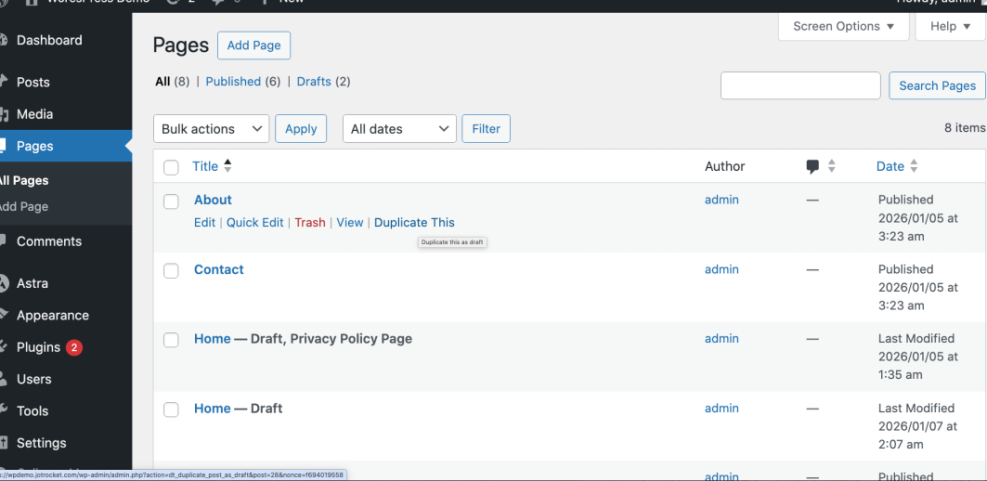
Locate the ‘Duplicate This’ option under any page title in your WordPress admin to quickly create a copy. - Go to
- Edit the duplicate.Most plugins will create a new page with the same title plus “Copy” or “Duplicate” appended.
- Click the duplicate to open it in the editor.
- Change the title to something unique (e.g., “Home – Summer Campaign”).
- Adjust the page content, images, and call-to-actions as needed.
When you’re done, click Publish or Update, but don’t forget to review the URL and menu placement in the next steps.
Step 3: Duplicate a Page in the Block Editor (No Plugin)
If you prefer not to install a plugin, you can duplicate a page using the Block Editor’s built-in “Copy all content” feature. This works best when your layout is built with standard Gutenberg blocks.
- Open the original page in the editor.
- Go to
Pages → All Pages. - Click the title of the page you want to duplicate to open it in the Block Editor.
- Go to
- Copy all blocks.
- Click the three-dot (⋮) menu in the top-right corner of the editor.
- Find and click Copy all blocks or Copy all content.
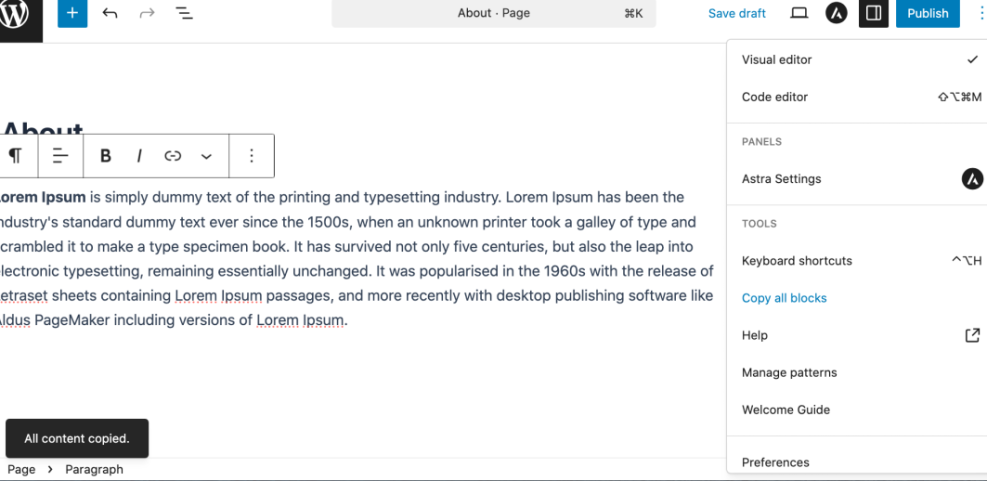
Using the ‘Copy all blocks’ feature in the WordPress editor to duplicate page content. - Create a new page.
- In the admin bar, click + New → Page, or go to
Pages → Add New. - Give your new page a working title (you can refine it later).
- In the admin bar, click + New → Page, or go to
- Paste the content.
- Click inside the empty editor canvas.
- Use your keyboard shortcut (e.g.,
Ctrl + Von Windows,Cmd + Von Mac) to paste all copied blocks.
- Save as draft and review.Click Save draft and preview the page. Check that all blocks, columns, and media look identical to the original layout.
Step 4: Duplicate a Page in the Classic Editor
If your site still uses the Classic Editor (including Jannah theme setups that prefer it), you can duplicate a page by copy/pasting from the editor window.
- Open the page in the Classic Editor.
- Go to
Pages → All Pages. - Click the page title to open it. Make sure you see the Classic Editor with visual and text tabs.
- Go to
- Switch to the “Text” tab (recommended).Switching to Text lets you copy the HTML markup, which is more reliable for complex layouts and shortcodes than just copying what you see in the Visual tab.
- Select and copy all content.
- Click inside the editor.
- Press
Ctrl + A(Windows) orCmd + A(Mac) to select everything. - Press
Ctrl + CorCmd + Cto copy.
- Create a new page and paste.
- Go to
Pages → Add New. - Give the new page a title.
- Switch to the Text tab and paste your copied content.
- Optionally, switch back to the Visual tab to tweak formatting.
- Go to
- Preview the duplicate.Click Preview and ensure all shortcodes, Jannah-specific elements, and layout sections look correct on the front-end.
Step 5: Update URL, Menu, and SEO Settings
Once you’ve duplicated a page, it’s important to clean up the details so your site stays organized and your SEO doesn’t suffer.
- Change the page title.Give your duplicate a clear, unique title that reflects its purpose, such as “Services – Local Campaign” or “Home – A/B Test B”. This helps users and your own team recognize it.
- Adjust the permalink (URL slug).In the editor sidebar or just under the title field, edit the permalink so it’s short and meaningful (e.g.,
/services-local/instead of/services-copy/). If you’re unsure how slugs work in WordPress, review the guide on what a permalink is in WordPress. - Control where the page appears in menus.
- Go to
Appearance → Menus(or your theme’s menu settings). - Add the new page to a menu only if you want visitors to find it easily.
- Remove test duplicates from menus to avoid cluttering navigation.
- Go to
- Review SEO settings and meta tags.
- Open your SEO plugin sidebar (Yoast, Rank Math, etc.).
- Update the SEO title and meta description so they’re unique.
- Check that canonical URLs and index/noindex settings match your intent.
- Set the correct page status.If the duplicate is only for internal review, keep it as Draft or mark it noindex in your SEO plugin so it doesn’t show up in search results.
Step 6: Fix Common WordPress Page Duplication Issues
Sometimes a duplicated page doesn’t behave exactly like the original. Here’s how to fix common problems.
Layout looks broken or different
- Check for missing styles: If your theme or page builder uses custom templates, ensure the same template is selected in the “Page Attributes” or builder settings.
- Verify shortcodes: Some shortcodes rely on unique IDs. Reconfigure them on the duplicate page if they point to the wrong content.
Images or background sections are missing
- Open the Block Editor or Classic Editor and confirm the images are attached to the content.
- If you copied via HTML, make sure image URLs didn’t get truncated during copy/paste.
- Re-add any missing background images or featured images manually.
Menu points to the wrong version
- Go to
Appearance → Menusand verify which page is in your primary menu. - If both the original and duplicate are listed, rename one clearly and remove any that shouldn’t be publicly visible.
SEO plugin shows duplicate focus keywords
- Open the SEO meta box or sidebar on both pages.
- Give each page a clearly different focus keyword and unique SEO title.
- Mark pure test pages as noindex if they don’t need to rank.
If you ever need to scale this process and clone many pages at once, it’s more efficient to follow a bulk workflow like the one in our dedicated guide on how to duplicate pages in WordPress and combine it with a clear content strategy.
Cloning WordPress Pages the Safe, Repeatable Way
Duplicating a page in WordPress doesn’t have to be risky or complicated. Whether you use a plugin, the Block Editor’s “Copy all content” option, or Classic Editor copy/paste, the key steps are always the same: copy the layout, paste it into a new page, and then carefully update titles, URLs, menus, and SEO settings.
With a consistent duplication workflow in place, you can experiment with new layouts, run A/B tests, and roll out campaign-specific landing pages much faster—without touching your original designs. Over time, you’ll build a reusable library of page layouts that makes every new page quicker and more consistent.
Further Reading
- How to Copy a Page in WordPress
- How to Duplicate a Post in WordPress
- How to Unpublish a Page in WordPress
- How to Export a Page in WordPress
Frequently Asked Questions
Will duplicating a page hurt my SEO?
Why does my duplicated page look different from the original?
Is it better to use a plugin or copy and paste to duplicate pages?
Can I duplicate a page safely on a live website?
How long does it take to duplicate and customize a page?