How to Duplicate a Page in WordPress
A safe, SEO-friendly workflow for cloning existing pages without breaking your layout.


Sometimes you need an exact copy of an existing page—same layout, same blocks, same design—but with different text or a new offer. Manually rebuilding that layout every time is slow and error-prone.
In this guide, you’ll learn how to duplicate a page in WordPress using three reliable methods: the Block Editor, the Classic Editor, and a dedicated duplication plugin. We’ll also cover how to clean up the clone so you don’t create SEO problems or confuse visitors.
If you’re brand new to the dashboard and page editor, it may help to skim our WordPress guides and tutorials overview first, then come back here to follow the duplication workflow step by step.
Prerequisites
Before you start duplicating pages, make sure you have the right access and safety nets in place. This prevents layout surprises and SEO issues on a live site.
- Administrator or Editor access to the WordPress dashboard.
- An existing page you want to copy (already designed and working).
- The Block Editor or Classic Editor enabled on your site (or a page builder that uses one of them).
- A recent backup of your website, especially if you install a new plugin.
Step 1: Decide How You Want to Duplicate the Page
There isn’t just one “right” way to duplicate a page in WordPress. The best method depends on your editor, your workflow, and how many details you need to copy.
- Block Editor copy & paste: Best if you use Gutenberg blocks and want a clean layout copy with fresh SEO fields.
- Classic Editor copy & paste: Ideal for older sites or basic layouts without complex page builders.
- Duplication plugin: Perfect when you need to clone everything (content, featured image, custom fields, sometimes SEO data) with one click.
Step 2: Duplicate a Page with the Block Editor (Gutenberg)
If your site uses the Block Editor, you can duplicate a page quickly by copying all blocks from the original page into a new draft.
2.1 Open the original page
- Log in to your WordPress dashboard.
- Go to Pages > All Pages.
- Hover over the page you want to duplicate and click Edit to open it in the Block Editor.
2.2 Copy all blocks from the original page
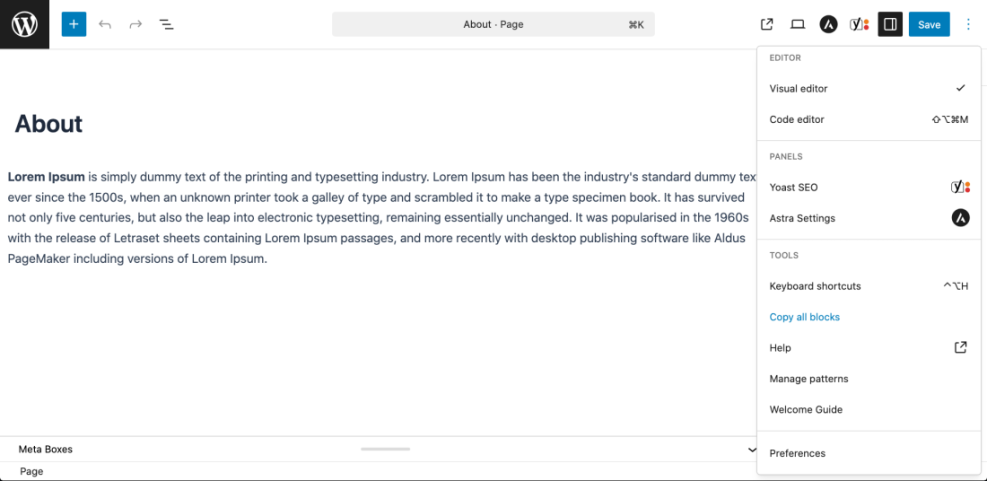
- Inside the Block Editor, click the three-dot menu (Options) in the top-right corner.
- Choose Copy all blocks (or Copy all content, depending on your WordPress version).
- All blocks on the page are now copied to your clipboard, including columns, buttons, images, and headings.
2.3 Create a new page and paste the layout
- In a new browser tab or the same one, go to Pages > Add New.
- Click into the main content area and press Ctrl + V (Windows) or Cmd + V (Mac) to paste.
- WordPress will insert the exact same block layout as the original page.
2.4 Rename the page and adjust the URL
- Update the title at the top to reflect the new page’s purpose.
- Click the URL/permalink field under the title and edit the slug so it’s unique (for example, change
/services/to/services-consulting/). - Click Save draft to store the duplicated layout safely.
Step 3: Duplicate a Page with the Classic Editor
If your site still uses the Classic Editor, you’ll follow a similar copy-and-paste approach using the Visual and Text tabs.
3.1 Copy content from the original page
- Go to Pages > All Pages in your WordPress dashboard.
- Hover over the page you want to duplicate and click Edit.
- In the Classic Editor, click the Text tab to view the HTML version of the content.
- Press Ctrl + A (Windows) or Cmd + A (Mac) to select all the code, then Ctrl/Cmd + C to copy it.
3.2 Paste into a new page
- Go to Pages > Add New.
- Click the Text tab in the editor on the new page.
- Paste the copied content using Ctrl/Cmd + V.
- Switch back to the Visual tab to confirm the layout looks correct.
3.3 Update title, slug, and save
- Change the page title to something that clearly describes the new page.
- Edit the URL slug under the title so it’s unique and descriptive.
- Click Save draft or Publish when you’re ready.
Step 4: Duplicate a Page Using a Plugin
A duplication plugin is the fastest option when you frequently clone pages or need to copy extra data such as custom fields, featured images, and sometimes SEO metadata.
4.1 Install a duplication plugin
- From your dashboard, go to Plugins > Add New.
- In the search field, type duplicate page or duplicate post.
- Choose a reputable plugin with good reviews (for example, plugins that offer “Clone”, “Duplicate”, or “New Draft” links for pages).
- Click Install Now, then Activate.
4.2 Configure plugin settings
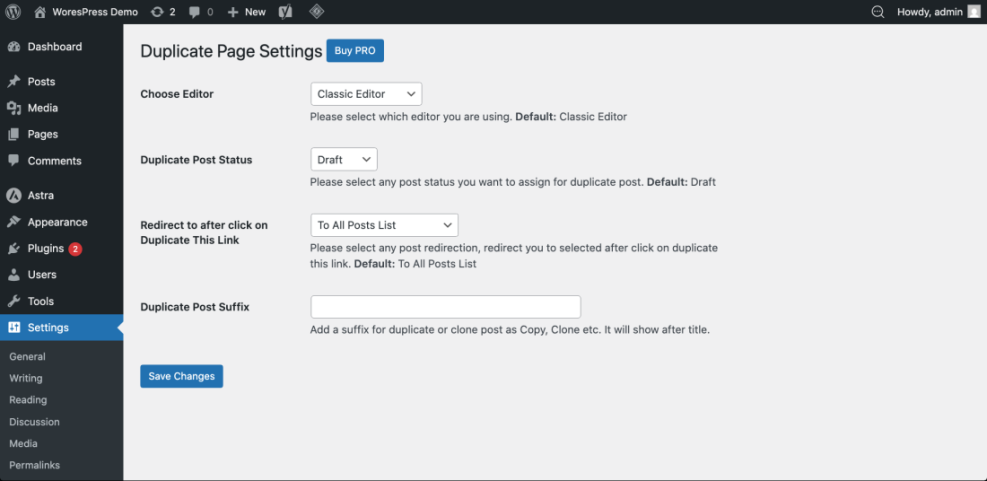
- Go to the plugin’s settings page (often under Settings > Duplicate or similar).
- Enable duplication for the Page post type.
- Choose what should happen after duplication (e.g., redirect to the new draft or stay on the list of pages).
- Optionally, configure which fields to copy (title, slug, custom fields, etc.), if the plugin supports this.
4.3 Clone the page with one click
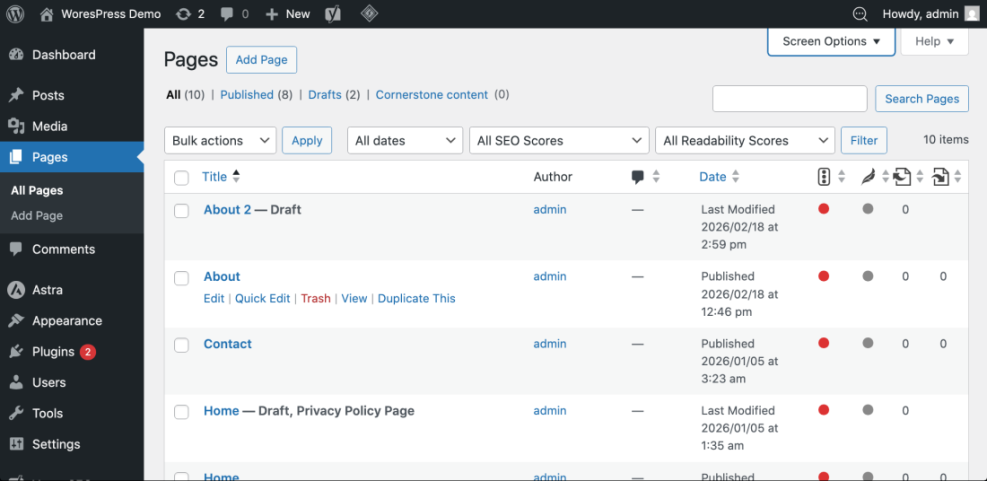
- Go to Pages > All Pages.
- Hover over the page you want to duplicate.
- Click the new link added by the plugin, such as Clone, Duplicate, or New Draft.
- WordPress will create a new page with the same content and open it as a draft.
Step 5: Clean Up the Duplicated Page for SEO
Once you’ve cloned the page, you must make a few quick SEO changes so the new page doesn’t compete with the original or look like thin, duplicate content.
5.1 Rewrite the title and main headings
- Change the page title so it clearly describes the new offer or topic.
- Update the main H1 (usually the title) and any major H2 headings so they aren’t identical to the original page.
- Adjust introductory paragraphs to reflect the new purpose of the page.
5.2 Update slug, meta title, and description
- Click the page URL/permalink field and set a new, descriptive slug (for example, add a qualifier like
-2025,-pricing, or-template). - In your SEO plugin (Yoast, Rank Math, etc.), update the SEO title and meta description to match the new content.
- Use unique keywords; for more detail on optimizing these fields, see our step-by-step guide to on-page SEO in WordPress.
5.3 Review internal links and calls to action
- Scan the duplicated page for internal links that still point to the original page and decide whether some should point to the new page instead.
- Update any call-to-action buttons, forms, or contact details so they match the new goal.
- If the duplicate is a landing page for a different campaign, ensure tracking URLs and UTM parameters are updated.
Step 6: Test and Publish Your Duplicated Page
Before you publish, run through a quick checklist to make sure the cloned page looks and behaves correctly on all devices.
6.1 Preview on desktop and mobile
- Click Preview in the editor and review the page on desktop.
- Use the preview’s device toggles (if available) or your browser’s responsive tools to check the page on tablet and mobile sizes.
- Confirm that key elements—hero section, forms, buttons, and menus—display correctly and are usable.
6.2 Check menus, widgets, and footer
- Verify that the duplicated page appears in the right navigation menus, if it should be listed there.
- Confirm that sidebars or widgets are showing the correct information for the new page.
- Review the footer links and contact details so you’re not accidentally linking back to the original page where you meant to link to the new one.
6.3 Publish and monitor
- When you’re satisfied, click Publish (or Update if you are replacing an existing draft) for the new page.
- Visit the URL in an incognito window to confirm everything looks right to visitors.
- Monitor analytics and search performance to ensure the new page is getting traffic and not cannibalizing the original.
Safely Duplicating WordPress Pages Without the Headaches
Duplicating a page in WordPress is simple once you understand the workflow. Whether you use the Block Editor, Classic Editor, or a plugin, the key is to copy the layout efficiently and then immediately update titles, URLs, and content so the new page stands on its own.
Use this process whenever you need a new landing page, a variant of a service page, or a localized version of existing content. Over time, you’ll build consistent, high-performing pages faster, without breaking your design or damaging your SEO.
If you also need to duplicate blog posts or other content types, pair this workflow with a dedicated guide like how to duplicate a post in WordPress to keep your entire site organized.
Further Reading
- How to Copy a Page in WordPress
- How to Duplicate Multiple Pages in WordPress
- How to Export a Single Page in WordPress
- How to Unpublish a Page in WordPress
- Beginner Guide to WordPress Backup and Restore Strategies
Frequently Asked Questions
Can I duplicate a page in WordPress without a plugin?
Why is my duplicated page not showing the same layout?
- The theme or page builder adds layout options that weren’t copied (e.g., template selection or sidebar settings).
- Shortcodes that depend on page-specific settings may not behave the same on the new page.
- The new page is using a different template (for example, “Default” instead of “Full Width”).
Check the Page Attributes or Template settings in the editor and make sure they match the original. Then preview again.
Will duplicating pages hurt my SEO?
To avoid issues, always:
- Change the title, headings, and content so the new page is unique.
- Use a unique slug and updated meta description.
- Redirect or noindex pages that are no longer needed.
Handled correctly, duplication can actually improve SEO by helping you build better, more focused pages faster.
Is it safe to duplicate pages on a live WordPress site?
- Always create duplicates as drafts first, not published pages.
- Update titles and URLs before making the new page public.
- Test the new page thoroughly in preview mode before publishing.
- Keep your duplication plugins up to date and delete any you no longer use.
Taking these steps minimizes security risks and prevents visitors from seeing incomplete or confusing content.
How long does it take to duplicate and update a WordPress page?
- Copying the layout: 1–2 minutes.
- Renaming the page and adjusting the URL: 1 minute.
- Updating headings, key text, and SEO fields: 5–15 minutes, depending on complexity.
If you also change images, forms, or advanced layout elements, budget extra time to test and preview. Once you’ve done this a few times, the whole process becomes very fast and routine.