
If you need to copy a page in WordPress for a new service, landing page, or layout test, you have several safe options that work with any modern site.
In this guide you will learn how to copy a page in WordPress using the block editor, the Classic Editor, a free duplicate page plugin, and a simple code snippet. Along the way, you will also see how to clean up URLs and SEO so your copied page is ready to publish.
What You Need to Start Before You Copy a Page
- Administrator or Editor access to your WordPress dashboard.
- At least one existing page you want to copy in WordPress.
- A recent backup of your site before installing plugins or adding code.
- Basic familiarity with opening and editing pages in WordPress.
Step 1: Choose How You Want to Copy a Page in WordPress
Before you start, decide whether you want a quick copy of the content only, or a reusable layout that you can duplicate many times. That choice helps you pick the simplest method to copy a page in WordPress.
Quick comparison of copy methods
| Method | Where You Use It | Main Purpose |
|---|---|---|
| Block Editor “Copy all blocks” | Pages » All Pages » Edit page (Gutenberg) | Quickly copy a page in WordPress and reuse its layout and content on a new page without extra plugins. |
| Classic Editor (Text tab) | Pages » All Pages » Edit page » Text tab | Copy all HTML and shortcodes from one WordPress page into another for a full duplicate. |
| Duplicate Page plugin | Plugins » Duplicate Page + Pages list | One click clone of content, meta, featured image, and template when you duplicate a WordPress page. |
| Custom Duplicate link (code) | Child theme functions.php | Add a lightweight Duplicate action in the page list so editors can copy pages in WordPress without a plugin. |
| Page builder template | Inside Elementor / other page builder | Save and reuse full page designs as templates across multiple pages whenever you need to copy a WordPress page. |
- Log in to your WordPress dashboard by visiting yourdomain.com/wp-admin and entering your credentials.
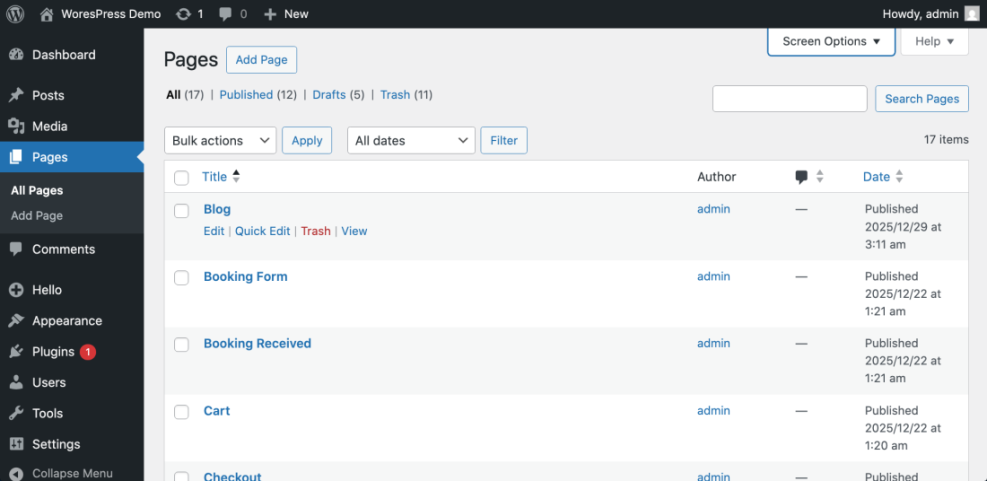
- Next, in the dashboard sidebar, click Pages then All Pages to see your existing pages.
- Hover over the title of the page you want to reuse and note whether it opens in the block editor or Classic Editor when you click Edit. That detail determines which way you will copy a page in WordPress.
Step 2: How to Copy a Page in WordPress with the Block Editor
Pages that use the block editor can be cloned by copying all blocks into a new page in just a few clicks. This method is perfect when you only need a similar layout and content.
Copy blocks from the original page
- From Pages » All Pages, hover the page you want to copy and click Edit.
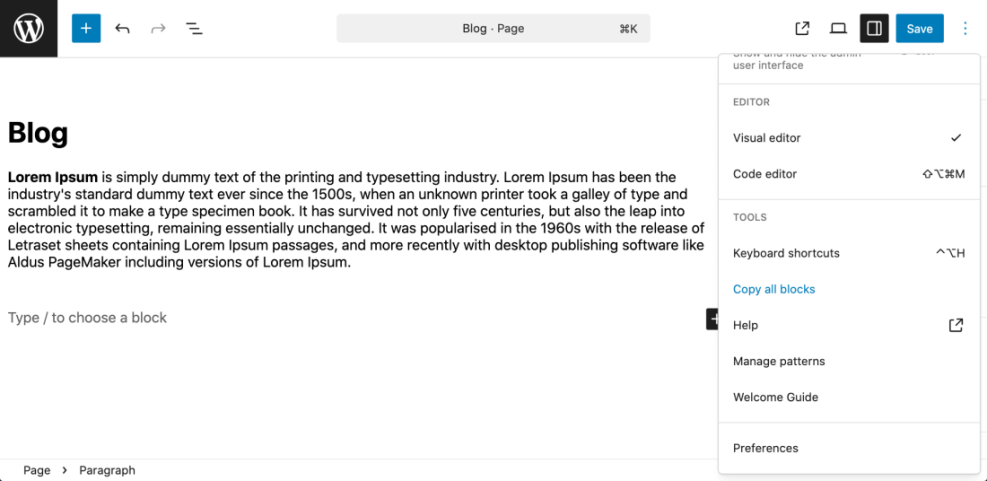
- Inside the editor, click the three vertical dots Options menu in the top right corner of the screen.
- In the dropdown, choose Copy all blocks. Every block on the page is now on your clipboard.
Paste blocks into a new WordPress page
- After that, go back to the Pages section and click Add New to create a fresh page.
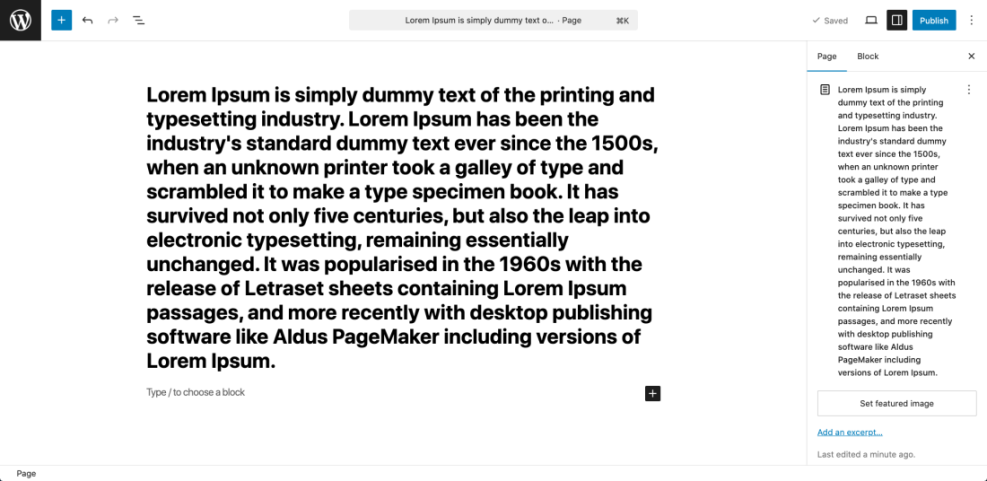
- Click once inside the empty editor canvas, then press Ctrl + V (Windows) or Cmd + V (Mac) to paste the copied blocks and copy the page layout in WordPress.
- Change the Title field at the top to a unique page name that reflects the new copied page.
- Adjust the Permalink or URL settings so the slug does not match the original page.
- Finally, click Save draft or Publish once you are happy with the copy.
To verify success, open the new page in a separate tab and compare it side by side with the original. The layout and content should match, while the URL and title are unique. Overall, this is the easiest way to copy a page in WordPress using Gutenberg.
Step 3: How to Copy a WordPress Page with the Classic Editor
Sites that still use the Classic Editor can copy a page in WordPress by copying the entire page from the Text tab and pasting it into a new page. Doing it this way preserves formatting and shortcodes.
Copy from the Text tab
- From Pages » All Pages, hover the page and click Edit to open it in the Classic Editor.
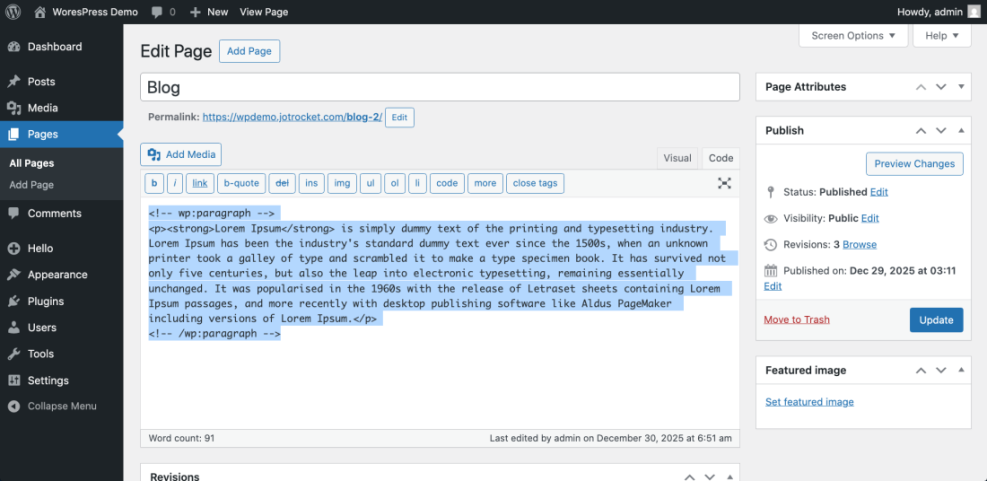
- In the editor, click the Text tab so you see the raw HTML and shortcodes.
- Press Ctrl + A (Windows) or Cmd + A (Mac) to select all the content, then press Ctrl + C or Cmd + C to copy.
Create and edit your new page
- Return to the Pages list and click Add New to create a new page.
- Switch the new editor to the Text tab, click once inside the editing area, then press Ctrl + V or Cmd + V to paste and duplicate your WordPress page.
- Move back to the Visual tab to confirm that the layout looks correct.
- Update the Title and Permalink so they are unique.
- Finish by clicking Save draft or Publish when ready.
After saving, visit the new page in your browser to verify that all text, images, and shortcodes appear correctly and that links point where you expect. This Classic Editor approach is a reliable way to copy a page in WordPress on older sites.
Step 4: Copy a Page in WordPress with a Duplicate Page Plugin
Using a dedicated duplicate page plugin is the fastest method when you copy pages in WordPress often or want to keep metadata, featured images, and templates together.
Install and configure the plugin
- In the WordPress dashboard sidebar, choose Plugins and then click Add New.
- Use the search field to look for Duplicate Page.
- Find the plugin titled Duplicate Page and click Install Now, then click Activate.
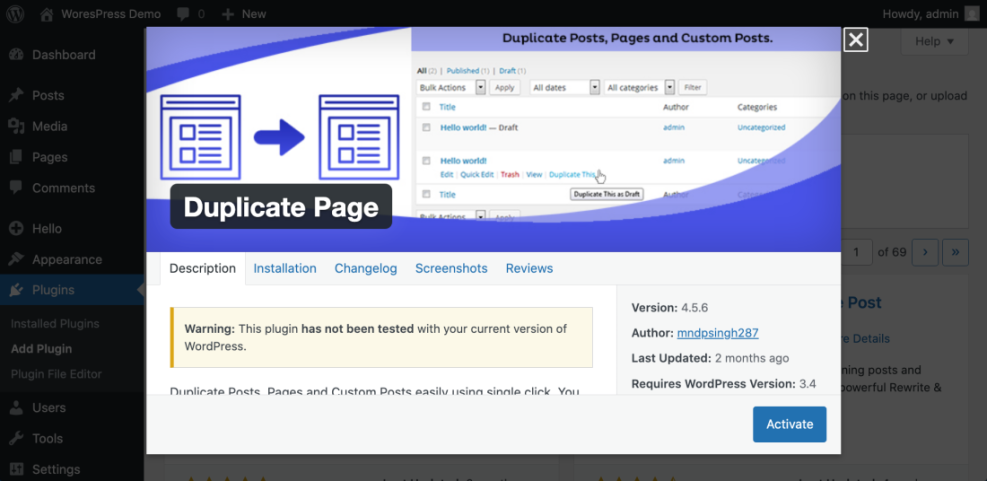
- After activation, navigate to Settings » Duplicate Page to configure how copies are saved (for example as Draft).
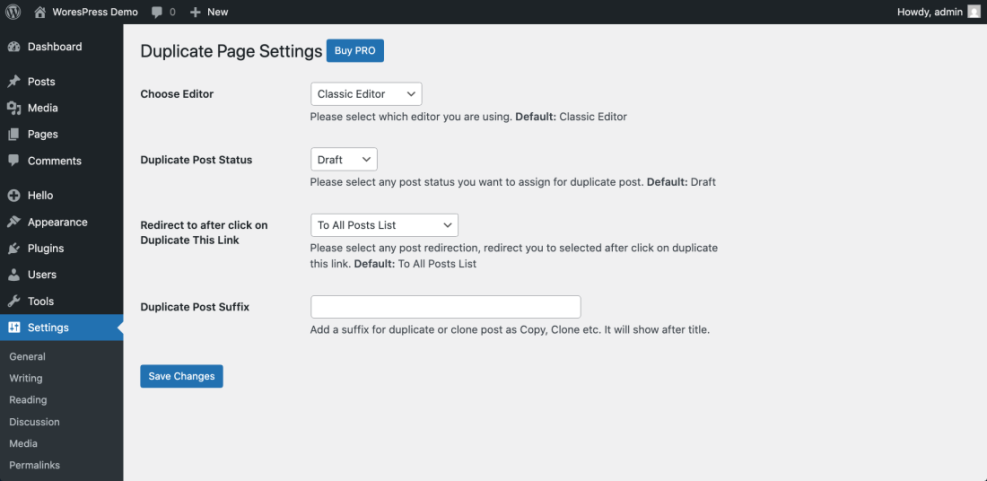
Clone an existing WordPress page
- Head back to Pages » All Pages.
- Hover any page and click the new Duplicate or Clone link that appears under the title.
- WordPress instantly creates a new draft with the same content and settings. Click the copied page title to edit it.
- Rename the Title, adjust the Permalink, and update any internal links so the new page stands on its own.
Once you save your changes, confirm that the layout, featured image, and template match the original while the URL is unique. For anyone who clones content frequently, this plugin based method is ideal when you regularly copy a page in WordPress.
Step 5: Add a Simple Duplicate Link with Code to Copy Pages
Site owners who prefer not to use a plugin can still copy a page in WordPress by adding a duplicate link directly to the page list using a small custom function. Developers who manage many sites often like this approach.
Add the duplicate page function
- From your WordPress dashboard, go to Appearance » Theme File Editor or use SFTP to open your child theme functions.php file.
- Add the following snippet at the bottom of the file.
/**
 * Duplicate a page as a draft.
 */
function wph_duplicate_page_as_draft() {
    if ( empty( $_GET['post'] ) || empty( $_GET['_wpnonce'] ) ) {
        wp_die( 'No page to duplicate has been supplied.' );
    }

    $post_id = absint( $_GET['post'] );

    if ( ! current_user_can( 'edit_post', $post_id ) ) {
        wp_die( 'You are not allowed to duplicate this page.' );
    }

    if ( ! wp_verify_nonce( $_GET['_wpnonce'], 'wph_duplicate_page_' . $post_id ) ) {
        wp_die( 'Security check failed.' );
    }

    $post = get_post( $post_id );

    if ( $post ) {
        $new_post_args = array(
            'post_title'   => $post->post_title . ' (Copy)',
            'post_content' => $post->post_content,
            'post_status'  => 'draft',
            'post_type'    => $post->post_type,
        );

        $new_post_id = wp_insert_post( $new_post_args );

        $meta = get_post_meta( $post_id );
        foreach ( $meta as $key => $values ) {
            foreach ( $values as $value ) {
                add_post_meta( $new_post_id, $key, maybe_unserialize( $value ) );
            }
        }

        wp_safe_redirect( admin_url( 'post.php?action=edit&post=' . $new_post_id ) );
        exit;
    }

    wp_die( 'Page copy failed. Original not found.' );
}
add_action( 'admin_action_wph_duplicate_page', 'wph_duplicate_page_as_draft' );

/**
 * Add Duplicate link to page actions.
 */
function wph_add_duplicate_page_link( $actions, $post ) {
    if ( 'page' !== $post->post_type ) {
        return $actions;
    }

    if ( current_user_can( 'edit_post', $post->ID ) ) {
        $url = wp_nonce_url(
            admin_url( 'admin.php?action=wph_duplicate_page&post=' . $post->ID ),
            'wph_duplicate_page_' . $post->ID
        );

        $actions['duplicate'] = '<a href="' . esc_url( $url ) . '">Duplicate</a>';
    }

    return $actions;
}
add_filter( 'page_row_actions', 'wph_add_duplicate_page_link', 10, 2 );
Use the new Duplicate link
- Save the file and go back to Pages » All Pages.
- Hover any page and click the new Duplicate link to create a draft copy.
After clicking that link, open the new draft and confirm that the content and meta fields match the original, and that the status is Draft. This custom code gives you a simple, plugin free way to copy a page in WordPress.
Step 6: Clean Up URL and SEO Settings After You Copy a Page in WordPress
Every time you copy a page in WordPress, you must adjust the URL, page title, and SEO settings to avoid duplicate content and user confusion.
Update title, URL, and SEO fields
- Open your copied page in the editor.
- Update the Title so it clearly describes the new page purpose.
- Within the Permalink or URL field, change the slug to a short, keyword rich phrase.
- If you use an SEO plugin, revise the SEO title and Meta description so they are unique.
Check internal links and preview the page
- Scan the content for internal links that still point to the original page and adjust them if necessary.
- Preview the page and test key links and buttons before publishing.
Once that checklist is complete, view the new page in a private browser window and confirm that it has a distinct title, URL, and content tailored to its goal. This final check is important whenever you copy a WordPress page.
Step 7: Fix Common Problems When You Copy a Page in WordPress
Even a simple process can go wrong now and then. If anything looks off after you copy a page in WordPress, go through these quick checks before you panic.
Fix layout, styling, and content issues
- Whenever styling or layout is broken, verify that the same Template or page builder settings are selected in the page sidebar.
- Seeing blank or missing images on the copied page? Check the Media Library and make sure the image URLs are correct and not blocked by a hotlink or security rule.
- In cases where the duplicate link from a plugin does not appear, confirm the plugin is active and that your user role has permission to edit pages.
Handle menu visibility and extra copies
- A new page that does not show in menus needs to be added manually under Appearance » Menus.
- If you accidentally created many unwanted copies, use bulk actions in Pages » All Pages to move them to Trash.
Conclusion: You Know How to Copy a Page in WordPress
You now have multiple reliable ways to copy a page in WordPress, whether you prefer quick copy and paste in the editor, one click duplication with a plugin, or a reusable custom code solution.
Pick the method that best fits your workflow, always clean up URLs and SEO fields, and test the new page before publishing so visitors see a polished, intentional layout instead of a confusing duplicate. With these steps in place, you can confidently copy WordPress pages whenever you need them.
Further Reading
- How to edit WordPress files
- How to duplicate WordPress page
- How to Duplicate WordPress Page
- How to Export a Page in WordPress
- How to do on page seo in WordPress
Frequently Asked Questions
Will copying a page in WordPress hurt my SEO
Can I copy a page in WordPress without installing any plugin
Why does my duplicate page have the same URL as the original
How do I copy a page built with a page builder
Can I copy a page to a different WordPress site
Is it better to use a duplicate page plugin or custom code