Knowing your WordPress version helps with troubleshooting, compatibility checks, and security updates. The good news is you can check WordPress version in a few quick ways, even if you can’t log in.
Below you’ll learn how to find the installed release from wp-admin, page source, core files, and WP-CLI—plus what to do if version details are hidden for security.
What You Need to Find Your WordPress Version (Dashboard, Hosting, or WP-CLI)
The method you use depends on what access you have to the site (admin, hosting files, or server access).
- Admin access to wp-admin (fastest way to see the installed version).
- Hosting File Manager or FTP/SFTP access (to inspect core files).
- SSH access for WP-CLI (optional, but very reliable).
- A browser to view page source (sometimes works, often blocked).
Step 1: Choose Where to Check WordPress Version (Dashboard, Files, Source, WP-CLI)
Before you start, decide whether you’re working inside wp-admin, inside your hosting panel, or on the public site. That makes it easier to pick the quickest method.
| Version Check Method | Where You Use It | Main Purpose |
|---|---|---|
| Dashboard (Updates) | wp-admin » Dashboard » Updates | See the installed WordPress version when you can log in. |
| Page Source | Browser » View Page Source | Look for version hints (often removed for security). |
| Core File (version.php) | Hosting File Manager or FTP/SFTP | Read the exact WordPress core release from wp-includes/version.php. |
| readme.html | Browser » yoursite.com/readme.html | Sometimes shows the release number (often disabled). |
| WP-CLI | SSH Terminal | Display the installed core release directly from the server. |
| Method | Where You Use It | Main Purpose |
|---|---|---|
| Block Editor | Pages or Posts » Edit screen | Update text, images, buttons, and layouts using blocks without code. |
| Theme Customizer | Appearance » Customize | Change logo, colors, typography, and basic header/footer settings sitewide. |
| Site Editor (Block Themes) | Appearance » Editor | Edit templates and global styles for headers, footers, and layouts. |
| Page Builder (Elementor, Divi, WPBakery) | Page editor » Builder interface | Adjust drag-and-drop sections with advanced design controls. |
| Manual Code Edits | Child theme files or snippets plugin | Add custom styling or template changes for advanced control and performance. |
Verify success: You know which access path you’ll use (dashboard, hosting files, or WP-CLI) to confirm the installed release.
Method 1: Check WordPress Version in the Dashboard
Use Dashboard » Updates to See the Installed Version
If you can log in, this is the quickest way to confirm what version is running.
- Log in to /wp-admin.
- Go to Dashboard » Updates.
- Look for the message showing the current WordPress release number.
- Optional: check Dashboard » Home and the At a Glance widget (some sites show it there).
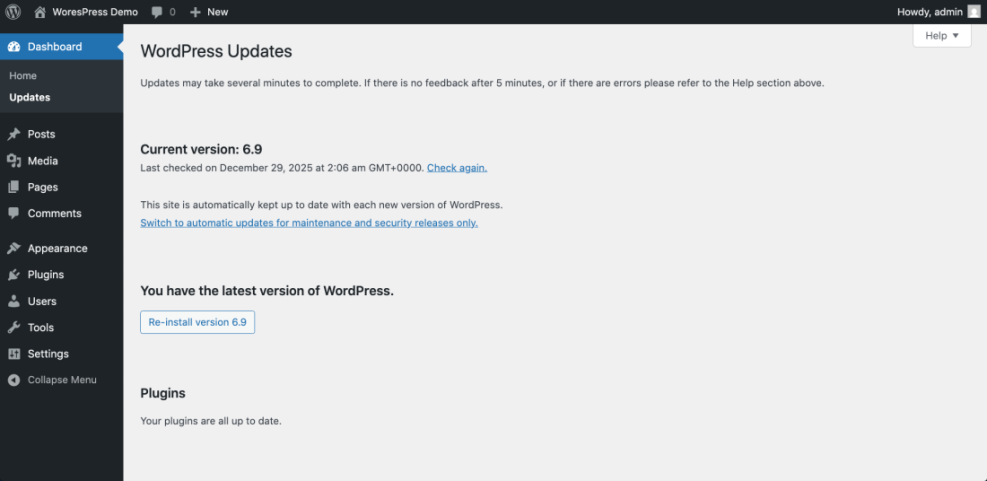
Verify success: You can see the exact version number in the Updates screen.
Method 2: Find Version Hints in Page Source (If Not Hidden)
Search for Generator Tag or “ver=” Strings
This approach can work without logging in, but many sites remove generator output and asset version strings.
- Open the homepage.
- Right-click and select View Page Source.
- Search for generator (Ctrl+F / Cmd+F).
- Also search for ver= in CSS/JS URLs (may be theme/plugin versions instead of core).
Verify success: You find a clear release reference or confirm the site hides it.
Method 3: Check WordPress Version From Core Files (wp-includes/version.php)
Read the $wp_version Value
If you have hosting access, this is one of the most accurate ways to verify the installed core release.
- Open your hosting File Manager or connect via FTP/SFTP.
- Go to /wp-includes/.
- Open version.php.
- Find the line:
$wp_version = 'x.x.x';
Verify success: You can read $wp_version with the full release number.
Method 4: Check Version Using readme.html (Optional)
Try /readme.html If It Exists
Some sites still have a public readme.html file that shows the release number. Many hosts/security plugins block it, so treat this as a bonus method.
- Visit: yoursite.com/readme.html
- If it loads, look for the version shown on the page.
Verify success: You see a release number or confirm the file is not accessible.
Method 5: Check WordPress Version Using WP-CLI
Run a Command to Display the Installed Release
WP-CLI is a clean way to confirm the running core release from the server.
- Connect to your server via SSH.
- Go to the WordPress root folder (where
wp-config.phpis located). - Run the command below.
wp core versionVerify success: The terminal prints the installed release number.
Troubleshooting: Why You Can’t See the WordPress Version
Common Reasons Version Info Is Hidden
- A security plugin removed generator output and blocked readme.html.
- Your theme doesn’t show version info in dashboard widgets.
- Your user role can’t view Updates in wp-admin.
- Caching is showing an older admin screen (clear cache and refresh).
Verify success: If the dashboard/source is unclear, use wp-includes/version.php or WP-CLI for a reliable answer.
Security Tip: Should You Hide the WordPress Version?
Reduce Public Exposure Without Breaking Updates
It’s usually smart to avoid exposing version details publicly, but the real protection is keeping core, themes, and plugins updated.
Conclusion: Best Ways to Check WordPress Version
If you can log in, use Dashboard » Updates. If you can’t, check wp-includes/version.php or run wp core version with WP-CLI to confirm the installed release.
FAQ: Check WordPress Version
What is the easiest way to check the installed version
Can I check the version without logging in
Why can’t I find version info in page source
Is readme.html safe to leave accessible