How to Check If WordPress Plugins Are up to Date
Essential WordPress plugins guide

Outdated plugins are one of the most common reasons WordPress sites get hacked or suddenly break. The good news is that it only takes a few minutes to keep your WordPress plugins up to date without guesswork.
In this guide you will learn several reliable ways to see which plugins need attention, how to read update notices, and how to avoid surprises after updating. By the end, you will know exactly how to check whether your WordPress plugins up to date or overdue for an update as part of your regular maintenance.
For a broader process that includes themes, backups, and core updates, see Step by Step WordPress Maintenance Process. You can easily plug the checks in this guide into that routine to keep all your WordPress plugins up to date over time.
What You Need Before You Start
- Administrator access to your WordPress Dashboard.
- Login details for your web hosting control panel or backup plugin (to create a quick backup).
- Optional but recommended A staging site or test copy if you run a busy or complex site.
- License keys for any premium plugins, so you can see all available updates.
Why Keeping WordPress Plugins Up to Date Matters
It is tempting to ignore update badges when your site seems to be working. But keeping WordPress plugins up to date protects more than just features.
- Security patches Many plugin updates quietly fix vulnerabilities. Attackers often scan for sites running old versions.
- Bug fixes and stability Updates resolve crashes, errors, and weird behavior that users might not report to you directly.
- Compatibility with WordPress core When you update WordPress itself, outdated plugins are more likely to break layouts or throw errors.
- New features and performance Developers constantly improve performance, UI, and integrations in new releases.
Checking regularly is the only way to be sure your site is running supported code instead of relying on “it still loads, so it must be fine”. A simple weekly habit of keeping WordPress plugins up to date will prevent most plugin-related problems.
Step 1: Check the Plugins screen for update notices
The Plugins screen shows a clear list of which tools are current and which need updates. It is the easiest way to see if your WordPress plugins up to date at a glance.
- Log in to your WordPress Dashboard at yourdomain.com/wp-admin.
- In the left menu, click Plugins » Installed Plugins.
- Look for any yellow boxes or messages under a plugin name saying There is a new version available.
- Notice the version comparison, for example “You have version 2.3.1 installed. Update to 2.4.0.”
- Plugins with no message and no update link are currently up to date.
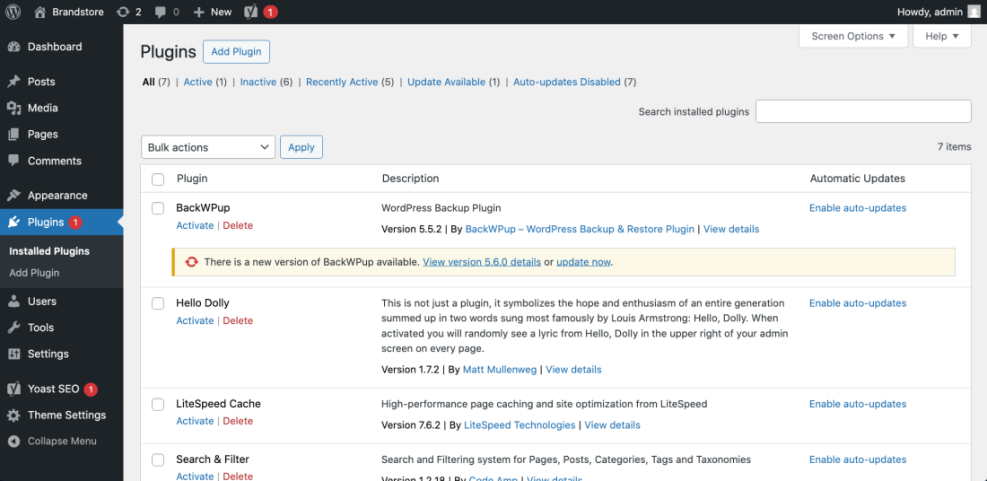
| What You See | What It Means |
|---|---|
| No message under plugin name | Plugin is currently up to date |
| Yellow “There is a new version available” notice | An update is available but not installed yet |
| “Enable auto-updates” or “Disable auto-updates” link | Shows whether the plugin is set to update automatically |
Verification Scroll down the list and confirm that only a few plugins (or ideally none) show update notices. If several do, your WordPress plugins up to date status needs attention.
Step 2: Use the Dashboard Updates screen
The Dashboard Updates screen shows all available updates in one place core, themes, and plugins. Use it during your regular maintenance routine to check your WordPress plugins up to date status in seconds.
- From the left menu, go to Dashboard » Updates.
- At the top you will see the current WordPress version and whether an update is available.
- Scroll down to the Plugins section.
- If you see “Your plugins are all up to date”, there are no pending plugin updates.
- If you see a list of plugins with checkboxes, those plugins have updates available.
- Click Check again at the top to refresh the list if you suspect there might be newer updates.
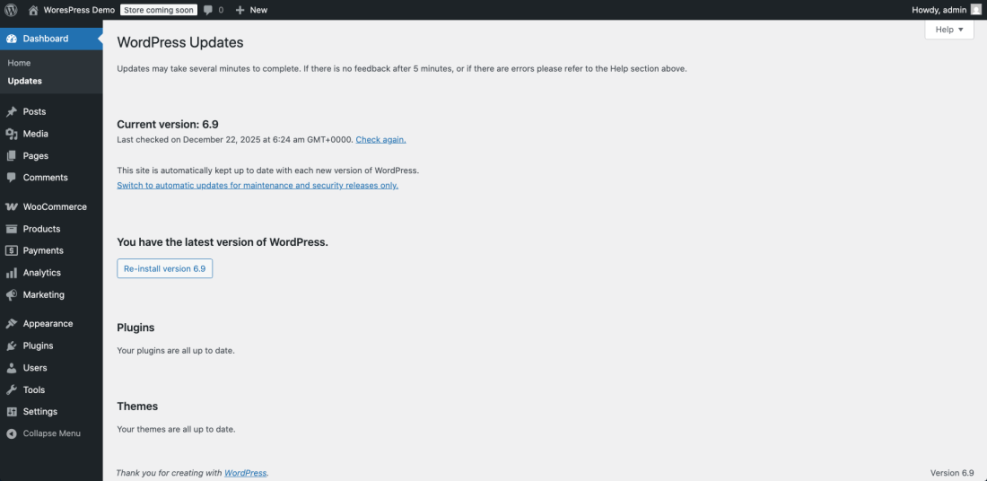
Verification Confirm whether the Updates screen says all plugins are current or lists specific plugins that need updating. Use this as your official “snapshot” of how many WordPress plugins up to date at this moment.
Step 3: Check plugin version and changelog
Update notices tell you that a new version exists, but not whether it is a minor fix or a major change. Reading the changelog helps you decide when and how to update.
- Go back to Plugins » Installed Plugins.
- Under a plugin with an update notice, click the link that says View version details or similar.
- A popup window will open with a changelog tab or section.
- Scan the latest entries for words like security, bug fix, compatibility, or breaking change.
- If the plugin is from WordPress.org, you can also click the plugin name and visit its directory page to see version history and compatibility information.
Verification Make a quick note of any updates marked as security or major changes. You will still keep your WordPress plugins up to date, but you may want a fresh backup and a quick test after those specific updates.
Step 4: Confirm premium plugins can receive updates
Premium and commercial plugins often rely on license keys to show updates inside WordPress. If the license expires or is missing, WordPress might say everything is current even when new versions exist.
- Identify which plugins on your site are premium (paid) tools.
- Open each plugin’s settings page and look for a License, Account, or Updates tab.
- Make sure your license key is entered and activated.
- If there is a status line, confirm it shows something like License active or Automatic updates enabled.
- Log in to the developer’s website and check if a newer version is listed there.
Verification Even if the main Dashboard says your WordPress plugins up to date, double-check that premium plugins have active licenses so they actually receive update notifications.
Step 5: Turn on safe automatic updates for trusted plugins
Once you know which plugins are stable and well maintained, you can let WordPress update them automatically. This reduces how often you need to manually check whether your WordPress plugins up to date.
- Go to Plugins » Installed Plugins.
- For each plugin you trust, click Enable auto-updates on the right side.
- Keep auto-updates on for utilities like security plugins, anti-spam, and small helper tools.
- Consider leaving auto-updates off for critical plugins like page builders, membership systems, or e-commerce tools, and update those manually after testing.
- Review the auto-updates list every few months and adjust as your stack changes.
Verification Confirm that at least your most important security and utility plugins have auto-updates enabled, while mission critical plugins follow a more careful manual process.
Best practices before and after updating plugins
Checking is only half of the job. A few safe habits will keep your site stable even when you apply several updates at once, and they make it much easier to keep WordPress plugins up to date long term.
- Take a quick backup Before updating a batch of plugins, create a fresh backup via your backup plugin or hosting panel.
- Update in small groups Instead of updating 20 plugins at once, update three to five at a time and quickly test key pages.
- Test critical workflows After updates, test contact forms, checkout pages, and login flows.
- Use staging for risky updates For major updates to page builders or e-commerce plugins, test on a staging copy first.
- Keep a simple log Note the date and which plugins you updated. This helps you diagnose issues later.
Verification Create a simple weekly checklist that includes confirming your WordPress plugins up to date, your backups are working, and your most important pages still load correctly.
Common issues when checking or updating plugins
Sometimes you only discover a plugin is outdated because something breaks during an update. Here is how to handle the most common problems.
| Problem | Likely Cause | What to Do |
|---|---|---|
| No updates appear, but developer says a new version exists | Expired or missing license key for a premium plugin | Activate the license in plugin settings, then go to Dashboard » Updates and click Check again |
| Plugin update fails with an error | Server timeout, disk space limit, or file permission issue | Try again later, free up space, or ask your host to check file permissions and resource limits |
| Site breaks or shows errors after updating a plugin | Conflict between the plugin and your theme or another plugin | Deactivate the last plugin you updated. If you cannot log in, rename its folder via FTP, then restore from backup if needed |
| Plugins show as up to date, but you still see warnings in security scans | Security tools may use different version checks or cached data | Confirm version numbers in your Dashboard, clear caches, and update your security scan definitions |
Verification If an update causes problems, roll back using your latest backup or a plugin rollback tool, then investigate instead of leaving other WordPress plugins up to date checks undone.
Conclusion You can now keep plugin updates under control
You have learned how to use the Plugins screen, the Dashboard Updates screen, changelogs, and license checks to see whether your WordPress plugins up to date and ready for visitors.
From here, make plugin checks part of a simple weekly or monthly maintenance routine. Combine safe updates with reliable backups and you will avoid most plugin related security issues and surprise breakages while keeping your WordPress plugins up to date with minimal effort.
Further Reading
Frequently Asked Questions
How often should I check for plugin updates
Do I need to update inactive plugins
Is it safe to enable automatic updates for every plugin
What should I do if a plugin update breaks my site
Why does my security plugin say something is outdated when WordPress says everything is current
Do I need a staging site just to update plugins