If you want fast accessibility and SEO wins, learning how to change image alt text in WordPress is one of the best places to start. Clear alt text makes your content understandable for visitors using screen readers, helps search engines interpret your pages, and even improves the experience on slow connections where images may not load. This guide on how to change image alt text in WordPress walks you through practical steps you can apply to both new and existing content.
In this tutorial, you will learn several ways to update image alt text in WordPress: from the Media Library, inside both the block editor and Classic Editor, in bulk with SEO tools, and with an optional code snippet for automatic fallbacks. By the end, you will be able to fix missing or incorrect alt attributes across your site with confidence and will know exactly how to change image alt text in WordPress in the places that matter most.
Quick Comparison of Ways to Change Image Alt Text in WordPress
Before you dive into step by step instructions, here is a quick comparison of the main ways to edit image alt text in WordPress. Use this table to choose the method that matches your editor, access level, and technical comfort when deciding how to change image alt text in WordPress on different parts of your site.
| Alt Text Editing Method | Best For | Where You Edit Alt Text | Notes |
|---|---|---|---|
| Media Library (single image edit) | Setting a default alt text for images you reuse often | Media » Library » Attachment details » Alternative Text | Updates the attachment record; existing posts may still use the old alt text saved in their HTML. |
| Block Editor image block (Gutenberg) | Modern sites using the block editor fixing alt text inside posts and pages | Open post, select image block, edit Alt text in the Block settings panel | Directly changes the rendered <img> tag in that specific post or page. |
| Classic Editor image details popup | Legacy sites or themes that still use the Classic Editor | Click image in Classic Editor, click pencil icon, edit Alternative Text in Image Details | Works well on older sites; remember to save both the image details and the post. |
| Code snippet / theme filter | Developers who want automatic fallback alt text | Add a wp_get_attachment_image_attributes filter in a child theme or code snippets plugin | Good for filling blanks with a default, but still needs human-written alt text on important images. |
What You Need to Start
- Administrator or Editor access to your WordPress dashboard.
- Basic familiarity with editing posts or pages in your chosen editor (block editor or Classic Editor).
- A few sample posts or pages with images you can safely edit.
- Optional: a configured SEO plugin such as Yoast SEO or Rank Math to surface missing alt text warnings.
- Optional but recommended: access to a staging site if you plan to add custom code.
Step 1: Understand what good image alt text looks like
Key principles for writing strong alt text
Before you start editing fields, it helps to know what “good” image alt text actually is. That understanding stops you from stuffing keywords or writing descriptions that do not help real users.
- Think of alt text as a short spoken explanation for someone who cannot see the image at all.
- Describe what is important in the image and how it connects to the surrounding content (for example, “Blogger editing image alt text in WordPress Media Library” instead of just “WordPress”).
- Keep alt text concise, usually under about 125 characters, and avoid filler phrases like “image of” or “picture of”. Screen readers already announce that it is an image.
When to leave alt text empty
Some images do not need detailed descriptions. Decorative elements can have empty alt attributes so they do not distract people using screen readers.
- Leave decorative images with empty alt attributes (for example,
alt="") if they add no real meaning, such as divider lines or purely decorative icons. - Limit keyword use to situations where those terms naturally describe the image, instead of using alt text as a dumping ground for SEO phrases.
How to verify: Pick one important image on your site and rewrite its alt text using the tips above. When you read it out loud, it should make sense to someone who cannot see the image.
Step 2: Change image alt text in the Media Library
Edit alt text on individual attachments
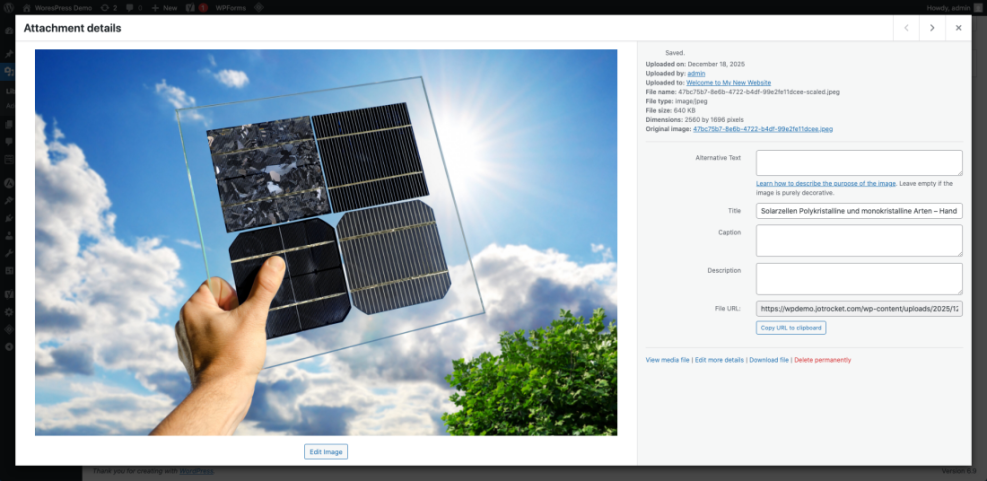
The Media Library is a convenient place to start when you are learning how to change image alt text in WordPress. It lets you set or correct default alt text on individual images, especially those you reuse in many posts.
- Log in to your WordPress dashboard.
- Go to Media » Library.
- Use the Grid or List view as you prefer, then click the image you want to edit.
- On the right side of the Attachment details panel, find the field labeled Alternative Text or Alt text.
- Type a clear, concise description of the image based on Step 1’s guidelines.
- Click outside the field or press a visible Update or Save button (if present) to ensure your changes are stored.
How to verify: After saving, open a post where the image appears and view it on the front end. Right click the image, choose Inspect, and then confirm that the alt attribute on the <img> tag matches your new alt text.
Step 3: Update image alt text in the block editor (Gutenberg)
Change the alt text directly in image blocks
Sites using the modern block editor can change image alt text in WordPress directly inside each image block. This method makes sure the HTML that is actually rendered to visitors includes your updated description.
- From the dashboard, go to Posts or Pages and click the title of the content you want to edit.
- In the block editor, click the image whose alt text you want to change so its toolbar and outline appear.
- On the right-hand side, select the Block tab (instead of the Post tab).
- Scroll down to the Image settings section and find the Alt text field.
- Type or paste your new alt text description, replacing any old or incorrect text.
- Repeat the process for other images in the same post if necessary.
- Click Update (or Publish if it is a new post) to save your changes.
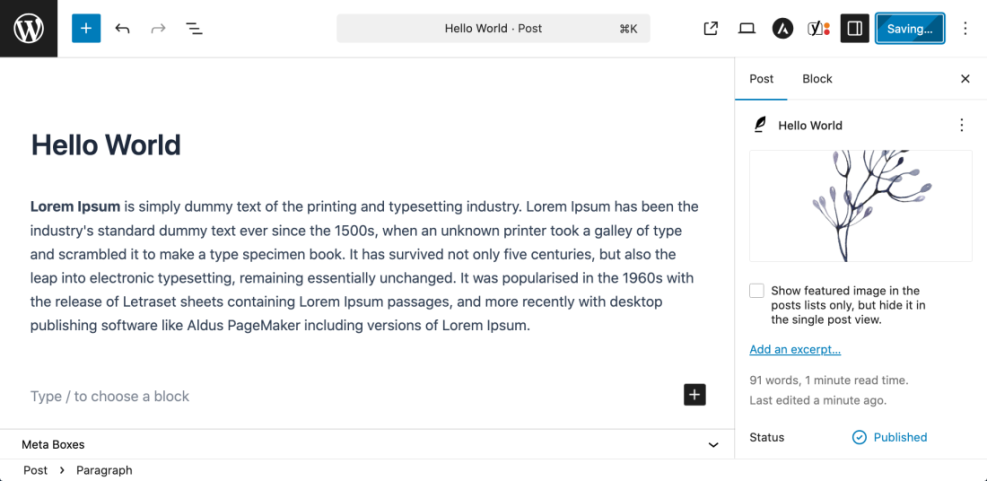
How to verify: View the updated post on the front end. Next, inspect the image in your browser’s developer tools and check that the alt text in the <img> tag matches what you entered in the block settings.
Step 4: Update image alt text in the Classic Editor
Use the Image Details popup
Many long-running sites still rely on the Classic Editor or classic-style page builders. In this environment, you adjust alt text through the Image Details popup.
- In the dashboard, go to Posts » All Posts (or Pages » All Pages).
- Click Edit under the post or page you want to fix.
- Inside the Classic Editor, click once on the image you want to edit. A small toolbar should appear over the image.
- Click the Edit (pencil) icon to open the Image Details window.
- Locate the field labeled Alternative Text and enter your improved description.
- Click Update in the Image Details window.
- Back in the editor, click the main Update button to save the post.
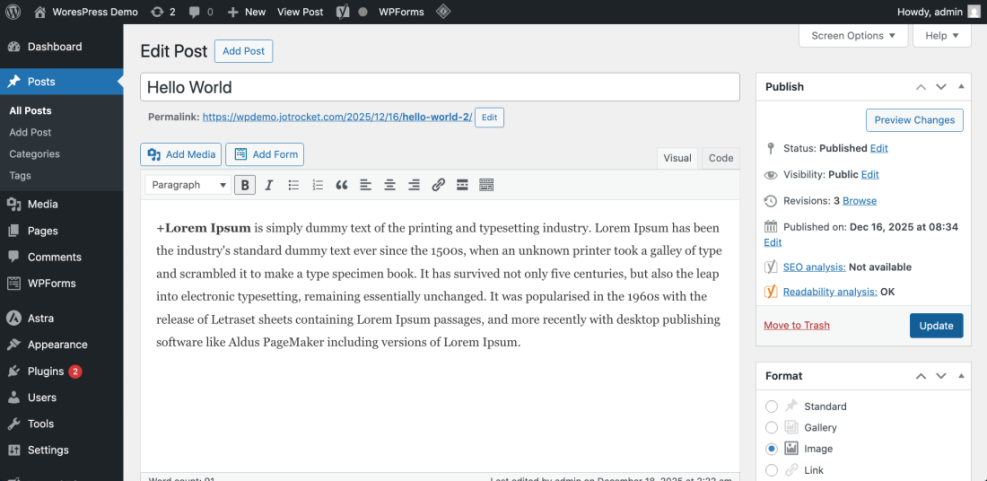
How to verify: Load the post on the front end and right click the image you edited. Use your browser’s inspect tool to view the HTML and confirm that the alt attribute reflects your new description.
Step 5: Fix missing image alt text in bulk
Use SEO plugins to find missing alt text
For larger sites, knowing how to change image alt text in WordPress at scale is crucial. Fixing alt text one image at a time can be too slow, so use built-in reports in SEO plugins and alt text tools to find and prioritize the worst gaps.
- Install and configure a reputable SEO plugin if you have not already (for example, Yoast SEO or Rank Math).
- Run the plugin’s SEO analysis, Content audit, or Image SEO reports to detect posts with images missing alt attributes.
- Review the results to see which posts or pages have the most missing alt text.
Prioritize high value content first
Once you know where the gaps are, work strategically instead of trying to fix everything in one pass.
- Sort or filter the report to focus on your most important content first, such as high-traffic posts, key landing pages, or cornerstone articles.
- Open each flagged post and use either the block editor or Classic Editor steps above to add meaningful alt text to each important image.
- Optionally, install a dedicated image SEO plugin that can list all attachments with missing alt text in one place for faster editing.
- Avoid mass auto-generating alt text for every image without review. Use automation as a starting point, then refine alt text on critical images manually.
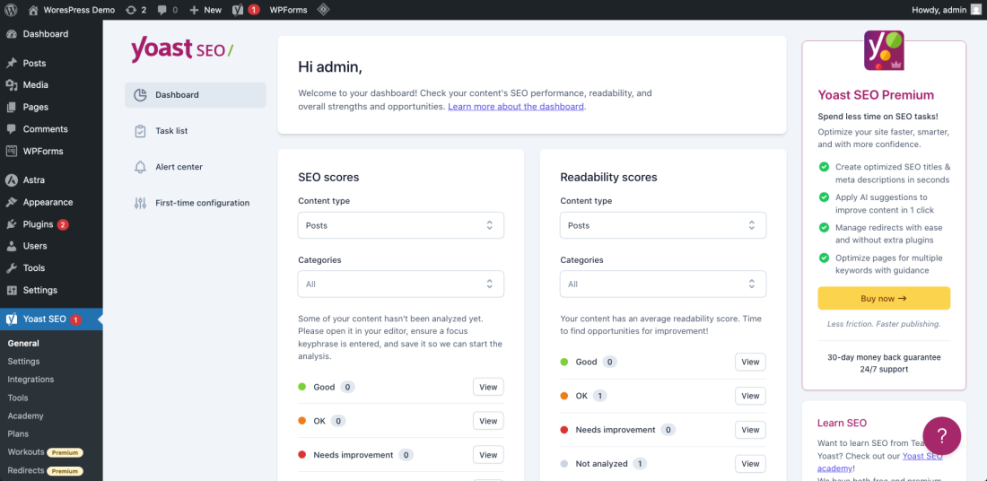
How to verify: Once your edits are in place, re-run your SEO or accessibility reports. A noticeable drop in the number of images missing alt attributes confirms that your bulk updates are working.
Step 6: Add a fallback alt text with code (optional)
Create a simple automatic fallback
If you are comfortable adding code, you can set up a simple fallback so that images never render with a completely empty alt attribute unless you intend them to. This approach is especially helpful when other authors or plugins forget to set alt text.
- Create a child theme or install a safe code snippets plugin so customizations are not lost during theme updates.
- Open your child theme’s functions.php file, or create a new snippet in your code snippets plugin.
- Paste the following code at the end of the file (before any closing
?>tag if present) or into the new snippet:
// Add a fallback alt attribute when images are missing one.
add_filter( 'wp_get_attachment_image_attributes', function ( $attr, $attachment ) {
    if ( empty( $attr['alt'] ) ) {
        // Use the attachment title as a simple default.
        $attr['alt'] = get_the_title( $attachment->ID );
    }

    return $attr;
}, 10, 2 );
- Save the file or activate the snippet.
- Clear any caches (plugin caching or CDN) so visitors see the updated behavior.
- Test older posts where images previously had no alt attributes and confirm that they now show a sensible default.
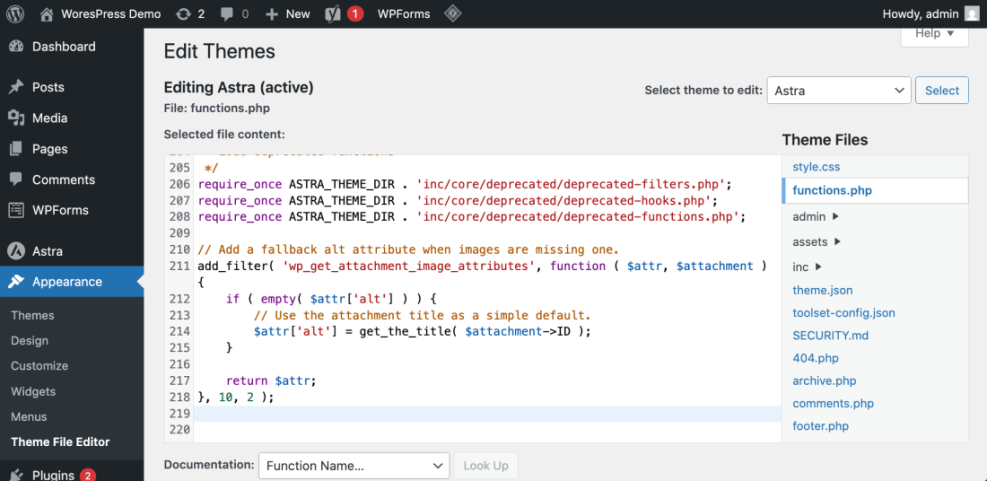
How to verify: Locate an image that previously had an empty alt attribute, reload the page, and inspect the image HTML. The alt attribute should now contain a fallback value such as the attachment title.
Conclusion You Are Ready to Go
By now, you know how to change image alt text in WordPress from the Media Library, inside both the block editor and Classic Editor, in bulk using SEO tools, and with an optional code snippet that adds a smart fallback. Used together, these methods make your site more accessible to real people and easier for search engines to understand.
Going forward, treat alt text as a standard part of your publishing workflow, not an afterthought. Make a habit of checking new posts for missing or weak alt text before publishing, periodically reviewing older high traffic content, and keeping your Media Library well labelled so future posts are faster to optimize. When you have a clear process for how to change image alt text in WordPress on every new post, your accessibility and SEO will keep improving over time.
Further Reading
- Is WordPress good for seo
- WordPress speed optimization step by step
- Beginner WordPress security best practices guide
Frequently Asked Questions
Does changing alt text in the Media Library update existing posts
<img> HTML, including the alt attribute, directly in the content. Updating the alt text later in the Media Library changes the attachment record and affects future insertions, but existing posts may still use the old alt text. For critical images, open the post itself and update the alt text in the editor so you know the rendered HTML is correct.What is the difference between image title and image alt text
How can I quickly check image alt text on a published page
<img> tag and look for the alt attribute. Another option is to use accessibility checker extensions or browser tools that summarize all image alt text on a page in a single report. Should every image on my site have alt text
alt="") so screen readers skip them. This balance keeps assistive technology output focused and less overwhelming for users. How long should good image alt text be
Do I need to add keywords into image alt text for SEO