How to Add Keywords in WordPress
A beginner-friendly guide to placing keywords the smart way

If you are new to SEO, you might be wondering exactly How to add keywords in WordPress so that Google understands your content and sends you the right visitors. Many tutorials still mention “meta keywords” and complicated settings, which makes the whole topic feel more technical than it really is.
The good news is that modern SEO is less about stuffing a list of keywords into a hidden field and more about placing key phrases naturally in your titles, headings, and content. In this guide, you will learn the best places to add keywords in WordPress, how to use an SEO plugin, and which keyword tricks you can safely ignore.
What “Keywords” Really Mean In WordPress SEO
Before you learn how to add keywords in WordPress, it helps to know what keywords mean today. In most cases, a “keyword” is simply the phrase someone types into Google when they want an answer – for example, “best WordPress backup plugin” or “how to speed up WordPress on mobile”.
Search engines no longer rely on a meta keywords tag the way some people think. Instead, they look at your SEO title, headings, body text, links, and how users engage with your page. That means your job is to write content that clearly answers a specific search while using that key phrase in a few strategic places.
How to Add Keywords in WordPress (Quick Answer)
Here is the short version of how to add keywords in WordPress for each post or page:
- Use your main keyword once in the SEO title.
- Include the phrase in the meta description in a natural sentence.
- Add the keyword (or a close variation) to the H1 or first main heading.
- Mention it a few times in the opening paragraphs and throughout the content.
- Use a descriptive URL slug that contains the key phrase.
- Add the keyword or a synonym to one or two subheadings (H2/H3), without overdoing it.
- Describe your images with keyword-relevant alt text when appropriate.
You will usually manage most of this from your post editor and an SEO plugin such as Yoast or Rank Math. The next sections show you exactly where to click and what to type.
Best Places to Add Keywords in WordPress
When people ask how to add keywords in WordPress, they often picture a single “keywords” box. In reality, you spread your key phrases across several elements that work together.
1. How to Add Keywords in WordPress SEO Titles
Your SEO title is the clickable headline that appears in Google’s results. Most SEO plugins add a special field under the editor where you can type a custom SEO title. Include your main keyword as close to the beginning of this title as you can, while still writing something that sounds natural.
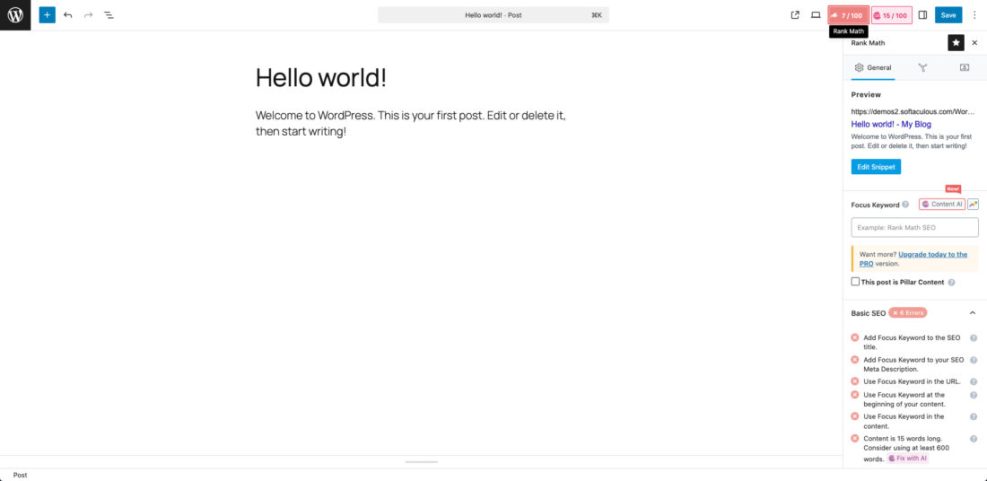
For example, if your keyword is “how to add keywords in WordPress”, a simple title could be “How to Add Keywords in WordPress (Beginner Friendly Guide)”.
2. How to Add Keywords in WordPress Meta Descriptions
The meta description is the short summary under your title in search results. It does not directly change rankings, but it helps people decide whether to click. Add your key phrase once, and then describe the benefit of reading your post.
Example meta description: “Learn how to add keywords in WordPress correctly using SEO titles, headings, and content so your posts can rank higher without keyword stuffing.”
3. Add Keywords to the URL Slug
Your WordPress permalink (URL) should be short and descriptive. When you create a new post, edit the slug so it contains your main keyword. Use dashes between words and avoid stop words like “a” or “the” when possible.
For example, a good slug for this topic would be /how-to-add-keywords-in-wordpress/.
4. How to Add Keywords in WordPress Headings (H1, H2, H3)
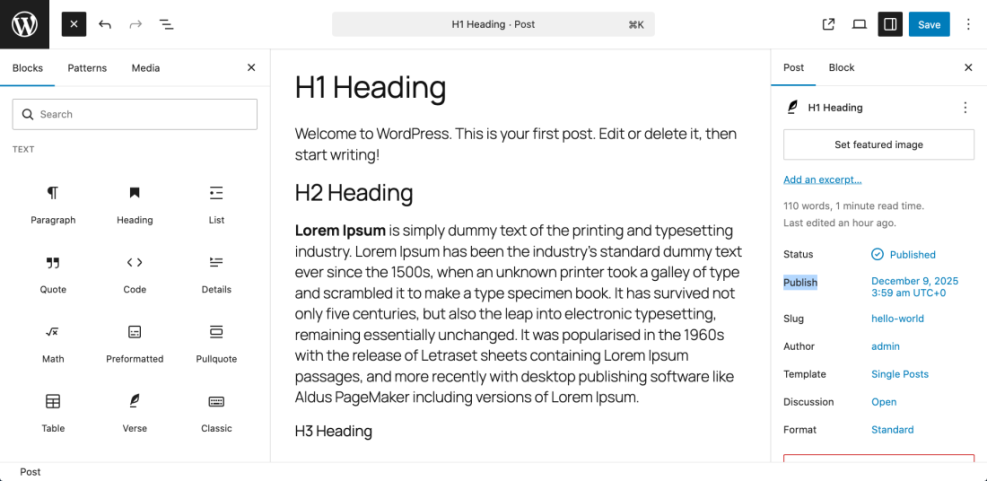
Your main heading (H1) is usually the post title. Make sure your keyword appears there once. You can also add the phrase or a close synonym to one or two H2 or H3 subheadings. Just do not force it into every heading, because that can look spammy and trigger “over-optimized” warnings in tools like Yoast.
5. How to Add Keywords in WordPress Content Naturally
Search engines read your full article, not just the title. Use your main key phrase once or twice in the first 100–150 words and then a few more times in the body where it makes sense. Mix in related phrases and questions to cover variations of how people search.
Avoid repeating the exact same wording in every sentence. Instead, write naturally about the topic and let your keywords appear as part of clear, useful explanations.
6. How to Add Keywords in WordPress Image Alt Text
Image alt text describes what an image shows. It helps with accessibility and gives search engines extra context. When an image illustrates something directly related to your keyword, you can mention that phrase in the alt text, but do not stuff every alt tag with the same keywords.
Example: alt=”Yoast SEO meta box showing how to add keywords in WordPress”
How to Add Keywords in WordPress Using Yoast SEO
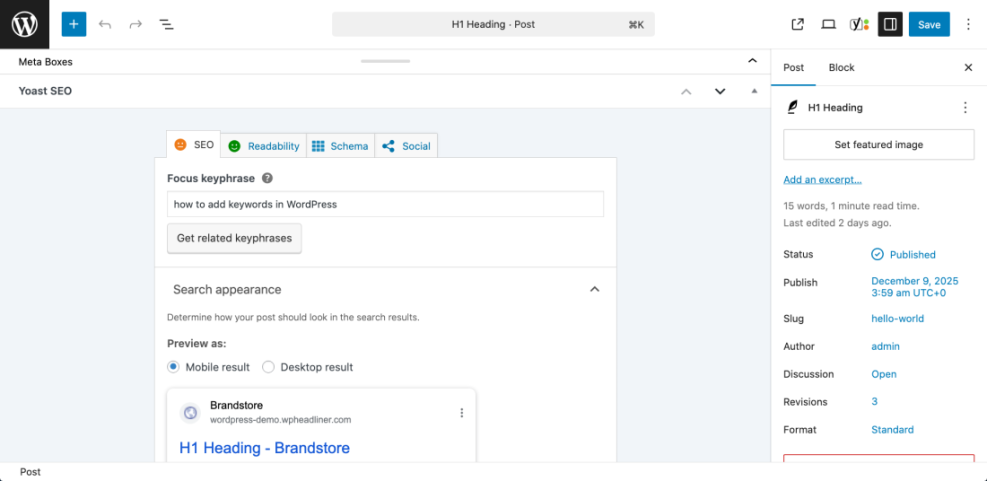
If you use Yoast SEO, it gives you a clear place to manage everything in one panel. Here is how to add keywords in WordPress with Yoast on each post.
Step 1::: Enter Your Focus Keyphrase
Scroll down to the Yoast meta box under the editor and find the “Focus keyphrase” field. Type your main keyword, for example “how to add keywords in WordPress”. Yoast will then analyze your content and show suggestions for improvement.
Step 2: Edit SEO Title And Meta Description
In the same Yoast panel, click into the SEO title and meta description fields. Make sure your keyword appears once in each. Use the preview to check that nothing is cut off and that the result looks attractive in Google.
Step 3: Follow Yoast’s Content Suggestions
Yoast will show checks for keyphrase in introduction, keyphrase density, keyphrase in subheadings, and more. You do not need every bullet to be perfectly green, but you can use these hints to make sure your keyword appears in the most important places without stuffing.
If you have never configured Yoast before, go through our full Yoast SEO setup guide first so that your basic settings and templates are correct.
Adding Keywords with Rank Math or Other SEO Plugins
Most modern SEO plugins work in a similar way to Yoast. Rank Math, All in One SEO, and others all have a place to set a focus keyphrase, edit the SEO title and description, and preview search results. The exact labels may differ, but the steps for how to add keywords in WordPress are almost identical.
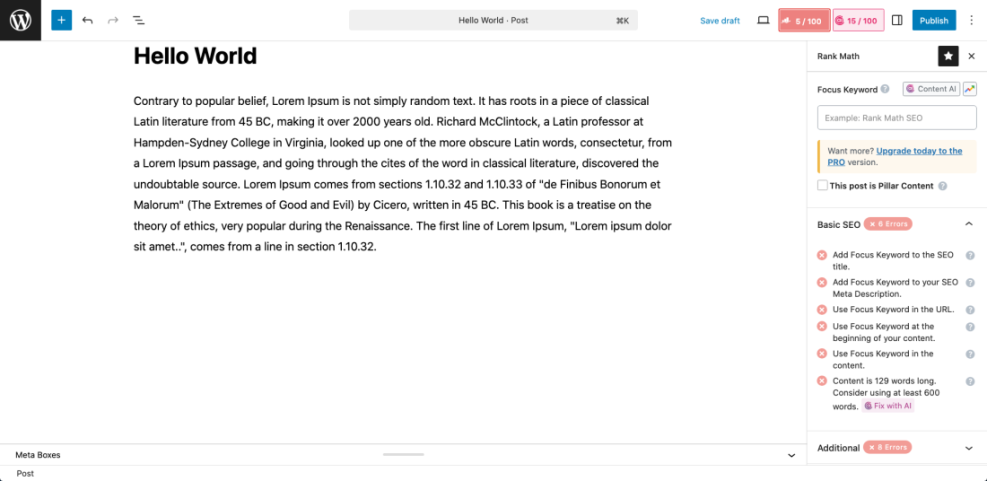
As long as you:
- Set a focus keyword for each important post,
- Use that phrase in the SEO title and description,
- Include it naturally in headings and content,
you are using your plugin correctly for on-page keyword optimization.
Keyword Placement Checklist For Each Post
To make sure you always add keywords correctly in WordPress, use this quick checklist before you hit publish:
- Does the focus keyphrase match what people actually search for?
- Is the keyphrase in the SEO title once, near the beginning?
- Did you include it once in the meta description?
- Is the keyphrase (or a close synonym) present in your H1 (post title)?
- Does the introduction mention the keyphrase within the first paragraph?
- Is the URL slug short and does it contain the key phrase?
- Do one or two subheadings include the keyword or a variation?
- Is the phrase used naturally a few times throughout the content?
- Did you add relevant alt text to important images?
If you want a printable version, you can combine this list with our full How to add keywords in WordPress without hurting and keep it next to you while you write.
Common Keyword Mistakes To Avoid In WordPress
Knowing how to add keywords in WordPress is important, but knowing what not to do can save you from long-term problems.
1. Relying On Meta Keywords Tags
Most major search engines ignore the old meta keywords tag, so filling it with phrases will not help you rank. Focus on visible elements such as titles, headings, and content instead of hunting for a hidden keywords box.
2. Keyword Stuffing
Repeating your keyphrase in every sentence makes your content hard to read and can look unnatural to search engines. Aim for clarity first. If a sentence sounds awkward because of a keyword, rewrite it for humans and trust that search engines will still understand the topic.
3. Using The Same Keyword On Too Many Pages
Targeting the exact same keyword with multiple posts can make them compete against each other. It is usually better to have one strong, focused article for each main keyphrase and then support it with related content that uses variations and subtopics.
4. Ignoring Search Intent
Even if you know how to add keywords in WordPress perfectly, your post will struggle if it does not match what people expect to see. A keyword like “how to add keywords in WordPress” deserves a practical tutorial, not a sales page or a generic opinion article.
FAQ: How to Add Keywords in WordPress
Do I still need to use meta keywords in WordPress?
Where should I put my main keyword first?
How many times should I use a keyword in a post?
Can I add more than one keyword in WordPress?
What should I learn after mastering basic keyword placement?