Change WordPress Password quickly and safely using the built in WordPress tools so you never get locked out of your own site or leave accounts exposed to attackers.
In this guide you will learn how to Change WordPress Password from the dashboard, reset it if you are locked out, and apply simple security improvements so your login stays protected.
What You Need to Start
- Access to your WordPress login URL (usually /wp-login.php or /wp-admin).
- Your current username or email address for the WordPress account.
- Access to the email inbox associated with your WordPress user (for password reset links).
- Optional for advanced recovery: access to your hosting control panel or SSH for WP-CLI.
- A safe place to store your new password (for example, a password manager).
Step 1: Log In to Your WordPress Dashboard
You first need to sign in so you can Change WordPress Password from a secure profile page. This step confirms you are using the correct account and have admin access if needed.
- Open your browser and navigate to your WordPress login URL, usually https://your-site.com/wp-login.php or https://your-site.com/wp-admin.
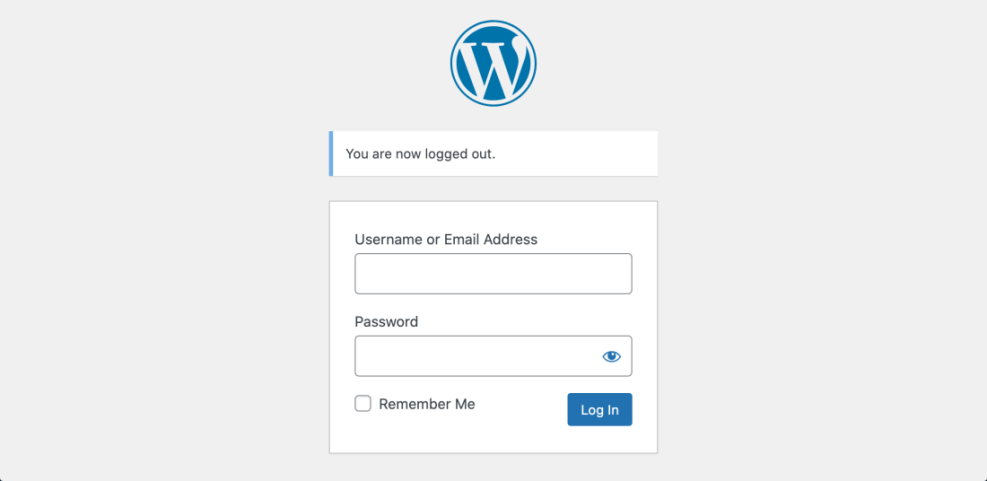
- Enter your Username or Email Address and your current Password, then click the Log In button.
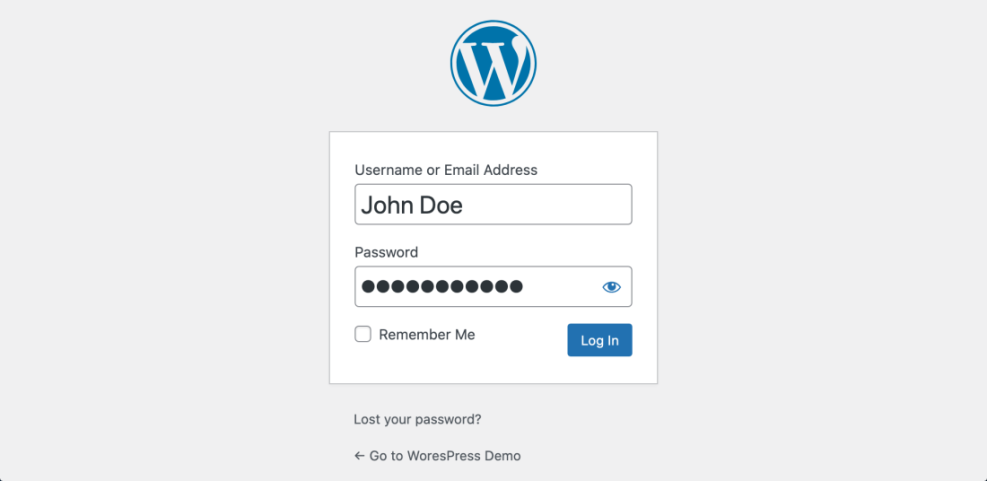
The default WordPress login screen, which is the gateway to your site’s administration area.
- Confirm that you see the Dashboard with the left side menu (e.g., Posts, Pages, Users) and the top admin bar.
If you cannot reach the login page or do not remember the URL, follow the How to Find Your WordPress Login URL guide to locate it.
Verification: You are ready for the next step once you are logged in and can see the WordPress Dashboard.
Step 2: Change Your Password From Your Profile (Recommended Way to Change WordPress Password)
Changing the password from your profile is the safest method when you can still log in. WordPress will automatically handle password hashing and session updates for you.
- In the left menu, hover over Users and click Profile. On some sites you may also click your name from the top right admin bar to open your profile.
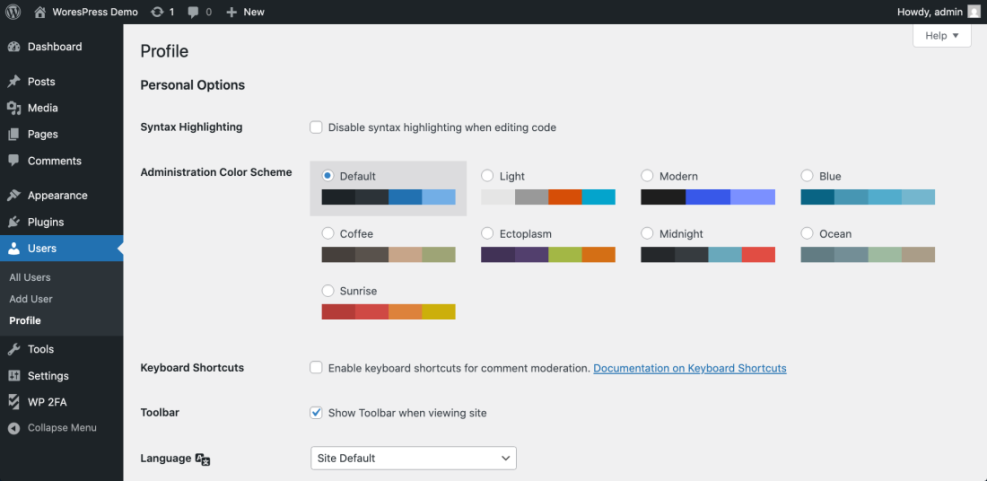
- Scroll down to the Account Management or Security section until you see the New Password or Set New Password area.
- Click the Set New Password or Generate Password button. WordPress will suggest a strong password automatically.
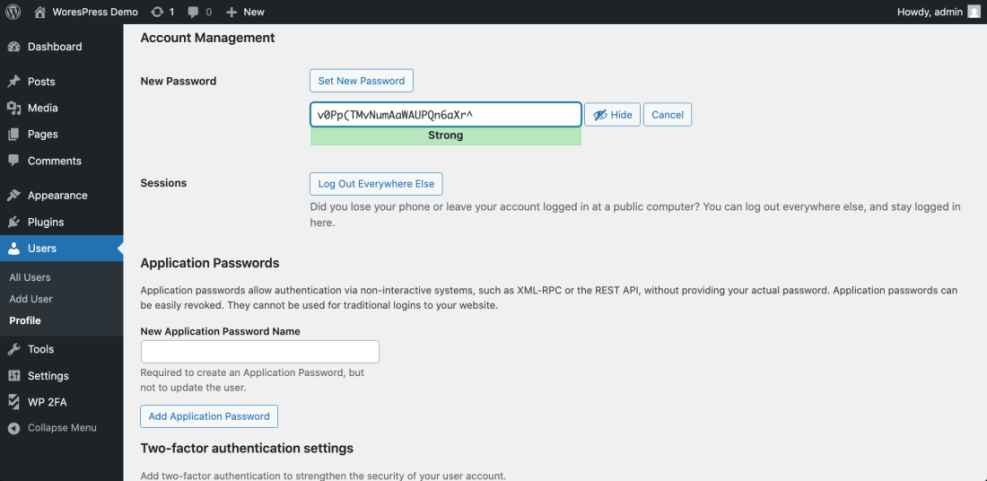
- Replace the generated password with your own strong password if you prefer, keeping a mix of upper and lower case letters, numbers and symbols.
- Scroll to the bottom of the page and click Update Profile to save your new password.
- Use a password manager to generate and store a unique password you do not reuse on other sites. This makes it much harder for attackers to guess or reuse compromised passwords.
Verification: After saving, you should see a confirmation message such as “Profile updated.” In a separate browser or incognito window, log out and then log back in using your new password to confirm that it works.
Step 3: Reset a Lost Password From the Login Screen
If you cannot remember your current password, you can request a reset link to your email address directly from the login page.
- Go to your WordPress login page at /wp-login.php.
- Click the Lost your password? link.
- Enter your Username or Email Address and click Get New Password.
- Open your email inbox and look for a message from WordPress with the subject line similar to “Password Reset.” Click the reset link inside that email.
- Type a new strong password in the form that opens, then click Reset Password or Save.
Verification: Once the reset form confirms success, try logging in with your username or email and the new password. If it works, the reset is complete.
Step 4: Change a Password When You Are Locked Out
If you cannot access your email or dashboard, you can still Change WordPress Password using developer tools such as WP-CLI. This is more advanced but keeps everything under your control.
- Log in to your web hosting control panel and open an SSH terminal for your WordPress site.
- Navigate to your WordPress installation directory (where wp-config.php is located), for example:
cd /var/www/html/your-site - Run the following WP-CLI command to set a new password for a specific user ID (replace
1and the password as needed):wp user update 1 --user_pass="NewStrongPassword!93" - If you do not know the user ID, list all users first:
wp user list - After changing the password, open your WordPress login URL and sign in with the username for that user ID and the new password you just set.
Verification: After running the command, confirm you can log in with the new password. If login fails, double check the user ID and re-run the command with a different password.
Quick Comparison of WordPress Password Change Methods
Here is a side by side look at the most common ways to Change WordPress Password and when you would normally use each option.
| Method | Where You Use It | Main Purpose |
|---|---|---|
| Change Password From Profile | Logged-in WordPress dashboard → Users > Profile | Routine password updates when you still have full access to your account and dashboard. |
| Lost Password Link | WordPress login screen → “Lost your password?” | Resetting a forgotten password using a secure link sent to your account email address. |
| WP-CLI Command | SSH terminal with WP-CLI installed | Fast recovery and scripted changes for developers or advanced users managing one or more sites. |
| Database Tools (phpMyAdmin) | Hosting control panel → phpMyAdmin or database manager | Emergency recovery when email delivery is broken and you cannot use the usual reset link. |
| Hosting or Professional Support | Host helpdesk, care plan, or trusted developer | Hands-off recovery and checks when you are not comfortable with technical tools or suspect deeper issues. |
Step 5: Improve Overall Login Security After Changing the Password
Simply changing your password is only one layer of protection. After you Change WordPress Password, strengthening login security reduces the chances that someone else will guess, reuse or steal your credentials.
- Review your current password and make sure it is unique to this site and at least 12–16 characters long with a mix of characters.
- Enable two factor authentication (2FA) using a plugin or your security suite so logins require both a password and a code from your phone.
- Limit administrator accounts to only the people who truly need them. Demote unnecessary admin accounts to Editor or lower.
- Log out from other devices or sessions if your site offers a “Log Out of Other Sessions” option in your profile.
For a broader overview of basic protections, read the Beginner WordPress security best practices guide and consider applying those recommendations across your site.
If you suspect more serious issues like repeated failed logins or possible hacking attempts, follow the How do i secure my WordPress downloads tutorial to harden your configuration and monitoring.
Conclusion You Are Ready to Go
By now you have learned how to Change WordPress Password from your profile, reset a forgotten password using the login screen, and even recover access using WP-CLI when you are completely locked out.
After you confirm that your new password works and tighten your login security, you significantly reduce the risk of unauthorized access. Make changing passwords and reviewing logins part of your regular WordPress maintenance routine so your site stays safe for the long term. Whenever you onboard new admins or developers, remind them how to Change WordPress Password safely so everyone follows the same best practices.
Further Reading
- How to find your WordPress login url
- How do i secure my WordPress downloads
- WordPress seo complete beginners guide
- Beginner guide to WordPress speed optimization
- Beginner WordPress security best practices guide
For official documentation on recovery options, see the WordPress.org Resetting Your Password guide.
Frequently Asked Questions
How often should I change my WordPress password
What makes a strong WordPress password
What should I do if password reset emails do not arrive
Does changing my password log out other active sessions
Can I change passwords for other users on my site