How to Fix WordPress Memory Exhausted Errors
Stop random crashes and keep your site stable

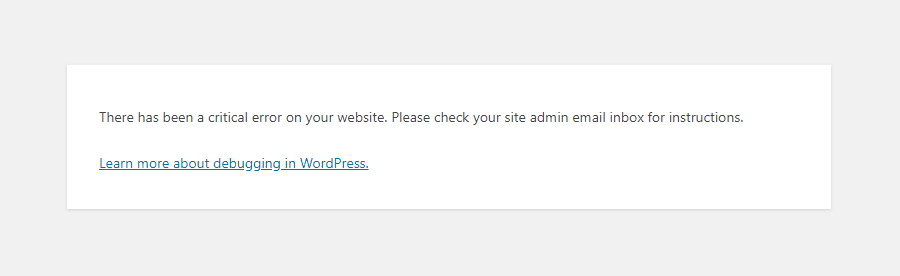
Memory exhausted error in WordPress happens when PHP runs out of memory while trying to load a page, run a plugin, or process an image. When this happens, you may see “Allowed memory size of X bytes exhausted” or even a full white screen instead of your website.
This guide walks you through quick ways to get your site back online after a Memory exhausted error, then shows safer long-term fixes. You will learn how WordPress and PHP memory limits work, how to increase those limits step by step, how to track down memory-hungry plugins or themes, and how to prevent the same error from returning.
Fix Memory Exhausted Error Quickly
What Is a Memory Exhausted Error?
A Memory exhausted error means PHP has hit the maximum memory that your hosting account allows for a single request. WordPress, your theme, and your plugins all share this same pool. When something needs more memory than is available, PHP stops the script, and WordPress shows a fatal error message instead of the page. You’ll often see this described in the WordPress documentation as a PHP memory limit problem.
Fast Steps To Get Your Site Back
In many cases, you can bring the site back online by raising the memory limit slightly and then reviewing what caused the spike. A simple and safe starting point is to increase the memory limit to 256M, which is enough for most small and medium WordPress sites and often removes the immediate WordPress memory exhausted error.
- Log in to your hosting control panel or file manager.
- Open the root folder of your WordPress site (often public_html).
- Download a backup copy of SEO and UX, and where you will see it in daily work.”>wp-config.php to your computer.
- Edit wp-config.php and add a memory line (examples later in this guide) to fix the PHP memory exhausted error.
- Save the file and reload your site in a new browser tab.
After a small increase, your site may load again. However, you should still investigate the root cause, because a plugin, theme, or task that uses too much memory can continue to grow until it hits the higher limit as well and triggers the same memory limit error.
When Should You Contact Your Host?
If you cannot edit wp-config.php or your changes do not take effect, your host may enforce a lower server-level memory limit. In that case, you need to contact support and ask whether they can raise the PHP memory limit for your account or recommend a plan that includes higher limits or more RAM, especially if you keep seeing the WordPress memory exhausted error even after basic tweaks.
Understanding WordPress Memory And PHP Limits
How PHP Memory Works in WordPress
PHP memory is the amount of RAM that each request can use while loading a page, running a cron job, or handling an AJAX call. WordPress runs on top of PHP, so every plugin, theme, and core feature pulls from that same memory bucket for each request your visitors make. When a single request crosses the limit, you get the familiar PHP memory exhausted error. The PHP manual for memory_limit describes how this cap works at server level.
How Much Memory Does WordPress Need?
Most simple blogs run fine with 128M of memory, while busy ecommerce or membership sites often need 256M or more. Heavy plugins, large page builders, and analytics tools can increase usage, so you should monitor your site after changes and adjust the limit if you see frequent memory exhausted errors or slowdowns.
WP_MEMORY_LIMIT vs. Server Limit
WordPress has its own constants, such as WP_MEMORY_LIMIT and WP_MAX_MEMORY_LIMIT, which request more memory from PHP. However, the server’s php.ini file sets a hard cap. If php.ini defines a lower limit than your wp-config.php value, the server-level value always wins, and WordPress cannot exceed it. When that happens, you may still get a WordPress memory limit error even after editing wp-config.php.
Methods To Increase PHP Memory Limit
Edit wp-config.php Safely
For many users, changing wp-config.php is the quickest way to request more memory for WordPress and fix a Memory exhausted error. This file lives in the root folder of your site and holds database credentials and other advanced settings. You can see how WordPress uses constants like WP_MEMORY_LIMIT in the official wp-config.php documentation.
Steps to fix the Memory exhausted error via wp-config.php
- Open your site in FTP or your hosting file manager.
- Locate wp-config.php in the same folder as wp-admin and wp-content.
- Download a copy to your computer as a backup.
- Open the file in a plain text editor like Notepad or VS Code.
- Above the line that says “/* That’s all, stop editing! Happy publishing. */” add:define(‘WP_MEMORY_LIMIT’, ‘256M’);
- Save the file and upload it back to the server, overwriting the old version to test whether the WordPress memory exhausted error disappears.
After you upload the file, reload your site in a new private browser window. If the page loads without the fatal error, the new limit is active, and you can continue testing and watching for any new memory exhausted errors.
Change Limits in php.ini or .user.ini
Some hosting providers let you control PHP settings through a php.ini or .user.ini file. These files adjust PHP behavior for your account or for a specific folder, including the memory_limit directive that directly affects PHP memory exhausted errors. The parameter is described in more detail in the PHP configuration documentation.
- Check whether your host provides a PHP configuration editor or file manager.
- Look for a php.ini or .user.ini file in the site’s root folder.
- If it exists, download a backup copy before editing.
- Add or change the line:memory_limit = 256M
- Save the file, then wait a minute and reload your site to see if the WordPress memory exhausted error is gone.
If your host uses multiple PHP versions or pools, you may need to adjust the correct configuration file for your active PHP version. Your provider’s documentation usually explains where that file lives and how to reload PHP so that changes to memory_limit and memory exhausted errors take effect.
Raise Memory With .htaccess Or a Hosting Panel
On some Apache-based servers, you can adjust memory through .htaccess rules. Other hosts expose the same setting in a control panel, where you choose the PHP version and memory limit from a dropdown list. Both approaches aim at preventing the WordPress memory exhausted error by raising the available memory.
- Find the .htaccess file in your site’s root folder and create a backup.
- Add a line such as:php_value memory_limit 256M
- Save the file and reload one of your site’s pages.
- If the server returns a 500 error, remove the line and use a control panel instead.
Many shared hosts now prefer that you use their built-in PHP selector tools instead of editing .htaccess, so you should always follow their official instructions for changing PHP memory settings and avoiding memory limit errors.
Quick Comparison of Memory Increase Methods
| Tool | Best For | Key Strengths | Main Drawbacks |
|---|---|---|---|
| wp-config.php | Most standard WordPress sites on shared or managed hosting | Easy to edit; WordPress-specific; quick to test; works on most hosts without extra access to fix the WordPress memory exhausted error | Cannot bypass the server’s hard PHP limit; a typo can break the site if syntax is invalid |
| php.ini / .user.ini | Sites where you control PHP settings per account or per directory | Changes the actual PHP memory_limit; affects all apps using that PHP version; powerful for persistent PHP memory exhausted errors | Not always available on shared plans; wrong values can impact other sites or apps |
| .htaccess or hosting panel | Apache hosting or providers with a PHP selector in their control panel | No file editing in some panels; simple dropdowns; easy to roll back; often enough to remove a memory limit error | .htaccess rules can cause 500 errors; some hosts ignore php_value directives entirely |
| Hosting support / plan upgrade | Large, complex, or growing sites that keep hitting memory limits | Can raise hard limits at server level; often includes better hardware and support, reducing WordPress memory exhausted errors over time | Higher monthly cost; doesn’t fix badly coded plugins or inefficient queries by itself |
Finding The Real Cause Of High Memory Usage
Check Plugins And Themes First
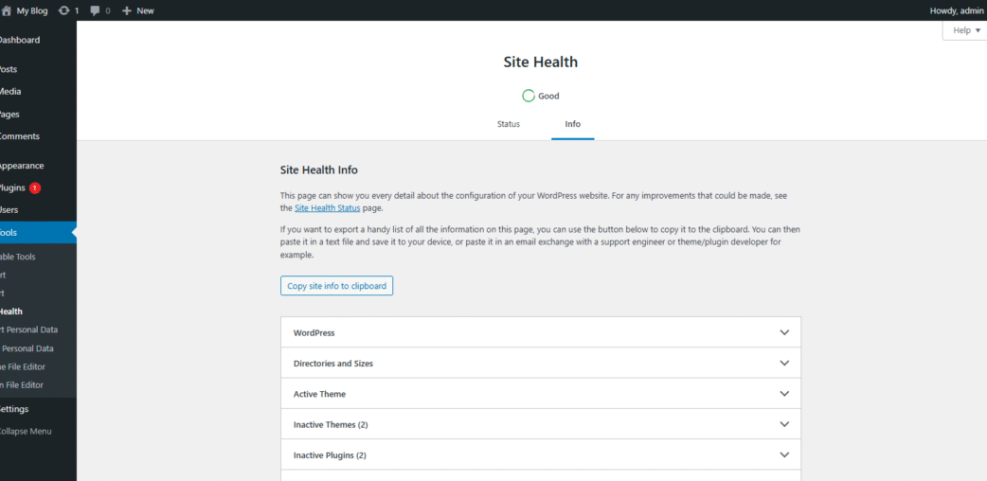
Most memory spikes come from plugins or themes that load large libraries, run heavy database queries, or process big files. After your site is back online, you should review any recent installs or updates and test what happens when you temporarily deactivate them one by one to see which one brings back the Memory exhausted error. Tools like Query Monitor can help you identify slow or memory-hungry components.
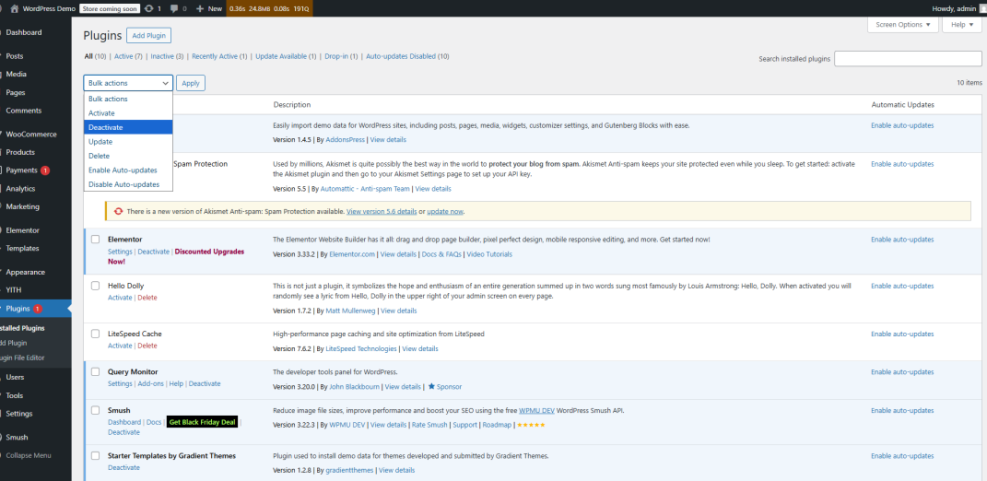
Use Debugging Tools for Memory
A debugging plugin can show you how much memory each page request uses and which components are responsible. Tools like Query Monitor highlight database queries, hooks, and PHP errors, so you can see which plugin or theme is consuming more resources than expected and causing WordPress memory exhausted errors.
Can High Traffic Cause Memory Exhausted Errors?
High traffic does not directly change the memory limit per request, but it increases the total load on your server. When many users hit heavy pages at once, memory usage per PHP worker can add up, and the server may start killing processes, which leads to errors, slow response times, and more frequent Memory exhausted error messages if your limits are already low.
Best Practices To Prevent Memory Errors
Reduce Plugin Bloat And Heavy Queries
Every plugin adds code, database queries, and features that can raise memory usage. Therefore, you should remove plugins you do not use, replace overlapping tools, and favor lean, well-coded options. For complex sites, it also helps to test changes on a staging site so you can spot issues before they hit production and trigger a new WordPress memory exhausted error.
Improve Caching And Object Usage
Full-page caching plugins and server-level caches reduce the number of heavy PHP requests. They store rendered HTML and serve it to visitors, so PHP and the database work less often. Object caching can also help WordPress reuse query results instead of recalculating them for every page load, which lowers the chance of memory limit errors during peak traffic.
Plan Hosting Upgrades Over Time
As your site grows, a basic shared hosting plan may not provide enough memory or CPU resources to handle traffic and complex plugins. In that case, upgrading to a higher tier or moving to managed WordPress hosting gives you more headroom and better tools to monitor resource usage. For background on different hosting options, you can compare guidance from reputable providers like WordPress-recommended hosts. This proactive approach makes WordPress memory exhausted errors far less likely in the future.
Memory Exhausted Error: Conclusion
Next Steps After Fixing Errors
Once you raise the PHP memory limit and clear the immediate Memory exhausted error, you should treat this moment as a health check for your site. Review your plugins, theme, and hosting plan, put a simple monitoring routine in place, and schedule regular cleanups so your WordPress installation stays lean and stable as it grows.
More WordPress Guides You Might Like
Recommended Reading For Stability
There are several related topics that fit naturally after you resolve a WordPress memory exhausted error, especially if you manage multiple WordPress sites or run an online store. The following planned guides build on the same ideas and help you keep performance under control.
- How to optimize images for WordPress
- Choosing managed hosting WordPress
- Best WordPress seo plugins and tools
- Best WordPress caching plugins
- How to choose the best WordPress hosting
By following these topics, you create a broader performance strategy instead of only reacting when memory exhausted errors appear, which saves time and reduces stress in the long run.
Frequently Asked Questions About Memory Exhausted Error
Basic Questions About Memory Exhausted Error
These quick answers cover what the Memory exhausted error is, why it appears, and whether simple changes will usually fix it.
What does the Memory exhausted error message mean?
Is it safe to increase the WordPress memory limit to 256M?
Can a single plugin cause constant memory exhausted errors?
Do I need to edit both wp-config.php and php.ini?
Will upgrading my hosting plan fix memory errors forever?