Easy Digital Downloads Guide Sell Digital Products with WordPress
Step by step setup for a reliable WordPress download store

Sell digital products with confidence using Easy Digital Downloads and WordPress. If you are tired of marketplace fees or confusing ecommerce setups, a simple download store on your own website feels much more appealing. However, many site owners get stuck choosing the right plugin, connecting payments, and safely delivering files to customers.
This guide shows you how to turn WordPress into a focused digital download store using Easy Digital Downloads. You will set up the basics, configure payments, create your first product, and fine tune checkout, emails, and file delivery so you can launch quickly and still have room to grow.
Sell Digital Products with Easy Digital Downloads
Quick Steps to Start Selling
To sell digital products on WordPress with Easy Digital Downloads, you install the plugin, run its setup wizard, connect a payment gateway, and publish at least one “Download” product with a price and file attached. After that, customers can buy your files through a secure checkout and receive automatic download links by email.
- Install and activate Easy Digital Downloads.
- Complete the onboarding wizard for currency, pages, and basics.
- Connect Stripe or PayPal in the payment settings.
- Create your first Download with a price and file.
- Test a purchase in sandbox or test mode before going live.
When these steps work smoothly, you already have a small but real digital store. From there, you can improve the design, add more products, and plug in extensions for licenses, subscriptions, or marketing tools.
What Do You Need Before You Start?
Before you set anything up, you should have a reliable WordPress site on a decent host, an SSL certificate, and at least one file ready to sell. In addition, prepare a basic refund policy and a support email address so buyers know what to expect and how to contact you if something goes wrong.
Why Choose Easy Digital Downloads
When Is Easy Digital Downloads a Good Fit?
Easy Digital Downloads shines when you sell only, or mainly, digital downloads such as ebooks, audio files, plugins, or templates. It removes shipping, inventory, and other physical product clutter, so you focus on files, licenses, and customer access. If most of your income will come from downloadable products, this plugin keeps your store lean and easy to manage.
How It Compares to Other Solutions
There are many ways to sell online, including marketplaces and general ecommerce plugins. The table below summarizes how Easy Digital Downloads compares to marketplaces and a more general WordPress store.
| Option | Best For | Pros | Cons |
|---|---|---|---|
| Marketplaces | Quick exposure | Built-in audience, simple setup | High fees, limited control, strict rules |
| Easy Digital Downloads | Digital-only stores | Optimized for digital downloads, great reports, many extensions | Requires WordPress site and basic maintenance |
| SEO and UX, and where you will see it in daily work.”>WooCommerce | Mixed stores | Handles physical and digital products, huge ecosystem | More settings, extra complexity for digital-only stores |
Therefore, if you want full control and low long-term fees while focusing on digital files, Easy Digital Downloads offers a very balanced setup. You own the site and can extend it over time without switching platforms.
Preparing Your WordPress Site for Sales
Choose Reliable Hosting and SSL
Because you handle payments and customer data, you need solid hosting and HTTPS. Choose a reputable WordPress host, make sure SSL is installed, and confirm that your site loads using https://. A stable foundation prevents many checkout and performance issues later.
Set Basic WordPress Settings
Next, visit Settings » General and verify your site title, tagline, and timezone. Then go to Settings » Permalinks and choose the Post name structure for clean URLs.
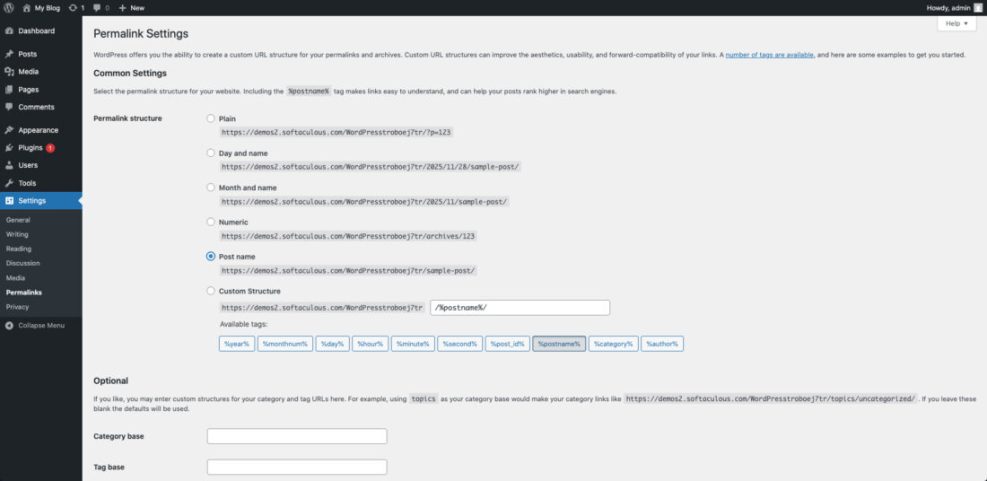
These small tweaks help search engines and users understand your content and keep your URL structure flexible if you reorganize your store later.
Install and Configure Easy Digital Downloads
How Do You Install Easy Digital Downloads?
In your WordPress dashboard, go to Plugins » Add New, search for “Easy Digital Downloads,” then click Install Now and Activate.
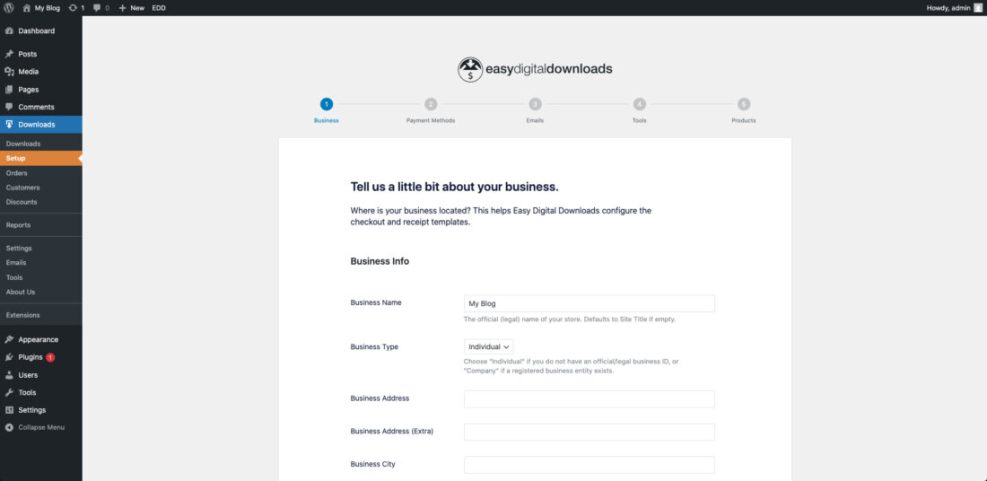
After activation, follow the built-in setup wizard if it appears. It usually helps you set currency, main store pages, and basic email settings in just a few clicks.
- Run the onboarding wizard and confirm your store currency and location.
- Review the automatically created pages for checkout, purchase confirmation, and purchase history.
- Turn on test or sandbox mode while you configure payments.
For more advanced information later, you can review the official Easy Digital Downloads documentation.
Key Store Settings to Review
Go to Downloads » Settings to fine tune your store. Confirm your currency, tax options, and default pages in the General tab. Then, in the Emails tab, adjust the “From” name, address, and basic email template so customers recognize your messages.
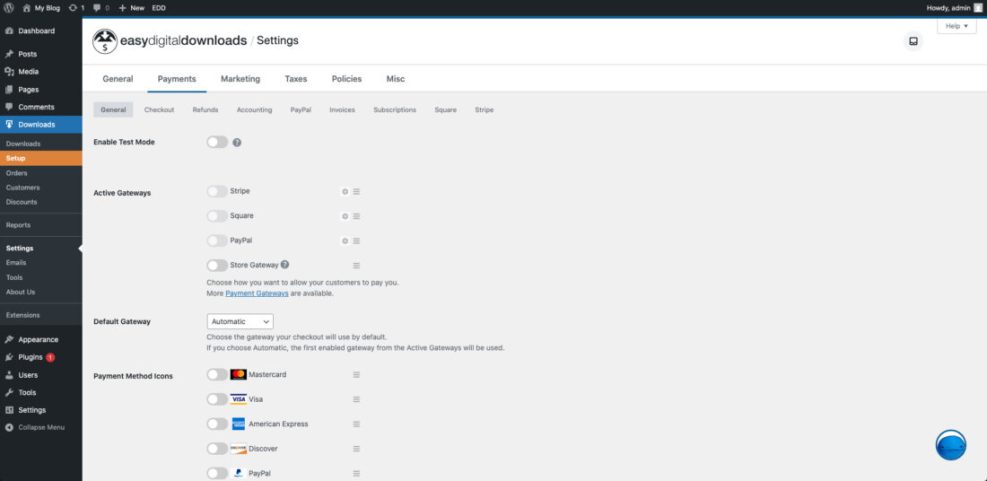
Finally, under the Payment Gateways tab, enable gateways you plan to use. At this stage, keep them in test mode so you can place trial orders safely.
Create Your First Downloadable Product
Add a New Downloadable Product
To add your first product, go to Downloads » Add New. Give your product a clear title and write a short description that explains what buyers get. Think like a customer and answer the biggest questions about the file, format, and use cases in a few concise sentences.
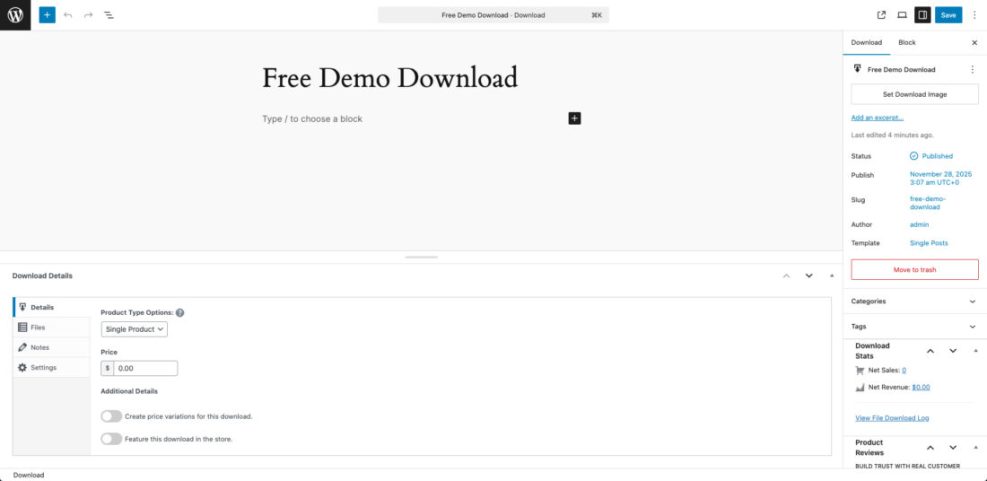
Set Prices, Files, and Limits
Under the pricing section, choose a simple price or enable variable pricing if you offer multiple tiers such as personal and business licenses. Then attach the actual file or files in the download files area. Set a sensible download limit and link expiration time so customers can access their purchase without leaving files open forever.
When you are finished, publish the download and view it on the front end. Check that the add-to-cart button appears, the price looks correct, and the product description reads clearly.
Optimize Checkout, Emails, and Delivery
Simplify the Checkout Experience
A smooth checkout builds trust and increases conversions. In Downloads » Settings » Checkout, keep the number of fields as low as your business needs. For digital-only stores, you usually do not need a shipping address. You can also choose whether buyers must create an account or can check out as guests.
Visit the checkout page that Easy Digital Downloads created and place a test product in the cart. Make sure labels are clear, error messages make sense, and the order summary matches what people expect to pay.
Customize Email Receipts with Code
Easy Digital Downloads already sends customers an email with their download links. However, you can customize the heading or text with a simple code snippet in a small custom plugin or your theme’s functions.php file.
// Change the heading of the Easy Digital Downloads purchase receipt email. add_filter( 'edd_purchase_receipt_heading', function( $heading, $payment_id, $payment_data ) { return 'Your Digital Purchase and Download Links'; }, 10, 3 ); ?>Always test changes in a staging site or with test payments before editing live emails for real customers.
Extend Your Store with Add Ons
Popular Extensions to Consider
One of the strengths of Easy Digital Downloads is its large extension library. You can add recurring payments, software licensing, email marketing integrations, and more. For example, recurring billing extensions help you sell memberships or subscriptions, while license key add ons are perfect for selling plugins, themes, or other software.
To browse these options, you can start at the official Easy Digital Downloads plugin page and follow links to add ons from the developer.
Avoid Common Extension Pitfalls
It is tempting to install many extensions at once. Instead, add them slowly and confirm that each one solves a real business need. Keep a log of what you install and test your purchase flow after every change. This habit helps you catch conflicts early and keeps your store fast and reliable.
Promote and Grow Your Digital Store
Essential Marketing Steps
Once the basics work, you need visitors. Start with clear landing pages that describe who your product serves and why it helps. Then share those pages with your email list, social channels, and any communities where your audience already spends time. Simple launch discounts or bonuses can encourage first buyers to take action.
Track Performance and Improve
As traffic grows, track which products sell best and which checkout steps people abandon. You can combine Easy Digital Downloads reports with analytics to learn where buyers come from and which pages convert well. Over time, improve product copy, pricing, and funnels instead of guessing.
If you want to go deeper into optimization, consider creating a dedicated Conversion Funnel Guide to map each step from visitor to loyal customer.
Sell Digital Products Conclusion
Your Next Action Step
You now have a clear path to sell digital products from your own WordPress site with Easy Digital Downloads. Start by launching a single, well-presented download, then refine your checkout, emails, and delivery until every purchase feels smooth. After that, you can layer on extensions, better product pages, and marketing campaigns as your digital store grows.
More WordPress Guides You Might Like
Recommended Reading and Tutorials
To keep improving your digital store and broader WordPress skills, these future resources will fit well alongside your Easy Digital Downloads setup.
- WordPress migration checklist for blogs
- Developer hooks for optimizing WordPress plugins with code
- Email marketing WordPress
- Beginner guide to WordPress speed optimization
- How to duplicate pages in WordPress
As you publish more content around your products and store, link these guides together so readers can move naturally from setup, to optimization, to long-term growth.
Frequently Asked Questions About sell digital products
Do I need Easy Digital Downloads to sell digital products on WordPress?
Can I use Easy Digital Downloads for physical products?
How do I protect my download files from free sharing?
Which payment gateways work with Easy Digital Downloads?
Can I sell subscriptions or memberships with Easy Digital Downloads?