Best WordPress Security Plugins Compared
Protect your WordPress site with smarter layered defenses

WordPress security plugins give your site a strong second line of defense against hacks, malware, and brute force logins. Without the right tools, a single vulnerable plugin or weak password can expose everything from your content to customer data.
In this guide, you will see how the most popular WordPress security plugins compare, where each one shines, and how to combine them with good hosting, backups, and hardening. By the end, you can choose a security setup that fits your budget, skills, and type of WordPress site.
Best WordPress Security Plugins At a Glance
There is no single “best” security plugin for every site, yet a few tools consistently stand out. For most small and mid-sized sites, a security plugin for WordPress that combines a firewall, malware scanning, and strong login protection covers the biggest risks.
- Wordfence Security – Great all-rounder with firewall and scanning.
- Sucuri Security – Strong cloud firewall and cleanup service.
- Solid Security (formerly iThemes) – Easy policies for multiple sites.
- All In One WP Security & Firewall – Feature-rich free option.
- MalCare Security – One-click malware removal and off-site scans.
- Jetpack Protect – Simple scans if you already use Jetpack.
These security plugins for WordPress all handle core tasks like blocking brute force logins, scanning for malware, and enforcing stronger passwords, but they differ in depth of features, pricing, and how much they rely on your server resources.
Which Security Plugin Is Safest For Most Users?
For many site owners, Wordfence or Sucuri offers a safe default because both combine a well-maintained firewall with malware scanning and regular updates. On shared hosting, a cloud firewall like Sucuri can reduce server load, while Wordfence gives you detailed visibility inside the WordPress dashboard. Both are among the most trusted WordPress security plugins for general use.
Can You Rely On Free Security Plugins?
Free versions of popular security plugins for WordPress can give you strong basic protection, especially for smaller sites with modest traffic. However, premium plans usually add faster malware cleanup, real-time firewall rules, and priority support. As your site grows in revenue and complexity, investing in a paid WordPress security plugin starts to make more sense.
Why Your WordPress Site Needs Protection
Attackers rarely target your specific brand. Instead, they scan the internet for known weaknesses in outdated plugins, themes, and weak passwords. Because WordPress powers a large percentage of websites, automated attacks constantly probe common login URLs and plugin vulnerabilities, making WordPress security plugins an important extra layer of defense.
How Do WordPress Attacks Usually Happen?
Most successful attacks come from outdated plugins or themes, weak passwords, or reused credentials that leak in unrelated breaches. Automated bots try thousands of login combinations, exploit old bugs, and upload backdoor files. Therefore, staying updated and using rate limiting, captchas, and strong authentication alongside a good security plugin for WordPress dramatically reduces your risk.
What Does a Security Plugin Actually Do?
A good WordPress security plugin sits between attackers and your site’s sensitive parts. It filters requests through a firewall, scans files and the database for malicious code, checks core file integrity, and hardens settings like login limits or file editing. In addition, many tools send alerts when suspicious changes or logins occur so you can react quickly.
Why Core Updates Still Matter Most
Security plugins cannot compensate for a neglected site. WordPress core, themes, and plugins need regular updates so known vulnerabilities are patched quickly. Official hardening guides from WordPress emphasize updates, trusted extensions, and least-privilege user roles as the foundation for any security strategy. WordPress security plugins are most effective when they are layered on top of those basics.
Key Features of Leading WordPress Security Plugins
Each major WordPress security plugin focuses on a slightly different mix of firewall design, malware scanning, performance impact, and ease of use. Understanding those differences helps you pick a tool that fits your hosting and workflow.
Wordfence Security Overview
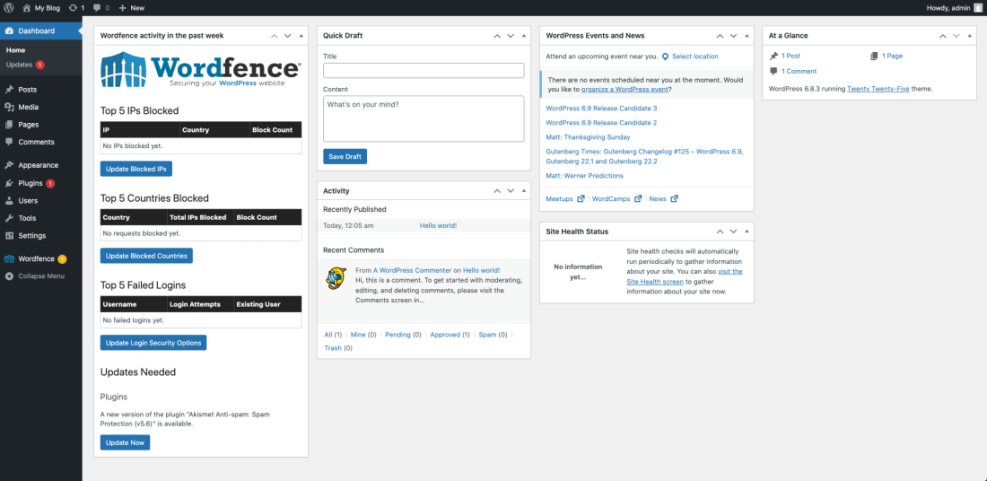
Wordfence provides an endpoint firewall and malware scanner that run inside WordPress, with rules updated from their threat intelligence feed. You get login security features like two-factor authentication, reCAPTCHA, and login attempt limits, plus live traffic views that show blocked attacks and suspicious IPs directly in the dashboard. This makes Wordfence one of the most popular all-in-one WordPress security plugins.
Sucuri Security Overview
Sucuri combines a WordPress plugin with an optional cloud firewall that sits in front of your server. Incoming traffic passes through Sucuri’s network, where malicious requests are blocked before they reach WordPress. The plugin also offers integrity checks, security hardening recommendations, and post-hack cleanup features for damaged sites, positioning Sucuri as a strong security plugin for WordPress on busy or vulnerable sites.
Other Strong Options To Consider
Solid Security focuses on security “rules” or policies you can apply across sites, which is helpful for agencies or owners of many installs. All In One WP Security & Firewall offers detailed controls for login protection and .htaccess rules in a free package. MalCare runs resource-heavy malware scans on its own servers, so your site stays fast during deep scans. Together, these tools give you several WordPress security plugin options for different budgets and technical levels.
To make the comparison easier, here is a compact table that highlights how these popular WordPress security plugins differ in focus and features.
| Plugin | Best For | Firewall Type | Malware Scanning | Free Version |
|---|---|---|---|---|
| Wordfence Security | All-round protection | Endpoint (in-plugin) | On-demand and scheduled | Yes |
| Sucuri Security | Cloud-level blocking | Cloud WAF (optional) | On-demand and remote | Yes |
| Solid Security | Multi-site policies | Plugin firewall rules | Core file and system checks | Yes |
| All In One WP Security | Advanced free controls | .htaccess and plugin rules | Basic checks | Yes |
| MalCare Security | Deep scans and cleanup | Remote firewall | Off-site deep scanning | Limited |
| Jetpack Protect | Simple scans | Cloud-based checks | Daily scans | Yes |
Use this table as a starting point, then match each WordPress security plugin’s strengths to your budget, performance needs, and comfort level with more advanced configuration screens.
How to Choose the Right WordPress Security Plugin
Choosing a security solution is easier when you treat it like insurance rather than a feature race. Start with the risks that scare you most, such as losing customer data, site downtime, or the cost of cleaning a hacked store, and then match those risks to the right WordPress security plugins.
Match Protection To Your Hosting Plan
On shared hosting, heavy on-server scanning can slow down your site during full scans. In that case, a cloud firewall or remote scanner is often a better fit. On a VPS or dedicated server, you have more CPU and memory available, so an endpoint firewall with live traffic views can be very useful. Consider how each security plugin for WordPress impacts performance on your hosting plan.
Do You Need More Than One Security Plugin?
You can safely use one main WordPress security plugin plus smaller utilities such as a login limiter or a 2FA tool, as long as you do not enable multiple firewalls. When two plugins try to filter every request, conflicts and false positives become more likely, and you may spend extra time troubleshooting blocked admin actions.
Key Questions To Ask Before Installing
- Does my host already include a server or cloud firewall?
- How much traffic and how many logins does my site handle?
- Do I need hands-off malware cleanup in an emergency?
- Who will receive and act on security alerts?
Answering these questions clarifies whether you should prioritize an easy dashboard, off-site cleanup services, or granular controls so a developer or agency can fine-tune every rule inside your chosen WordPress security plugin.
Setting Up Your WordPress Security Plugin Step by Step
Once you choose a tool, a careful setup ensures it protects your WordPress site without breaking legitimate traffic or admin tasks.
Basic Setup Steps For Any Security Plugin
- Take a fresh backup using your preferred backup plugin or host tools.
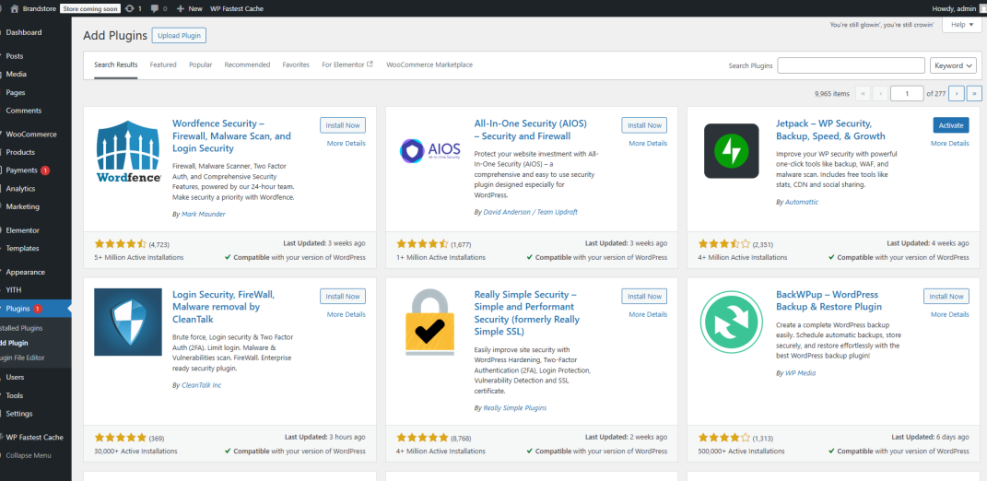
- Install and activate your chosen WordPress security plugin from the official WordPress repository.
- Run the initial setup wizard and enable recommended firewall or hardening options.
- Schedule regular malware scans during low-traffic hours.
- Configure email alerts for critical issues, logins, and file changes.
- Whitelist your own IP if the plugin offers that option.
Following these steps ensures your site is protected before you start tightening more advanced rules that may affect specific plugins, payment gateways, or custom themes.
How To Test That Protection Works
After setup, try a few safe tests. For example, trigger a fake failed login several times to confirm lockouts work, and use the plugin’s test email button if available. Then review the logs to see what information is recorded about IP addresses, user agents, and blocked requests inside your WordPress security plugin.
Common Configuration Mistakes To Avoid
Over-aggressive rules can block legitimate visitors, crawlers, or payment callbacks. Therefore, avoid enabling every advanced option at once. Instead, tighten rules in stages and watch your error logs. Also, remember to exclude cache, backup, and log folders from deep scans so they do not grow scans and backups unnecessarily. Proper configuration ensures your security plugin for WordPress protects your site without causing headaches.
Additional WordPress Hardening Best Practices
WordPress security plugins work best when they sit on top of solid WordPress hygiene. That means fewer moving parts, strong authentication, and clear roles for each user.
Limit The Number Of Plugins You Use
Every extra plugin increases your attack surface and your maintenance workload. Therefore, remove anything you do not actively use, and replace single-purpose tools with well-maintained multi-feature plugins where it makes sense. Before installing any new plugin, check its update history, reviews, and support activity—especially when you are adding new security plugins for WordPress.
Secure Logins And User Accounts
Combine your WordPress security plugin with strong password policies, two-factor authentication, and least-privilege roles. For example, editors should not have administrator access, and old accounts for former contractors should be removed or downgraded. In addition, consider using a separate password manager so you never reuse credentials across services.
Harden WordPress Beyond Plugins
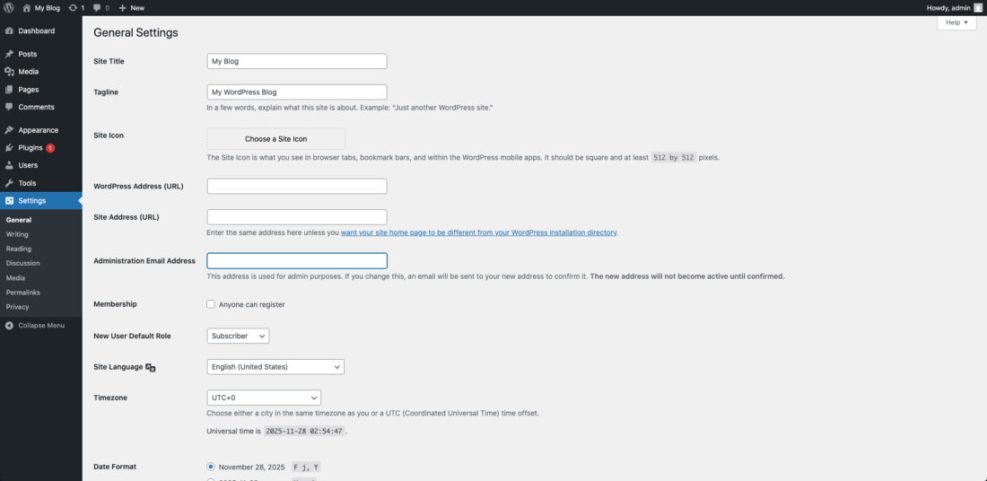
Strong hosting, automatic updates, SSL, and secure file permissions are just as important as any plugin features. Official WordPress hardening documentation and security guides explain how to disable file editing in wp-admin, restrict access to sensitive files, and enforce HTTPS across your site, all of which complement your chosen WordPress security plugins.
For core concepts and best practices, you can also review trusted resources such as the official WordPress security pages and beginner-friendly security checklists from leading WordPress education sites.
- WordPress Security Overview
- Hardening WordPress Guide
- Wordfence Security on WordPress.org
- Sucuri Security on WordPress.org
WordPress Security Plugins Conclusion
The best approach is to pick one main WordPress security plugin, configure it carefully, and pair it with quality hosting and dependable backups. From there, you can add 2FA, regular audits, and tighter user permissions as your skills grow. Take one focused hour to lock down your site now with the right security plugins for WordPress so you do not spend days recovering from the next avoidable hack.
More WordPress Guides You Might Like
The right security strategy ties into backups, performance, and day-to-day maintenance. These planned guides will help you build a complete protection stack around your chosen WordPress security plugins.
- Local seo small business WordPress
- How to publish WordPress site
- Best WordPress lms plugins compared
- How to add keywords in WordPress without hurting
- Is WordPress good for seo
As you explore these topics, you can refine your mix of WordPress security plugins, host-level tools, and operating habits into a long-term protection plan that feels manageable instead of overwhelming.
Frequently Asked Questions About WordPress Security Plugins
What is the best free WordPress security plugin?
Should I use more than one security plugin at the same time?
Do security plugins slow down WordPress?
Can a security plugin stop all hacks?
How often should I scan my WordPress site for malware?