The best WordPress membership plugins let you lock content, sell access, and build a loyal community directly on your site. When you choose the right WordPress membership plugins for your business, you can turn blog posts, downloads, or courses into predictable recurring income without leaving WordPress.
In this guide to WordPress membership plugins, you will see how the most popular solutions compare, which features matter for different business models, and a simple setup checklist you can follow. By the end, you can confidently shortlist one or two plugins and move forward without second guessing every option.
Best WordPress Membership Plugins
Quick Picks for Different Sites
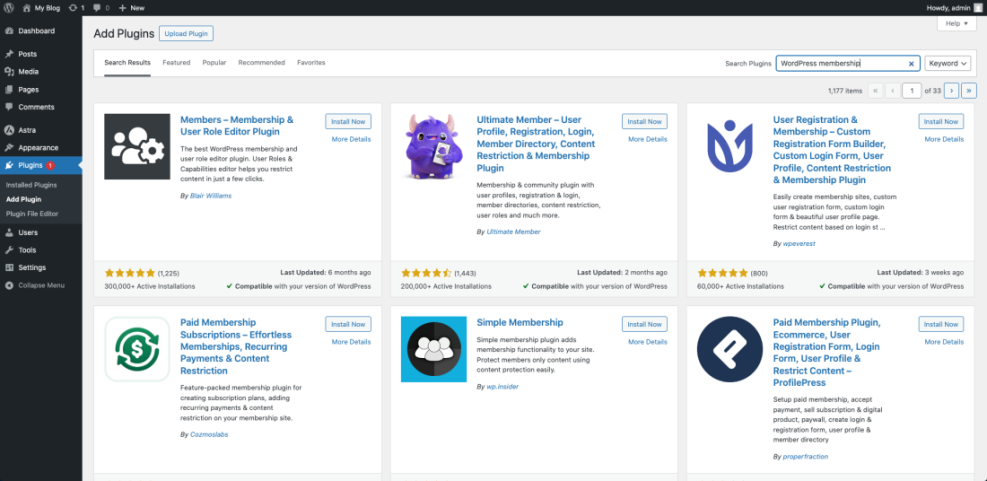
To save time, here are popular membership tools many site owners start with:
- MemberPress – All-in-one paid memberships and online courses.
- Paid Memberships Pro – Flexible free core with strong add-ons.
- Restrict Content Pro – Clean content protection and simple pricing.
- WooCommerce Memberships – Best when you already run a store.
- Simple Membership – Lightweight free option for small sites.
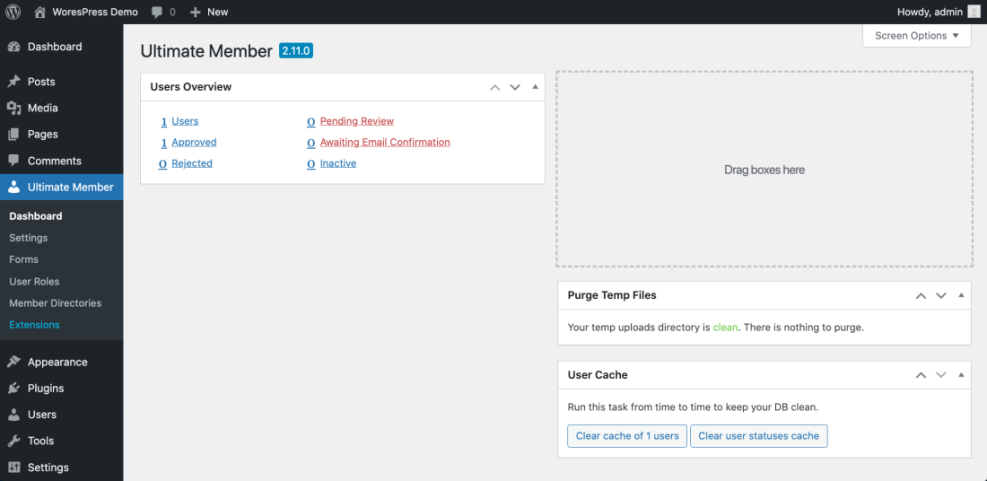
- Ultimate Member – Member directories and community profiles.
These WordPress membership plugins cover most use cases, from lean blogs to complex learning platforms. You can usually test the free versions or demos before you commit to a long-term license.
The table below shows rough pricing tiers and best use cases for leading tools so you can spot which ones fit your budget and plans.
| Plugin | Best For | Typical Pricing* |
|---|---|---|
| MemberPress | All-in-one memberships and courses | Around $150–$400 per year |
| Paid Memberships Pro | Flexible, developer-friendly membership sites | Free core, paid add-ons from around $200 per year |
| Restrict Content Pro | Monetizing blog and premium content | Roughly $100–$300 per year |
| WooCommerce Memberships | Existing WooCommerce stores | About $150–$250 per year, plus store extensions |
| Simple Membership | Very small or starter sites | Free, with optional paid add-ons |
| Ultimate Member | Communities and user directories | Free core, paid extensions bundles |
*Vendors change prices and bundles over time, so always confirm current plans before you buy. Use ranges here only as a rough budget guide.
How to Read This Comparison
Every membership plugin tries to solve the same three problems: restrict content, take payments, and manage members. However, each one focuses on a slightly different audience, such as course creators, publishers, or ecommerce stores. As you read, map each plugin to your real-world plan instead of chasing the longest feature list.
Are Free Membership Plugins Enough?
Free membership plugins can work well when you have a small audience, a simple pricing model, and basic content protection needs. As you grow, you usually need better reporting, more payment options, and stronger integrations. At that point, upgrading to a paid license often costs less than custom development or manual workarounds.
How Membership Plugins Protect Content
What Does a Membership Plugin Do?
A membership plugin adds a paid “layer” on top of normal WordPress posts and pages. It lets you define membership levels, decide which content each level can see, and connect payments so access can start and stop automatically. In addition, many tools handle login, profile pages, and email notifications out of the box.
Core Parts of a Membership Stack
Behind the scenes, most plugins rely on WordPress user accounts and roles. They add extra membership levels on top, then check those levels whenever someone tries to view protected content. You can read more about how roles and capabilities work in the official WordPress documentation.
- User accounts and roles that define base permissions.
- Membership levels or plans that unlock premium content.
- Payment gateways such as Stripe or PayPal for recurring billing.
- Automation for signups, cancellations, and renewals.
When these pieces work together, you get a membership site that can scale without constant manual account updates.
Common Setup Mistakes to Avoid
- Protecting content but forgetting to hide menus or search results.
- Running test payments in live mode instead of sandbox mode.
- Using aggressive caching that serves premium content to logged-out visitors.
- Not forcing HTTPS on checkout or login pages.
Before you launch, test your full flow in a private browser window and on mobile. Try joining, cancelling, and renewing as if you were a real customer.
Features to Compare Before Buying
Which Payment Gateways Do You Need?
Payment support is one of the most important selection criteria when you compare WordPress membership plugins. For example, some plugins only ship with Stripe and PayPal, while others add regional gateways through add-ons. Think about where your members live, whether you need one-time payments, subscriptions, or both, and if you must accept offline payments such as bank transfer.
Content Dripping and Access Rules
Many membership sites work better when you release lessons or resources over time instead of all at once. That is where content dripping comes in. Good tools let you unlock posts based on signup date, plan, or completed lessons. Strong access rules also let you protect custom post types, downloads, or even specific blocks inside a post.
Integrations With Courses and Stores
If you sell courses, look for plugins that integrate smoothly with learning tools such as LearnDash or LifterLMS. If you already run an online store, you may prefer a membership plugin that connects directly to WooCommerce. The official WooCommerce Memberships documentation explains how deeply that integration can go.
Overview of Popular Membership Plugins
MemberPress and Other Premium Options
MemberPress is often chosen as a complete solution for paid communities and course sites. It combines flexible access rules, built-in coupons, and course-style content delivery, so you can launch quickly without buying many add-ons. Restrict Content Pro and MemberMouse play in a similar space with different pricing and reporting strengths.
Premium plugins usually include more polished reporting, better support, and reliable integrations with email providers. Therefore, they fit best when your membership is a core revenue stream, not just a side experiment. If you are ready to invest and want fewer technical surprises, starting with a premium tool often pays off.
Free Plugins for Lean Budgets
If you need to keep costs low, free plugins can still take you far. Paid Memberships Pro, Simple Membership, and Ultimate Member all offer solid free cores with optional paid extensions. Many site owners run their first few hundred members on these plugins before upgrading.
Free tools are ideal when you are validating your idea or building an internal community. However, you should budget time to review add-on costs later so you do not outgrow the free tier at the worst moment.
When WooCommerce-Based Memberships Make Sense
WooCommerce-based membership plugins such as WooCommerce Memberships are great when you already sell products. They let you bundle memberships with physical items, offer member-only discounts, or hide certain products from non-members. This keeps orders, refunds, and subscriptions inside one familiar dashboard.
On the other hand, WooCommerce adds extra complexity if you only sell access to content or courses. In that case, a leaner membership plugin that does not require a full store can stay faster and easier to maintain over time.
Choosing and Setting Up Your Plugin
How Do You Pick the Right Plugin?
Start by matching your business model to a plugin’s strengths. For example, choose a course-focused solution if most of your value lives in structured lessons. Pick a WooCommerce-based tool if memberships are tightly tied to products. Finally, look at your budget, support expectations, and how comfortable you are with custom code.
Step-by-Step Setup Checklist
Once you pick a plugin, you can follow a simple setup flow like this:
- Confirm that your hosting and Install WordPress setup are stable and backed up.
- List the posts, pages, and downloads that should be member-only content.
- Install and activate your chosen membership plugin from the dashboard or vendor zip file.
- Create membership levels that match your pricing, such as Free, Standard, and Premium.
- Connect payment gateways, test sandbox mode, and configure currency and tax settings.
- Protect content by assigning it to levels, and hide menus that should not show to guests.
- Customize registration, login, and account pages with your brand and clear messaging.
- Set up emails for welcome messages, failed payments, and upcoming renewals.
- Run full test signups on desktop and mobile before inviting real customers.
After this first pass, you can refine your pricing, onboarding, and content drip schedule based on real member behavior instead of guesses.
- Test at least one free and one paid plan.
- Confirm that cancellations instantly remove premium access.
- Check that receipts and invoices look professional.
- Verify that your analytics still record page views correctly.
These small checks catch most issues early so you do not frustrate your first paying members.
If you plan a deep dive into a specific tool, consider a dedicated guide such as an in-depth MemberPress Review or a detailed Membership Pricing Guide for long-term optimization.
WordPress Membership Plugins Conclusion
Membership tools are only a means to an end. The real value comes from the content, community, and outcomes you deliver for members. When your plugin matches your model, it becomes almost invisible, and you can focus on serving people instead of fighting settings.
The smartest next step is small: choose one plugin that fits your current stage, launch a simple offer, and invite a limited beta group. As you learn what members actually use and love, you can layer on more features, switch tools if needed, and grow a membership site that supports both your audience and your business for years.
More WordPress Guides You Might Like
WordPress membership plugins are only a means to an end. The real value comes from the content, community, and outcomes you deliver for members. When your plugin matches your model, it becomes almost invisible, and you can focus on serving people instead of fighting settings.
- How to publish WordPress site
- Optimizing Membership Site Performance on Shared Hosting
- Creating a Seamless Onboarding Flow for New Members
- Email marketing WordPress
- Handling Failed Payments and Churn in Membership Sites
Working through guides like these step by step helps you move from “it works” to a polished, reliable membership experience that members are happy to pay for every month.
Frequently Asked Questions About WordPress Membership Plugins
What is the easiest WordPress membership plugin for beginners?
Do I need WooCommerce to run a membership site?
Can I sell online courses with a membership plugin?
Is it safe to process payments through a membership plugin?
Can I switch membership plugins later without losing members?