Best WooCommerce WordPress Themes
Build a faster high converting WordPress shop layout

WooCommerce themes decide how your store looks, feels, and performs. The right theme can make your pages load faster, simplify checkout, and make products easier to browse, while the wrong one can slow everything down and cost you sales.
In the following guide, you will see quick theme recommendations, what to look for in a WooCommerce design, how to match a theme to your store type, and how to test or switch themes safely without breaking your live website.
Best WooCommerce Themes for Your Store
If you want a fast, flexible choice that works for most stores, Astra, Neve, Kadence, and GeneratePress are excellent starting points because they are lightweight, highly customizable, and show up consistently in independent performance tests and “best WooCommerce theme” roundups from trusted WordPress resources.
- Astra – lightweight, flexible, and great for most niches.
- Storefront – official WooCommerce theme with clean defaults.
- Neve or Kadence – modern, fast designs with starter templates.
- Flatsome or WoodMart – strong for visual, catalog-heavy shops.
- GeneratePress or Blocksy – ideal for performance-focused builds.
These themes balance speed, modern design, and WooCommerce features such as optimized product grids, flexible headers, and checkout layouts, which you will see highlighted again in performance-focused comparisons and expert theme guides.
Which WooCommerce Theme Works for Most Stores?
For most general stores, Astra or Neve is a very safe bet. They are fast, work well with popular page builders, and offer many importable starter shops, so you can launch quickly. In addition, both integrate smoothly with WooCommerce features like product grids, sidebars, and checkout customization.
Do You Need a Premium Theme to Sell?
You can launch a serious store with a free theme such as Astra, Neve, Kadence, Blocksy, or Storefront. Paid upgrades mainly add design presets, extra customization, and support. Therefore, start with the free version, test sales and performance, and only upgrade when you know which advanced options you truly need.
What Is the Safest Starter Choice for Beginners?
Beginners usually do best with a fast theme that includes ready shop demos, such as Astra, Kadence, or Blocksy. You import a layout, change colors and fonts, and replace sample products. This approach keeps your store clean and avoids the heavy, slow designs that many “all-in-one” themes ship by default.
Key Factors When Choosing a Store Theme
Why Does Theme Speed Matter?
Theme speed affects bounce rate, conversion, and even search visibility. Studies on web performance show that faster pages keep users engaged and help them complete more actions, such as adding items to the cart or finishing checkout. Tools like PageSpeed Insights and other performance guides underline how closely speed and revenue are linked.
Design, UX, and Mobile Experience
Good WooCommerce design does more than look pretty; it guides shoppers smoothly from category to product page to checkout. Responsive layouts, easy-to-read typography, clear buttons, and sticky add-to-cart bars all help. Modern advice from WooCommerce also favors lightweight, block-based themes that work well with the Site Editor and scale as your store grows.
Essential WooCommerce Features to Check
- Dedicated shop, category, and product templates.
- Support for product galleries, zoom, and quick view.
- Flexible sidebars, filters, and off-canvas menus.
- Mini cart in the header and clear cart icons.
- Customizable checkout, including one-page or two-step layouts.
- Compatibility with popular plugins such as caching, page builders, and SEO tools.
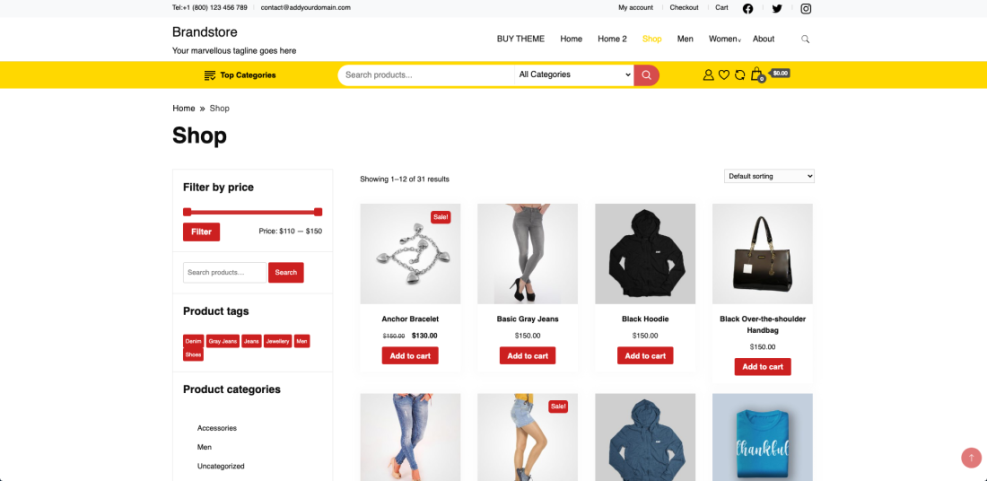
Before you decide, open the theme’s demo and click through the full journey from category to checkout. If filters, search, and mobile menus feel smooth there, your real store stands a much better chance of converting visitors into customers.
Top WooCommerce Themes Explained
Fast Multipurpose Themes for Any Niche
Astra, Neve, Kadence, GeneratePress, OceanWP, and Blocksy consistently appear in “fastest WooCommerce theme” tests and expert recommendation lists. They are built for speed, ship with clean code, and include starter templates for many industries, from fashion to digital products.
These themes are ideal when you want a flexible base that works with builders like Elementor, Spectra, or Gutenberg blocks without locking you into a single visual style.
Here is a quick comparison to help you narrow the options:
| Theme | Free Version | Best For | Main Strength |
|---|---|---|---|
| Astra | Yes | Most general stores | Very fast, huge library of starter shops |
| Neve | Yes | Modern block-based stores | Tight Site Editor integration and clean layouts |
| Kadence | Yes | Brand-focused stores | Powerful header builder and global design controls |
| GeneratePress | Yes | Developers and agencies | Very lightweight, predictable markup and hooks |
| OceanWP | Yes | Content-heavy stores | Many layout options and WooCommerce tweaks |
| Blocksy | Yes | Design-conscious shops | Modern aesthetic, strong dark mode and cards |
All of these themes can build a high-performing store when paired with solid hosting and basic image and script optimization, so the final choice often comes down to which starter designs match your brand.
Official and Design-Heavy Store Themes
Storefront is the official WooCommerce theme and mirrors default WooCommerce layouts. It is simple, stable, and a good baseline if you want a minimal store or plan to customize heavily with your own CSS or a child theme.
Flatsome, WoodMart, and Shoptimizer lean toward visually rich shops with many options for product grids, promotional banners, and mega menus. They are excellent for catalog-heavy stores, yet you should still disable any visual effects you do not need to keep performance under control.
Themes That Work Well With Page Builders
If you rely on a page builder such as Elementor or Beaver Builder, you want a theme that stays lean while letting the builder handle layouts. Astra, Neve, Kadence, and Hello Elementor are popular choices because they offer blank canvas templates, header and footer options, and strong WooCommerce integration without heavy visual effects you cannot switch off.
When you combine a flexible theme with a builder, be careful not to recreate every section as a complex layout. Use the theme’s native shop and product templates whenever possible so the code stays light and your store remains fast.

Choosing Themes for Different Store Types
Small Catalog or Single Product Shops
For small catalogs, you want a focused homepage that drives visitors to a handful of offers instead of a huge grid. Lightweight themes like Astra, Neve, or Kadence work well because their starter demos often include single-product or funnel-style layouts with large hero sections and clear call-to-action buttons.
Large Catalog and Wholesale Stores
When you manage dozens or hundreds of products, clear filtering and robust navigation matter more than flashy animations. Themes such as WoodMart, Flatsome, and Kadence can handle complex category trees, advanced menus, and product badges. Combine them with a good filter plugin to keep performance stable while giving customers strong search tools.
Digital Products and Memberships
If you sell downloads, courses, or memberships, focus on clean content layouts and strong account pages. GeneratePress, Astra, and Blocksy are solid options here, especially when paired with learning or membership plugins. They keep the design simple and fast so your protected content and onboarding flows remain smooth.
To make your store even faster, pair a lightweight theme with quality hosting and a solid WooCommerce optimization checklist from your own site, such as a planned Beginner guide to WordPress speed optimization. You can also review a dedicated How to choose the best WordPress hosting comparison when you are ready to upgrade servers.
If you are just starting, consider first reading an essential setup tutorial like Install WooCommerce so your store settings match the features your chosen theme provides.
How to Test a Theme Safely
Set Up a Staging or Local Copy
- Create a staging site through your host or a backup plugin.
- Clone your live store, including products and settings.
- Install and activate the new theme only on staging.
- Click through every key page and fix layout issues.
- Update menus and widgets, then test checkout with a test order.
Staging protects your live customers from surprises and lets you compare performance and conversion metrics before committing to the new design.
Run Performance and UX Checks
Once the theme looks correct, run it through tools such as Google PageSpeed Insights to measure Core Web Vitals, script usage, and image optimization. Then test the store manually on a phone, tablet, and desktop, paying special attention to menu behavior, search, filters, and the full checkout process.
- Measure homepage, category, and product page speed.
- Check that fonts and buttons stay readable on small screens.
- Verify cart, mini cart, and checkout work in multiple browsers.
Performance checks reveal hidden issues like heavy sliders or oversized images, while manual UX testing helps you spot confusing layouts that tools cannot catch.
Create a Child Theme for Custom Code
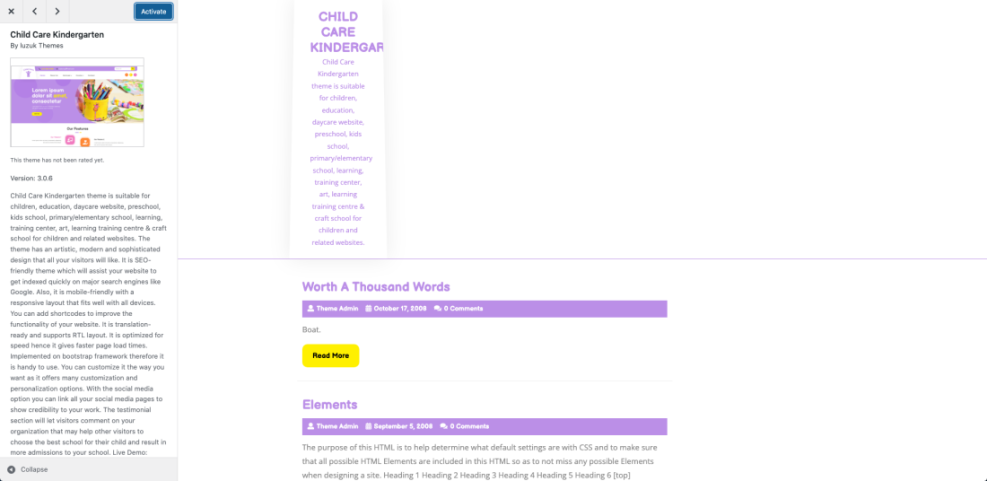
If you plan to change templates or add CSS, create a child theme instead of editing the parent. A child theme stores your changes separately, so you can install security and feature updates for the parent theme without losing customizations. WordPress theme documentation offers clear guidance on how child themes work and why they matter.
Common WooCommerce Theme Mistakes
Turning On Every Built In Feature
Many premium themes ship with sliders, animations, pop-ups, and bundled plugins. It is tempting to enable everything, yet each extra effect adds scripts and styles. Instead, keep only the features that help sales, and disable or remove anything that slows down your store without adding clear value.
Ignoring Mobile Checkout Experience
Most shoppers browse and buy on phones, so a theme that looks perfect on desktop but clunky on mobile will cost you revenue. Always test checkout with your thumbs: form fields should be large enough, the cart icon should stay visible, and there should be no horizontal scrolling on any key page.
Using Outdated or Nulled Themes
Outdated themes can break with WooCommerce or PHP updates and sometimes include insecure code patterns. Nulled themes are even worse because they may hide backdoors or spam links. Stick with reputable developers, keep automatic updates enabled, and remove themes you no longer use so they cannot introduce new vulnerabilities later.
WooCommerce Themes Conclusion
The smartest approach is to pick one fast, well-supported theme from the short list above, spin it up on staging, and focus on launch instead of chasing endless design options. You can always refine typography, spacing, and product layouts later using the theme’s own settings or a child theme.
If you feel stuck, start with Astra, Neve, Kadence, or GeneratePress as your main candidate, import a shop starter site that matches your niche, and run real test orders. After you see how customers interact with the new design, you can tune details and, when needed, upgrade to the pro version for advanced features.
More WordPress Guides You Might Like
To get even more out of your WooCommerce store and theme, plan a learning path that also covers performance, SEO, and conversions.
- WordPress speed optimization checklist
- How to design a website with WordPress
- How to choose the best WordPress hosting
- WordPress church themes guide
- Woocommerce performance tips for faster stores
These topics build on your theme choice and help you turn a good-looking shop into a secure, fast, and consistent revenue source.
Frequently Asked Questions About WooCommerce Themes
What is the best free WooCommerce theme for beginners?
How do I know if a theme is WooCommerce compatible?
Can I switch WooCommerce themes without losing products?
Do I need a page builder with my WooCommerce theme?
How often should I update my WooCommerce theme?