Best E-commerce Security Plugins
Practical Protection Tips for Your Online Store

Ecommerce security plugins are the easiest way to protect your WordPress store from common attacks. When you handle payments and customer data, even a small vulnerability can turn into a big problem for your revenue and reputation.
This guide shows you how to pick and configure ecommerce-friendly security plugins for WordPress and SEO and UX, and where you will see it in daily work.”>WooCommerce. You will see which features matter most, how to avoid conflicts, and which practical settings help you stay safe without slowing your store down.
Best Ecommerce Security Plugins Overview
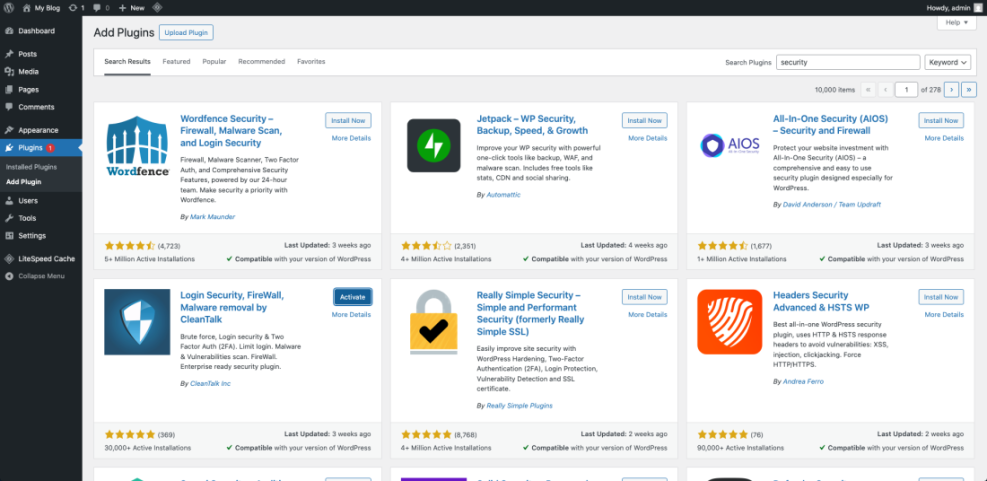
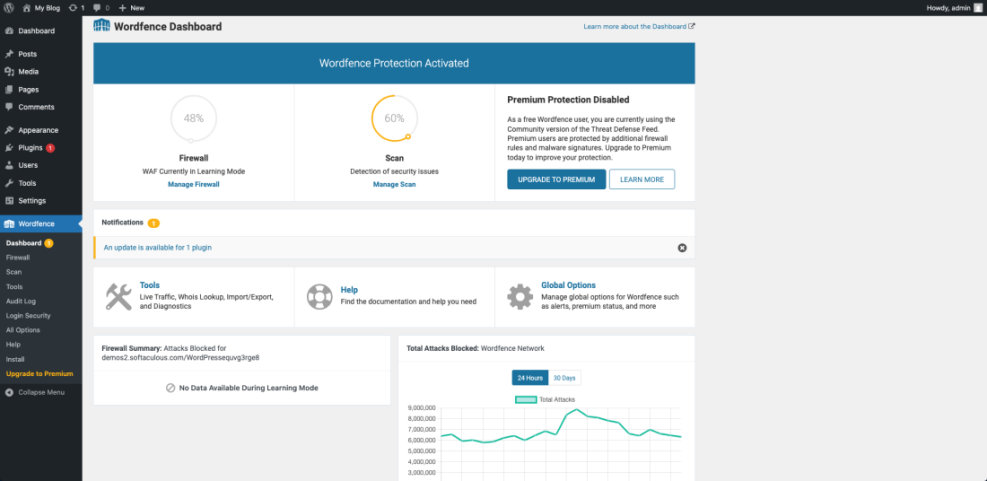
If you want a quick answer, start with one full security suite and one WooCommerce-focused helper. A common stack is Wordfence Security for firewall and malware scanning, plus a WooCommerce-specific plugin that adds checkout and account protection. This mix gives you broad coverage and ecommerce-specific controls.
Other strong all-in-one options include Sucuri Security,Jetpack Security, and All In One Security. Each plugin offers malware scanning, login protection, and various hardening tools suited for stores of different sizes.
For extra store-specific rules, you can add a plugin such as Security for WooCommerce. This type of plugin adds controls like hiding sensitive endpoints, restricting order views, or tightening checkout behavior so attackers cannot easily abuse your sales flow.
Top Ecommerce Security Plugins Right Now
The top plugins for most ecommerce stores combine a web application firewall, malware scanner, and strong login security. Wordfence and Sucuri are common picks for stores with steady traffic, while Jetpack Security and All In One Security work well for smaller shops that want simpler dashboards with clear risk scores and guided hardening steps.
Quick Ecommerce Security Plugin Picks
Smaller stores often choose Jetpack Security or All In One Security because the setup feels simple. Growing stores that see constant attacks often switch to Wordfence or Sucuri for deeper firewall rules and more detailed alerts. High-volume shops sometimes combine a plugin with a host-level or CDN firewall for extra protection at the edge.
Store-Friendly WooCommerce Security Plugins
A good plugin for ecommerce should protect logins, cart and checkout pages, and the admin area without breaking sessions or payment gateways. It should also let you exclude important WooCommerce endpoints from strict caching and give you clear logs so you can see when bots or real customers hit key parts of your store.
How Ecommerce Security Plugins Protect Stores
Security plugins act like a shield between attackers and your store. They watch traffic, filter out known bad requests, check files for malware, and lock down weak spots like open XML-RPC access or exposed admin URLs. As a result, you reduce the chance that a simple bot script can take down your site.
Most tools also include automatic alerts. When they detect a suspicious login, file change, or malware signature, they send you an email or dashboard notification. Because ecommerce sites change frequently, these alerts help you spot new problems before they affect checkouts or payment data.
How Ecommerce Security Plugins Work
Security plugins inspect each request to your site and compare it against patterns from known attacks. If a request matches these patterns, they block or throttle it. Many plugins also scan your files and database for injected code, so they can flag or remove malicious scripts that have already slipped past other defenses.
Core Ecommerce Security Plugin Features
For ecommerce, the most important features are a web application firewall, brute-force login protection, malware scanning, and integrity checks for core WordPress files. In addition, two-factor authentication for admins, rate limits for login attempts, and protection for XML-RPC endpoints give you a strong baseline without advanced manual tuning.
Host Security and Ecommerce Security Plugins
You still need host-level or CDN security even with strong plugins. A plugin only runs after a request reaches WordPress, while a firewall at the server or CDN layer can block dangerous traffic earlier. This layered approach gives you better performance and reduces the load from bot traffic on your PHP and database resources.
- Web application firewall that protects login, cart, and checkout pages
- Malware scanning with scheduled scans and clear reports
- Brute-force protection with smart lockouts and IP rules
- Two-factor authentication for admin and shop manager accounts
- File integrity checks for WordPress core and critical plugins
When a plugin offers all of these features, you can handle most common threats without custom code. You still need good passwords and updates, but the plugin reduces the impact of mistakes and automated attacks.
Choosing Ecommerce Security Plugins for Your Store
Choosing the right set of ecommerce security plugins starts with your current stack. First, list your host, CDN, caching solution, and payment gateways. Then, pick a plugin that covers gaps instead of duplicating what you already get from your provider or server-level firewall.
Because security touches every part of your site, you also need to check compatibility. Look for clear documentation, recent updates, and active support. When a plugin has not been updated in a long time, or when reviews mention problems with WooCommerce, it is safer to avoid it for a production store.
How Many Ecommerce Security Plugins?
Most stores only need one main security plugin plus optional small helpers. Two or three full security suites often conflict, especially when both include firewalls or login protection. Instead, use one primary tool for firewall and scanning, and add lightweight plugins only when they solve a very specific problem that your main plugin cannot handle.
Balancing Ecommerce Security and Performance
Every plugin adds some overhead, so you must balance protection and speed. Start by enabling basic features like firewall, login protection, and scheduled scans. Later, test advanced options such as real-time scanning or extra logging only during off-peak hours, and always measure the impact on product page load times and checkout performance.
WooCommerce Security Plugin Compatibility
Before you lock in a plugin, test it on a staging site with the same theme, payment gateways, and shipping plugins. Then, run full test orders, including account registration, guest checkout, and refunds. If you see blocked AJAX requests or broken redirects, adjust firewall rules or switch to a better WooCommerce-aware solution.
Below is a simple comparison of common security plugins and how they fit ecommerce needs.
| Plugin | Firewall | Malware Scan | Login Security | Extra Store Features |
|---|---|---|---|---|
| Wordfence | Yes | Yes | Yes (2FA, limits) | Good for high-traffic stores |
| Sucuri | Yes | Yes | Yes | Strong monitoring and cleanup |
| Jetpack Security | Yes | Yes | Basic | Backups and uptime monitoring |
| All In One Security | Yes | Limited | Yes | Step-based hardening wizard |
| Security for WooCommerce | No | No | Limited | WooCommerce-specific rules |
This table gives you a starting point. You should still test your own stack because even small differences in hosting or caching can change how each plugin behaves on your store.
Login Security for Ecommerce Stores
A protection is critical for ecommerce because attackers often target weak passwords and reused admin credentials. When a hacker gets into your dashboard, they can install backdoors, change payment settings, or redirect traffic. Therefore, you should harden logins for both admin accounts and customer accounts.
Security plugins usually make this easy. Many offer built-in two-factor authentication, reCAPTCHA on login forms, and rate limits for failed attempts. These features force attackers to spend more time and resources, which makes your store a less attractive target.
Enable Two Factor Authentication for Store Admins
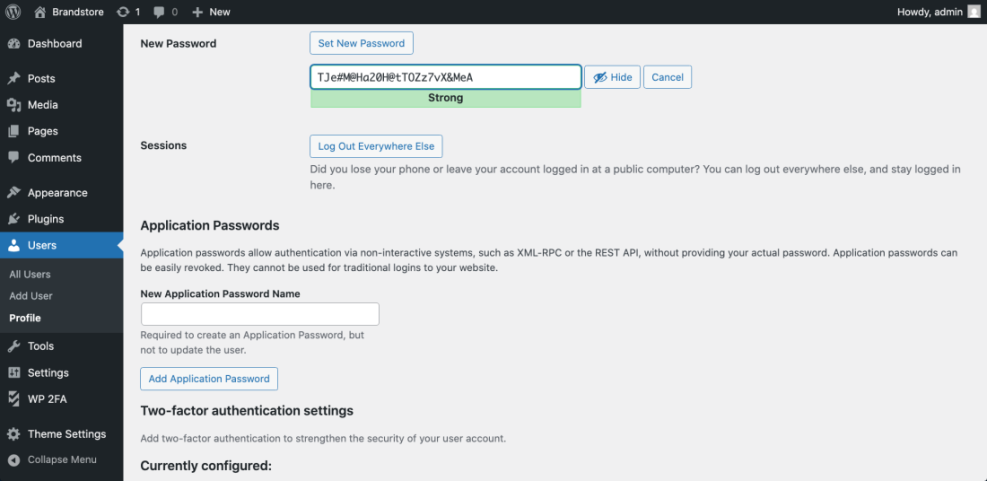
Set up two-factor authentication for administrators and shop managers first. You can use app-based codes or browser prompts, depending on the plugin. Once this is active, a stolen password alone is not enough to access the dashboard, which significantly reduces the impact of phishing and credential stuffing.
Limit Login Attempts and Block Bots
Next, configure login rate limits. Most plugins let you lock out IP addresses after several failed attempts and extend the lockout time for repeat offenders. You should also enable options that block common username patterns and prevent logins with the “admin” username, since bots still try that name by default.
Secure Customer Accounts on Your Online Store
For customers, focus on gentle protection. Encourage strong passwords, and enable options that block obvious patterns but avoid heavy captchas on checkout pages. You can add optional two-factor tools for high-value user roles while still keeping guest checkout open, so customers can complete orders quickly.
Firewall, Backups and Online Store Security
A firewall and good backups turn a security plugin from a basic lock into a full recovery plan. When the firewall blocks attacks, you avoid downtime. When backups run on a schedule, you can restore your store to a clean state even if a new exploit slips through before rules update.
Many security plugins integrate with backup tools or include their own backup module. You can also use dedicated backup plugins if you prefer. Just make sure the backup schedule matches your order volume, so you do not lose a full day of transactions when you roll back after an incident.
Always Pair Security Plugins With a Firewall
Ensure that your main security plugin runs a web application firewall at the earliest possible point, ideally before WordPress loads fully. Some tools call this an endpoint firewall; others use a cloud firewall. Either option is better than relying only on basic login limits or file scans, because it filters attacks before they can create new damage.
Use Backups as Your Security Net
Backups give you a way to recover quickly when something goes wrong. Schedule automated backups at least daily, and more often if your store receives many orders. Keep copies offsite, and run restore tests on a staging site so you know exactly how long a recovery may take during a real-world incident.
Monitoring Security Logs for Suspicious Activity
Finally, review activity logs regularly. Good plugins track login attempts, file changes, and configuration tweaks. When you see an unusual spike in failed logins or unexpected changes to plugin files, you can investigate early instead of discovering the issue after customers complain about errors or strange redirects.
For deeper coverage of backup strategies, you can later read a planned guide on backup plugins for stores. That sort of resource helps you connect your security settings with a full disaster recovery workflow.
Common Ecommerce Security Plugin Mistakes
Many store owners focus on new features and forget basic hygiene. As a result, they leave outdated plugins installed, reuse weak passwords, or rely only on hosting firewalls. When you avoid these common mistakes, your ecommerce security plugins work much more effectively.
Attackers often scan for known vulnerable plugins. When they find an outdated version on your store, they may exploit it even if you have a firewall. Therefore, you should build update checks into your weekly workflow and treat unmaintained plugins as a clear risk.
Relying Only on Your Host for Security
Hosting firewalls and malware scanners help, but they rarely know the details of your specific WordPress setup. A dedicated security plugin lives inside your site, which lets it catch changes to themes, plugins, and content more precisely. Using both layers together gives you better coverage than either one alone.
Ignoring Plugin and Theme Security Updates
Ignoring updates is one of the fastest ways to fall behind on security fixes. Set up email alerts when plugin authors release security updates, and update critical components as soon as you can test them on staging. If a plugin no longer receives updates, replace it before attackers start scanning heavily for its old vulnerabilities.
Skipping Regular Ecommerce Security Reviews
In addition, store owners sometimes treat security as a one-time setup. A better approach is to review reports from your plugins each month, check for strange errors, and run manual scans on demand. These small habits help you spot issues early and prove that you handle customer data responsibly.
If you want a structured process, you might later follow a dedicated WooCommerce hardening checklist. A checklist keeps you consistent even when your store grows and your plugin stack gets more complex.
Ecommerce Security Plugins Conclusion
Ecommerce security plugins give you the tools to protect logins, checkout pages, and sensitive data without becoming a full-time security engineer. When you choose one strong suite and a few targeted helpers, you can cover the most common threats while still keeping your store fast and easy to use.
Your best next step is to pick a primary plugin, set it up on a staging site, and run full test orders. After that, add two-factor authentication for admins, schedule scans and backups, and document a simple incident plan. With those steps in place, you can focus more on sales, knowing your store has a solid security foundation.
More WordPress Security Guides You Might Like
When you feel comfortable with your current security setup, you can deepen your knowledge with more focused WordPress and WooCommerce tutorials. The planned guides below expand on performance, hardening, and store management.
- Beginner WordPress security best practices guide
- Install WordPress step by step
- WordPress backup plugins online stores
- How to Test a Staging Store Before Going Live
- Developer hooks for optimizing WordPress plugins with code
These additional resources help you turn a basic security setup into a complete system that covers performance, backups, and day-to-day store operations.
Frequently Asked Questions About Ecommerce Security Plugins
Do I really need ecommerce security plugins?
Are free security plugins enough for online stores?
Can security plugins slow down my website?
How often should I scan my store for malware?
What is the safest way to handle customer payments?