Hide WordPress page content safely without breaking your layout or confusing visitors. WordPress gives you several built-in options to control who can see a page, where it appears, and whether search engines are allowed to index it.
In this guide you will learn practical methods to hide a page in WordPress from visitors, menus, and search results. You will walk through each option step by step so you can pick the right level of visibility, apply it correctly, and test that your hidden WordPress page behaves exactly the way you expect.
What You Need to Start
- Access to your WordPress admin dashboard (/wp-admin URL).
- A user account with at least Editor or Administrator role.
- The URL or title of the page you want to hide in WordPress.
- Basic familiarity with the Pages screen and your theme’s navigation menus.
- Optional but recommended: a recent site backup before changing visibility or code on any hidden WordPress page.
Step 1: Decide How You Want to Hide the Page
Before you change any settings, decide what “hide” means for this specific page. WordPress offers different visibility levels, and picking the wrong one can hurt navigation or SEO when you hide WordPress page content.
- Decide if you want to hide WordPress page access from everyone, only logged out visitors, or just search engines and menus.
- List your use case. Common examples include temporary campaigns, legacy pages you still need by link, or client-only resources that you want to hide in WordPress.
- Choose your goal:
- Completely invisible: Use Draft or Private status.
- Visible only by link: Use Password Protected or hide from menus and search.
- Visible to humans, not search: Use noindex or search-exclude methods.
- Write down the page title or ID so you can find it quickly in the dashboard when you’re ready to hide WordPress page access.
The table below shows the most common “hide” methods in WordPress and what each one is best for when you want to hide a WordPress page safely.
| Method | Where You Use It | Main Purpose |
|---|---|---|
| Set Status to Draft | Page editor » Status & visibility | Completely remove the page from the live site while keeping the content editable in the dashboard when you hide WordPress page temporarily. |
| Set Visibility to Private | Page editor » Status & visibility | Hide the page from regular visitors; only logged in Administrators and Editors can view a hidden WordPress page. |
| Password Protected Page | Page editor » Visibility » Password Protected | Keep the page live but require a password, so only people you share the password with can see the page you’ve chosen to hide in WordPress. |
| Remove from Menus | Appearance » Menus or Site Editor Navigation block | Hide the page from navigation while keeping it accessible via direct link or internal buttons whenever you need a “secret” WordPress landing page. |
| Exclude from Site Search | Search-exclude plugin settings on the page | Stop the page from appearing in your on-site search results but keep it published and reachable by URL as a hidden WordPress page. |
| Noindex for Search Engines | SEO plugin settings on the page | Discourage Google and other search engines from indexing the page while leaving it visible to visitors, ideal when you hide WordPress page content from organic search. |
| Role-Based Access / Membership | Membership or content restriction plugin | Show the page only to logged in users with specific roles (for example, members, customers, or clients) instead of fully unpublishing the WordPress page. |
Once you know what you need, the next steps will tell you exactly which settings to change and how to test them so you can hide WordPress page content with confidence.
Step 2: Change Page Visibility Settings
The safest way to hide WordPress page content is to change its status or visibility directly on the edit screen. This method works in both the Block Editor and the Classic Editor when you want to hide a page in WordPress without deleting it.
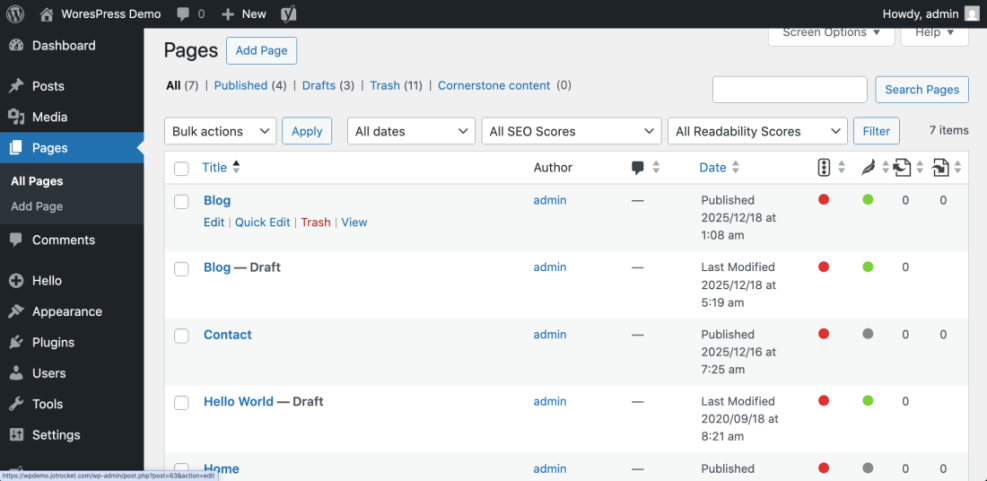
- Log in to your dashboard by visiting yourdomain.com/wp-admin and entering your credentials.
- In the left menu, navigate to Pages » All Pages.
- Find the page you want to hide using the search box or filters.
- Hover over the title and click Edit to open the page editor.
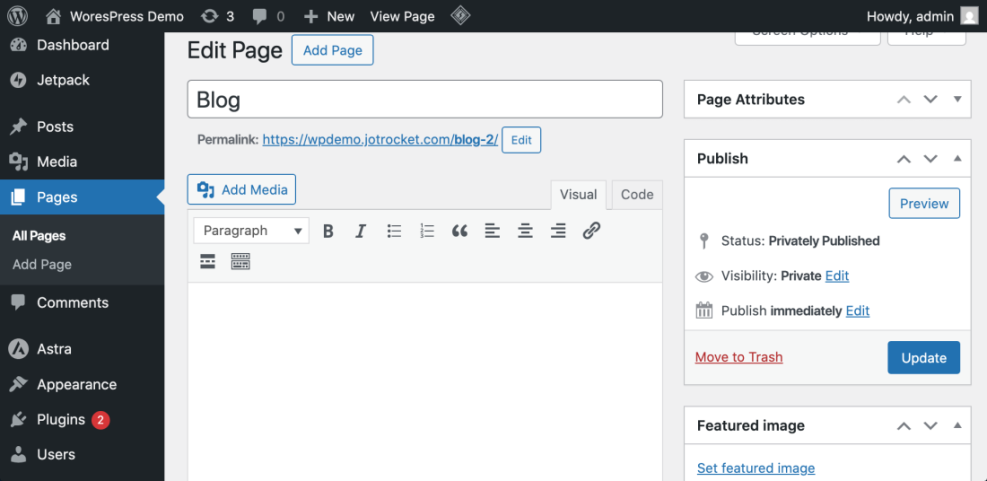
- On the right sidebar, locate the Status & visibility (Block Editor) or Publish (Classic Editor) panel.
- To hide WordPress page content from everyone, set:
- Status to Draft (removes it from the live site), or
- Visibility to Private (only logged-in admins/editors can see it).
- To limit access but keep the URL usable, set Visibility to Password Protected and enter a strong password. This is a good option when you want to hide a WordPress page from the public but still share it with specific people.
- Click Update (or Publish if it was a draft) to save the new visibility settings.
To verify, open a private or incognito browser window and visit the page’s URL. A fully hidden page should show a 404 or require a password, depending on the option you chose to hide WordPress page access.
Step 3: Hide the Page from Navigation Menus
Sometimes you only want to hide WordPress page links from your menus, while keeping the page accessible through a direct link. This is common for landing pages, campaign pages, or thank-you pages.
- From the dashboard, navigate to Appearance » Menus.
- In the Select a menu to edit dropdown, choose your main navigation menu and click Select.
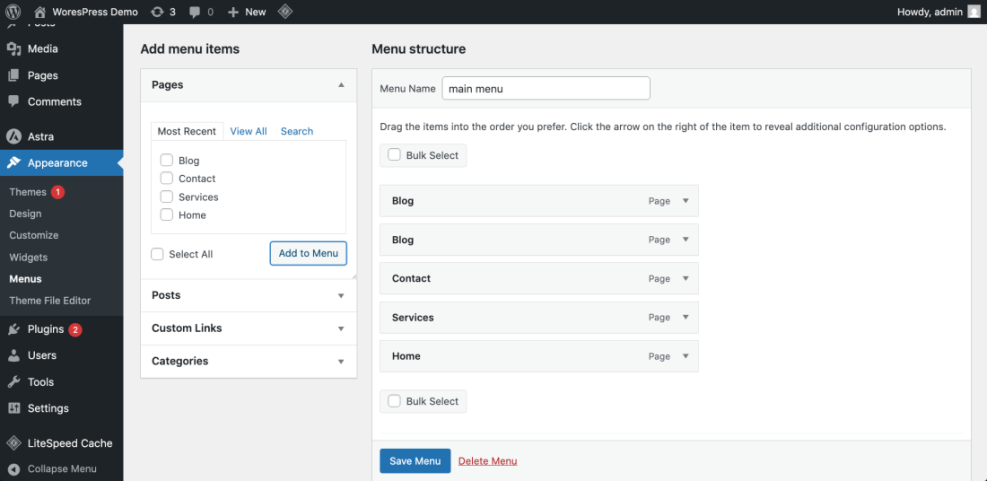
- In the Menu structure panel, locate the menu item that links to the page you want to hide in WordPress.
- Click the small arrow next to that menu item to expand its options.
- Click the Remove link to delete only the menu item, not the page itself.
- Scroll down and click Save Menu to apply your changes.
To verify, visit your site’s front end and refresh the page. The hidden page should no longer appear in your navigation menus, but the original URL will still work for people who have the direct link to your hidden WordPress page.
Step 4: Hide the Page from Search Results
Hiding a page from your on-site search and from search engines is different from hiding it from visitors. This step helps you hide WordPress page URLs from search results while keeping the page live for specific use cases.
Hide the Page from Your Site Search Using a Plugin
- In the dashboard, go to Plugins » Add New Plugin.
- Search for a search-exclude style plugin in the Search plugins field.
- Click Install Now next to a reputable plugin, then click Activate.
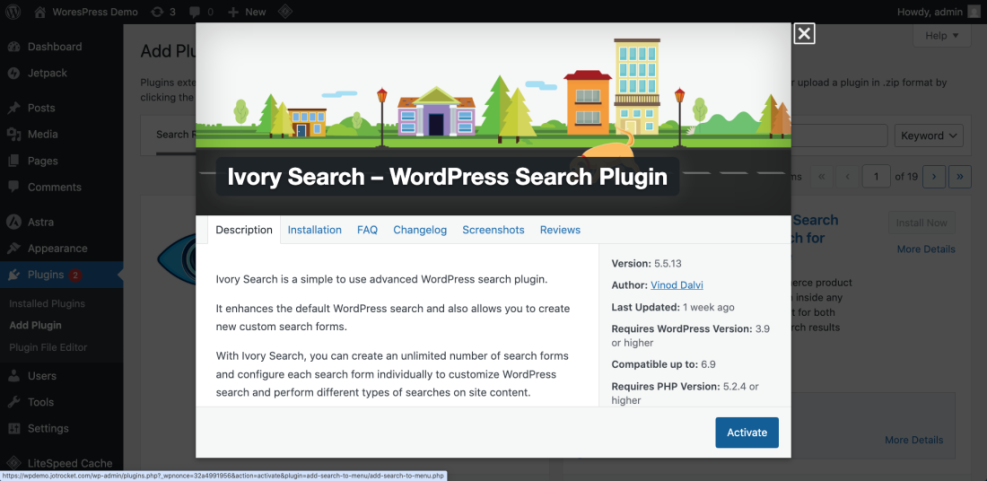
- Open Pages » All Pages and click Edit on the page you want to hide.
- Look for the new plugin options in the sidebar or below the editor, such as Exclude from search.
- Enable the option to exclude this page from search, then click Update. This is a simple way to hide WordPress page content from your internal search results.
To verify, use your site’s search box to search for the page title. The hidden page should no longer appear in the search results list.
Hide the Page from Search Results Using Code
If you prefer a code-based method and you are comfortable editing theme files or a snippets plugin, you can exclude specific page IDs from search and hide a WordPress page programmatically.
- In the dashboard, go to Pages » All Pages and click Edit on the page you want to hide.
- Note the post value in the browser address bar (for example, post=123). This is the page ID.
- Repeat for each page you want to hide and collect their IDs.
- Navigate to Appearance » Theme File Editor or open your child theme’s functions.php file using SFTP or a code snippets plugin.
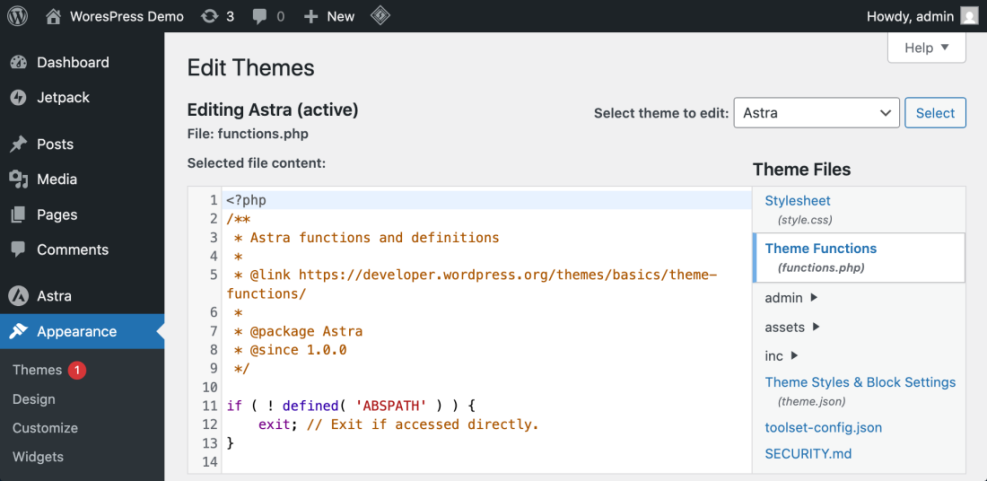
- Add the following code snippet, replacing 123 and 456 with your actual page IDs:
function wph_exclude_pages_from_search( $query ) {
    if ( ! is_admin() && $query->is_main_query() && $query->is_search() ) {
        $query->set( 'post__not_in', array( 123, 456 ) );
    }
}
add_action( 'pre_get_posts', 'wph_exclude_pages_from_search' );- Save the file or update the snippet.
To verify, search for the page title on your site. The excluded pages should not appear in search results, while other pages still do, helping you hide WordPress page content you don’t want in search.
Reduce Search Engine Visibility
If you want the page to stay live but reduce the chance of it appearing in Google, set the page to noindex using your SEO plugin on that specific page. This tells well-behaved search engines not to index the page, although it is never a 100 percent guarantee when you hide WordPress page URLs from search engines.
Step 5: Test Your Hidden Page Safely
After you hide a WordPress page, always test in different scenarios so you do not accidentally block the wrong visitors or break your navigation.
- Open a private or incognito browser window where you are not logged in to WordPress.
- Visit your site’s homepage and confirm the hidden page no longer appears in the main menu if you removed it there.
- Try accessing the full page URL directly and confirm:
- Private or Draft pages are no longer reachable by regular visitors.
- Password protected pages show a password prompt.
- Use the site search box to look for the hidden page title and ensure it no longer appears, which confirms your efforts to hide WordPress page content from search.
- Log back in as an admin and confirm you can still see and edit the page from the Pages screen.
Repeat these tests after any theme or plugin changes so you catch visibility issues before visitors do and maintain control over every hidden WordPress page.
Conclusion You Are Ready to Go
You now know several ways to hide WordPress page content without guessing. You can switch visibility to Draft, Private, or Password Protected, remove sensitive pages from your menus, and exclude specific pages from on-site search and search engines where appropriate.
By planning your visibility strategy first and then testing in an incognito window, you avoid broken navigation and confusing 404 errors. You can safely keep internal pages online for campaigns, clients, or internal use while maintaining a clean, user-friendly structure for everyone else every time you hide a page in WordPress.
Further Reading
- How to do on page seo in WordPress
- How to duplicate WordPress page
- Categories tags beginner guide
- How to add keywords in WordPress without hurting
Frequently Asked Questions
What is the difference between hiding and unpublishing a page
Does hiding a page guarantee Google will never index it
Can I hide a page from my menu but keep it live
Will hidden pages still affect my SEO
Can I hide a page only from logged out visitors