If you are wondering whether you will find WordPress easy to use, you are not alone.
Many beginners worry that they will break something or need coding skills before they even log in. In this guide, you will take a short, practical tour so you can feel how WordPress easy actually is in real, everyday tasks.
By the end, you will know which parts of WordPress feel simple, which take a bit of practice, and what you can safely ignore at the start. You will walk through exploring the dashboard, publishing a post, changing basic design, installing a plugin, and handling routine maintenance so you can decide whether WordPress fits your comfort level.
Is WordPress Easy to Use? What You Need to Start
- A basic WordPress site you can log into, even a temporary or staging site. If you still need one, follow Beginner guide to WordPress speed optimization to get a simple setup ready.
- Login details for your /wp-admin area so you can reach the dashboard.
- A modern web browser and a reliable internet connection.
- Thirty to sixty minutes of uninterrupted time to explore.
Open a new browser tab and log in to your WordPress dashboard so you can follow each step in real time.
Maintenance Methods for Managing a WordPress Site
There is more than one way to handle ongoing WordPress maintenance tasks, and each method fits slightly different skills, budgets, and site types.
The table below compares the main methods so you can quickly choose the one that feels easiest and safest for your site.
| Method | Where You Use It | Main Purpose |
|---|---|---|
| DIY Manual Maintenance | WordPress dashboard and hosting control panel | Maximum control over updates, backups, and checks for small or low-risk sites. |
| Managed Hosting Tools | Your host’s control panel or custom dashboard | Simplify routine maintenance with one-click updates, built-in backups, and basic security. |
| Maintenance & Security Plugins | Plugins section inside the WordPress dashboard | Automate repetitive work like backups, database cleanup, image optimization, and security scans. |
| WP-CLI and Developer Tools | SSH terminal with WP-CLI and deployment tools | Scriptable, fast maintenance for developers managing multiple or complex sites. |
| Professional WordPress Care Plan | External provider, freelancer, or agency | Hands-off maintenance with proactive monitoring, fixes, and expert support. |
Step 1: Explore the Dashboard to Make WordPress Easy to Use
The dashboard is your control center. If you can comfortably find menus and basic settings here, most day to day WordPress tasks will feel straightforward.
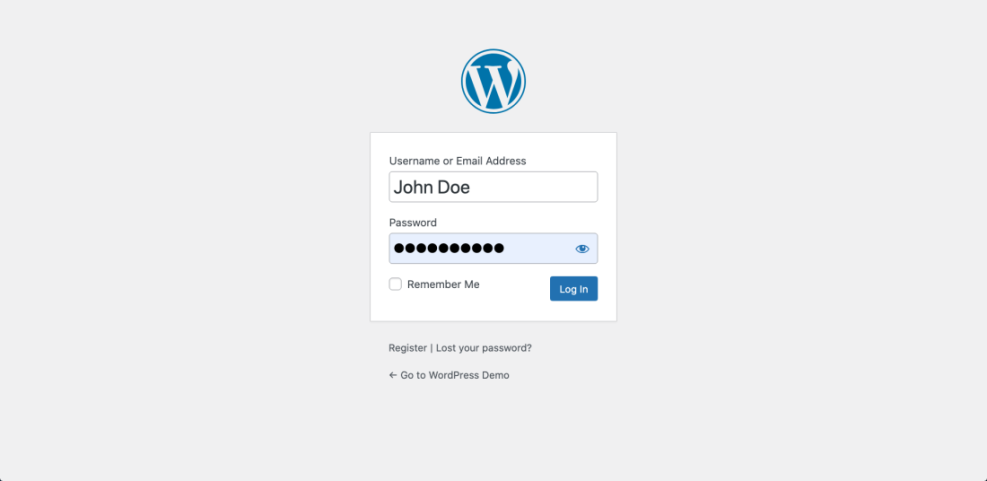
- In your browser, go to your site URL followed by /wp-admin and log in with your username and password.
- Look at the left sidebar. Move your mouse over Posts, Pages, Media, Appearance, Plugins, and Settings to see their sub menus.
- Click Dashboard » Home to see the overview widgets such as At a Glance and Activity.
- Click Dashboard » Updates to see how WordPress shows available updates for core, themes, and plugins.
Navigate through Posts » All Posts, Pages » All Pages, and Appearance » Themes to see how content and design are separated inside WordPress.
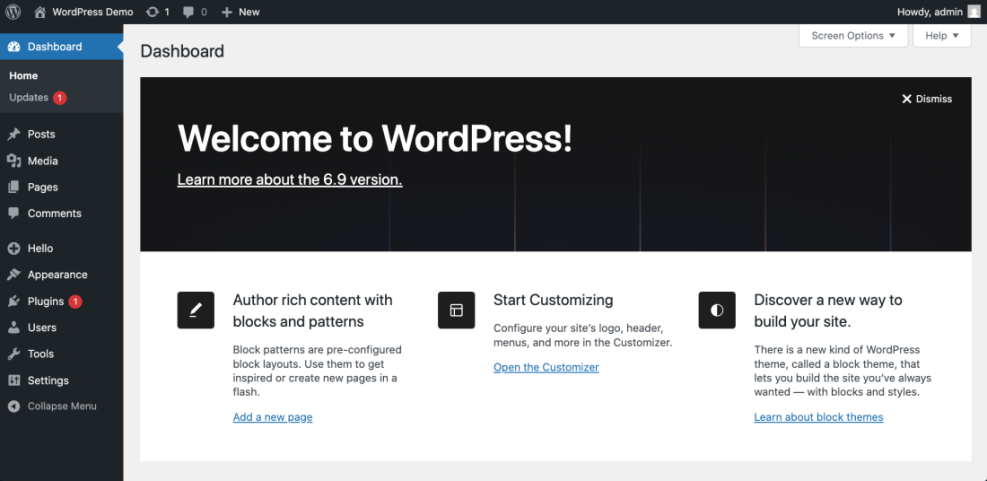
If you can move between these screens without feeling lost, you are already getting comfortable with the core interface.
Step 2: Create your first post
Publishing content is the heart of WordPress. Creating a basic post is a good test of how quickly you can learn the editor you are using.
- From the left sidebar, click Posts » Add New.
- In the Add title field, type a simple title such as “My first WordPress test”.
- Click into the main content area. Type a short paragraph about what you are testing today.
- Use the editor toolbar to apply Bold to a few words and add a Heading block or a Paragraph block, depending on whether you use the block editor or Classic Editor.
- On the right side, look for the Publish or Update button and click it.
Click View Post to open it in a new tab and see how the content appears on your site.
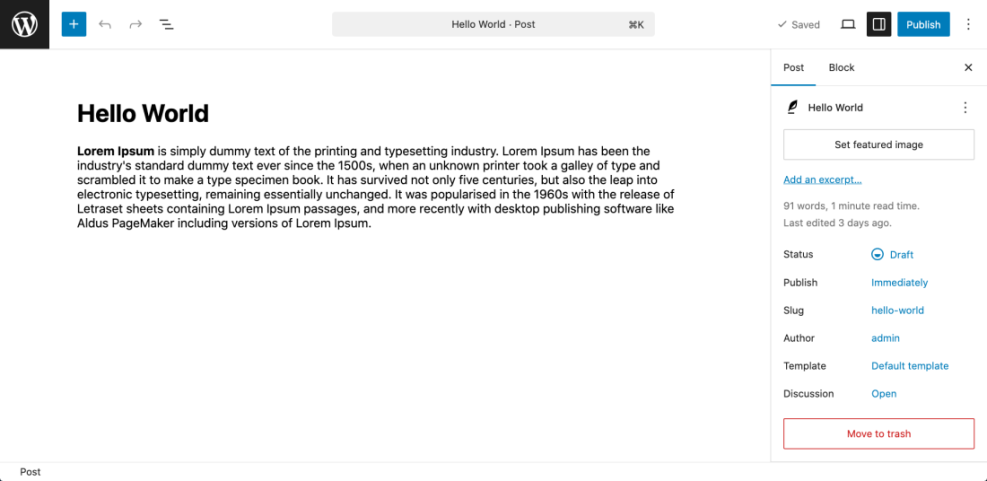
If you managed to add text, format it, and publish without getting stuck, writing articles in WordPress should feel manageable. When you are ready to go deeper into content, follow How to create a blog on WordPress for a more detailed workflow.
Step 3: Try simple design changes
Changing your site’s basic look and feel is where many beginners worry they will break something. Testing simple, reversible design tweaks will show how much control you are comfortable with.
- In the sidebar, click Settings » General. Edit the Site Title and Tagline to something short and descriptive, then click Save Changes.
- Click Appearance » Customize to open the theme customizer or theme options panel used by your active theme.
- Look for basic options such as Site Identity, Colors, or Typography. Change one safe setting, such as the accent color or font size, and click Publish or Save.
- Go to Appearance » Menus and locate your main navigation menu. Drag one menu item slightly to reorder it, then click Save Menu.
Use the front end of your site in another tab to see how these changes appear to visitors after you refresh the page.
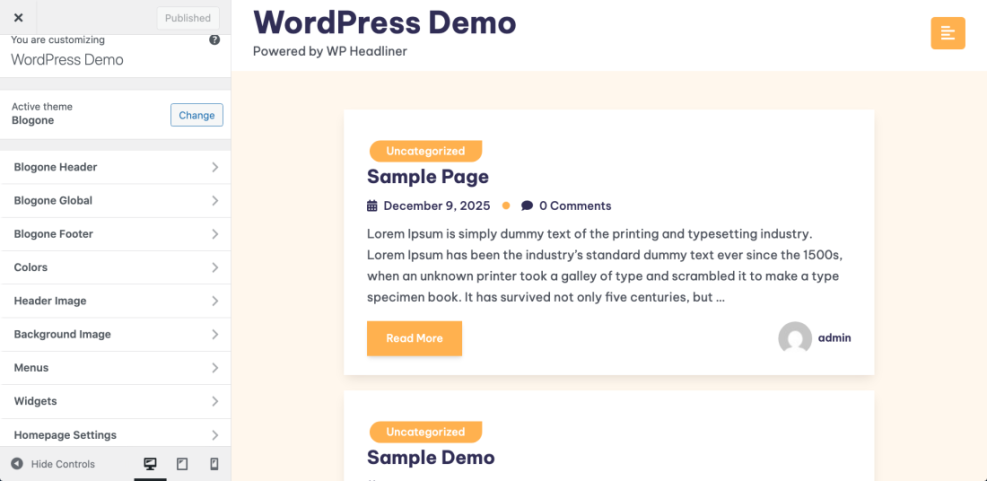
If you can update your site title, tweak a color, and adjust the menu, you already have enough design control for a clean, professional blog or small business site.
Step 4: Install a plugin safely
Plugins extend WordPress with contact forms, SEO tools, backups, and more. Learning how to install one safely is a key measure of how comfortable you feel with WordPress power features.
- In the sidebar, click Plugins » Add New.
- Use the search field to look for a simple, well known contact form plugin or another tool you want to test.
- Click Install Now on a plugin with high ratings and recent updates, then click Activate.
- After activation, look for a new menu entry under Settings or a top level menu with the plugin name, then open it.
- Create a basic form or enable a default setting following the plugin’s on screen instructions, then save your changes.
Explore the official plugin directory on the official site when you want to compare plugins by reviews and update history.
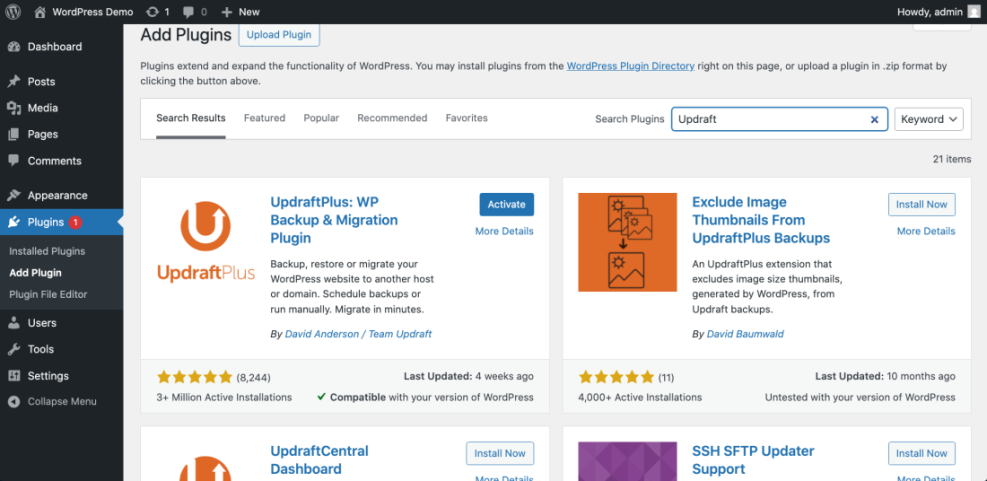
If you can confidently add and configure a basic plugin, you will find it much easier to adopt tools for SEO, backups, and contact forms later.
For plugin ideas tailored to new publishers, see Best contact form plugins for WordPress once you finish this test drive.
Step 5: Learn day to day tasks
Most of your time with WordPress will go into small, recurring tasks rather than big one time setups.
Testing these routines will show how comfortable you feel running a site long term.
- From the sidebar, click Dashboard » Updates and review any available updates. On a test site, run a plugin or theme update and confirm it completes successfully.
- Click Comments. Approve a test comment, mark one as spam, and see how moderation works.
- Install and configure a basic backup plugin, then run a manual backup so you know you can revert changes if needed later.
- Sign out using the top right user menu, then log back in. If you ever forget how to reach your login screen, follow How to login to WordPress admin for quick reminders.
Check that your site still loads correctly on the front end and that your new post and design changes from earlier steps are visible.
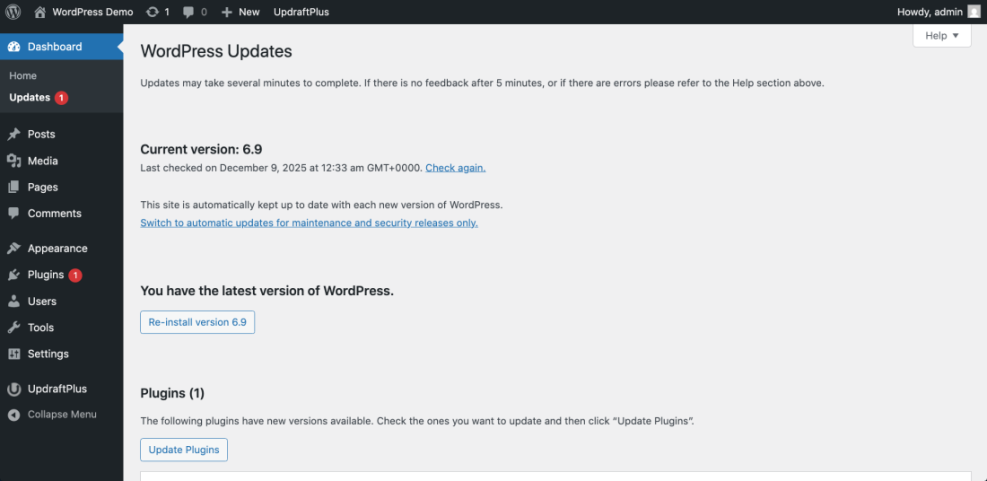
If weekly updates, comment moderation, and backups feel manageable after a bit of practice, long term site management will not be a major barrier for you.
Conclusion: How Easy Is WordPress for You Now?
By walking through the dashboard, creating a post, tweaking your design, installing a plugin, and testing routine maintenance, you have seen for yourself how WordPress behaves in real use.
Parts of the process probably felt instantly intuitive, while others may have needed a second look.
If logging in, writing content, and making small design changes felt natural, you will likely find WordPress easy enough for blogging, small business sites, and simple stores.
The areas that felt slower today are the ones to practice next, but they usually become routine with a few more sessions.
The best way to answer “How easy is WordPress?” is exactly what you just did—test real tasks in a safe environment and notice how quickly they begin to feel familiar.
Further Reading
Use these next step guides to deepen the specific areas that still feel new or confusing.
- How to use ai in WordPress
- How to use ai in WordPress
- How to move WordPress site to new host
- How to start a blog WordPress
- Best contact form plugins for WordPress
Frequently Asked Questions
Is WordPress suitable for complete beginners?
How long does it take to feel comfortable with WordPress?
Is WordPress easier than website builders like Wix or Squarespace?
What is the hardest part of WordPress for beginners?
Can I break my site while I am learning WordPress?