Introduction
If you offer PDFs, videos, or ZIP files on your site, learning how to Secure WordPress Downloads is essential so only the right people can access your content. By default, anyone with a direct file URL can often download it, even if they never log in or pay.
In this tutorial you will set up protected download links, restrict access to logged in users or customers, and add basic server rules so your most valuable files stay safe while still being easy for real visitors to use.
By the end of this guide, you’ll know exactly how to Secure WordPress Downloads for your PDFs, ZIP files, videos, and other important assets.
What You Need to Start
Access and Backups
- Administrator access to your WordPress dashboard.
- Access to your hosting control panel or FTP/SEO and UX, and where you will see it in daily work.”>SFTP to view site files.
- A recent full backup of your site before changing security settings. You can follow the WordPress backup strategy guide first.
Basic Skills and Server Type
- Basic understanding of how to install and activate WordPress plugins.
- Apache or LiteSpeed hosting if you plan to use .htaccess rules. For Nginx, you will ask your host to add similar rules.
Step 1: Decide Which Downloads Need Protection
Identify Sensitive Files
Before you change anything, decide which files actually need to be locked down. Not every image or PDF must be private, but paid products and member only resources should never be freely accessible.
- In your WordPress dashboard, go to Media → Library.
- Switch to the List view so you can easily scan file types and paths.
- Use the Filter by type dropdown to look at Documents or Audio, or search for extensions such as .pdf, .zip, or .mp3.
- Make a short list of sensitive files, such as paid downloads, course materials, or internal PDFs you only send to clients.
- Note where these files live, for example
/wp-content/uploads/2025/05/filename.pdf.
To verify your list, try opening some of these file URLs in a private browser window. If they load without logging in, you know they are currently public and must be secured.
Step 2: Secure WordPress Downloads With a Plugin
Install a Download Manager Plugin
For most site owners, the easiest way to Secure WordPress Downloads is by using a dedicated download manager or digital product plugin. These tools hide the real file path, create unique download URLs, and let you control who can access each file.
- In your dashboard, go to Plugins → Add New.
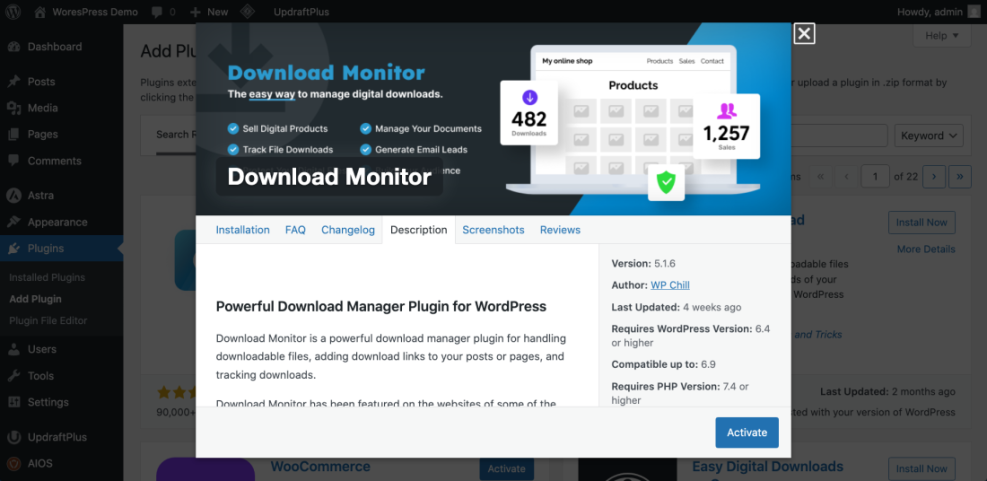
- In the search box, type Download Monitor or another trusted download manager plugin from WordPress.org.
- Click Install Now, then click Activate.
Create Your First Protected Download
- After activation, find the new menu such as Downloads → Add New in your sidebar.
- Enter a clear Title for your download, such as “Course Workbook PDF”.
- Use the plugin’s Upload file or Add File button and select the file you want to protect from your computer or Media Library.
Configure Access Rules to Secure WordPress Downloads
- Look for Access, Locking, or File Access options in the download settings.
- Set the method to Force download (or similar) so the file is served through the plugin and the real URL is hidden.
- If your plugin supports it, limit access to Logged in users, specific User roles, or customers who have purchased a linked product.
- Click Publish or Update to save the protected download.
To verify, open the public download URL in a private browser. You should see a login prompt, an error, or a purchase requirement instead of the file downloading directly.
You can also review the official plugin documentation on WordPress.org, for example the Download Monitor page and the Easy Digital Downloads page if you decide to use them.
Step 3: Restrict Access and Secure WordPress Downloads With Pages and Shortcodes
Create a Protected Download Page
After your files are managed by a plugin, you must make sure download links only appear on pages that are protected for the right users. This stops casual visitors from discovering URLs by guessing or crawling your site and helps you consistently Secure WordPress Downloads for members and customers.
- Create or edit the page that should contain the secure download, such as a Members Area or Order Confirmation page, by going to Pages → Add New or Pages → All Pages.
- Insert the plugin’s download shortcode or block (for example, a Download block, or a shortcode like
[download]) into the page content where you want the button to appear.
Control Who Sees the Download Button
- If you use a membership plugin, set the page’s Access or Restrictions to the correct membership level or user role.
- If you do not use a membership plugin, use the built in Visibility option in the page sidebar and choose Private or Password Protected as appropriate.
- Click Publish or Update.
To verify, try visiting the page while logged out. You should not see the download button, or you should be required to log in or enter a password before you can access it.
Step 4: Block Direct File Access to Secure WordPress Downloads
Organize a Protected Downloads Folder
Plugins protect the main download links, but a determined user might still share the raw file URL. Adding simple .htaccess rules adds another layer of security by blocking direct access to protected file types unless visitors come from your own domain.
- Open your hosting control panel and launch the File Manager, or connect via FTP with a tool such as FileZilla.
- Navigate to your WordPress folder and then to wp-content → uploads. For best organization, create a subfolder such as downloads-protected and move your sensitive files there.
- Inside the downloads-protected folder, create a new file named .htaccess if it does not already exist.
Add .htaccess Rules to Block Direct Access
- Edit the .htaccess file and paste in the following example rules, replacing example.com with your own domain.
# Block direct access to common download types unless visitor comes from your site <IfModule mod_rewrite.c> RewriteEngine On RewriteCond %{HTTP_REFERER} !^https?://(www.)?example.com/ [NC] RewriteRule .(zip|pdf|mp3|docx?)$ - [F,L] </IfModule> - Save the file and close the editor.
To verify, copy the direct URL of one of your downloads and paste it into a private browser window. If the rule is working, you should see a “403 Forbidden” error instead of the file. When you click the official download button from your site, the file should still download normally.
Optional Step: Use a CDN Without Breaking Secure WordPress Downloads
Understand Common WordPress CDN Types
A Content Delivery Network (CDN) can speed up your WordPress site and your downloads, but it adds another layer where access rules and caching must be configured correctly. Different CDN setups behave differently with file URLs and HTML caching, so it helps to know what you are using when troubleshooting Secure WordPress Downloads.
| CDN Type | Best For | WordPress Setup Method | Notes |
|---|---|---|---|
| Reverse Proxy CDN (Cloudflare style) | Blogs needing extra security and caching | Change DNS to point through CDN | Can cache HTML, protect against attacks, and may need page rules so secure download links are not cached publicly. |
| Image and File CDN (Jetpack style) | Simple image offload and optimization | Install plugin and toggle CDN feature | Very easy, but less control over rules. Check that private download folders are excluded or only used for public files. |
| Traditional Pull CDN | Serving static assets from a CDN domain | Use plugin to rewrite asset URLs | Fine control over cache and file paths. You can keep Secure WordPress Downloads on your main domain while offloading only public assets to the CDN. |
| Host Built-In CDN | Managed hosting with one-click tools | Enable in hosting panel | Tight integration, low setup effort, and usually safer defaults that respect private directories and protected downloads. |
CDN Tips for Secure WordPress Downloads
Whichever option you choose, make sure:
- Your protected download folder (for example,
/wp-content/uploads/downloads-protected/) is not publicly cached. - Any download pages that require login are excluded from full-page caching so users see the correct access state.
- You test logged-out vs logged-in behavior after enabling or changing CDN rules to confirm they still Secure WordPress Downloads properly.
Step 5: Add General WordPress Security Hardening
Strengthen Overall Site Security
File protection works best on top of a solid security foundation. If attackers can easily compromise your site, they can bypass many download rules and access any file stored on the server.
- Install and configure a reputable security plugin that offers firewall rules, malware scanning, and brute force login protection.
- Enforce strong passwords and two factor authentication for all administrator accounts, following a guide such as WordPress Security – Complete Guide and Overview.
- Keep your WordPress core, themes, and plugins up to date using the built in Updates screen under Dashboard.
Reduce Vulnerabilities and Prepare for Recovery
- Review and remove any unused plugins or themes that could introduce vulnerabilities.
- Schedule regular backups and occasional test restores so you can quickly recover if something goes wrong.
To verify your hardening progress, walk through a checklist such as the one in WordPress migration checklist for blogs and confirm each item is covered on your site.
Step 6: Test Your Secure WordPress Downloads Like a Visitor
Test as a Logged-Out Visitor
Once your rules and plugins are in place, test your downloads from different angles. Proper testing prevents embarrassing leaks where a link you thought was secure is still visible or shareable.
- Open a private or incognito window in your browser.
- Visit the page where your secure download button is located and confirm the button is hidden or requires login for non members.
Test as a Logged-In Customer
- Log in as a regular user or test customer account, not as an administrator, and confirm the download works as expected.
- Copy the direct file URL from your Media Library or plugin settings and paste it into the address bar of the private window.
- Confirm that the direct file URL is blocked with an error message instead of downloading.
- Use another device or mobile browser to repeat the tests and check that links in emails or on landing pages behave correctly.
If any test still allows direct access, review whether the file is stored in your protected folder, is delivered by your download plugin, and is covered by your .htaccess rules and CDN configuration so you continue to Secure WordPress Downloads correctly.
Step 7: Maintain Secure WordPress Downloads Over Time
Create a Simple Download Security Checklist
Download security is not a one time task. Each new resource you upload must follow the same protection rules to avoid accidentally creating a new weak spot.
- Always add new sensitive files through your download manager or eCommerce plugin, not by uploading them directly to the Media Library.
- Store any private files in your designated downloads-protected (or equivalent) folder instead of a random month folder.
- Review plugin logs or reports regularly to spot unusual download activity.
- Schedule a quarterly security review using resources like WordPress migration checklist for blogs.
- Update and test your backup strategy using guides such as WordPress Backup Strategy That Never Fails so you can restore files if they are ever deleted or corrupted.
Keep Improving Your Download Security
By keeping a simple checklist and repeating these steps whenever you add new content, you dramatically lower the chance that a valuable download is left exposed and ensure your process continues to Secure WordPress Downloads as your site grows.
Conclusion You Are Ready to Go
You now have a complete process to keep your most important downloads safe. You identified which files need protection, moved them behind a download plugin, restricted access to the right users, and added server level rules to block direct file URLs. On top of that, you reinforced your overall site security, CDN setup, and testing process.
Follow these steps consistently and Secure WordPress Downloads will become a normal, easy part of how you run and grow your site.
Further Reading
- How to edit WordPress files
- WordPress Security – Complete Guide and Overview
- WordPress migration checklist for blogs
- WordPress Backup Strategy That Never Fails
- Easy Digital Downloads Guide Sell Digital Products with WordPress
Frequently Asked Questions
Setup and Access Questions
Can I secure downloads without using a plugin
How do I protect free lead magnet downloads
Performance and Safety Questions
Will securing downloads slow down my WordPress site
What if my host uses Nginx instead of Apache
How do I stop people sharing download links with friends
Do I still need backups if my downloads are secure