Common WordPress Backup Errors And How To Fix Them
Practical troubleshooting steps for reliable automatic backups and site safety

WordPress backup errors usually show up at the worst moment, right when you need a clean copy of your site. When a backup fails, you risk losing content, orders, and customer trust if anything goes wrong.
You need a clear way to understand what went wrong and how to fix it without guesswork. This guide walks you through the most common backup problems, explains what causes them, and shows step-by-step fixes you can apply to any backup plugin or host backup tool.
Fixing Common WordPress Backup Errors
What Should You Check First?
When a backup fails, start with the backup log. Most plugins show a clear status message and a detailed log that tells you whether the problem is storage, server limits, or connection issues. You then check disk space, PHP limits, and whether the plugin can write to its backup folder.
How Do You Confirm A Backup Worked?
After each backup, confirm that the archive exists, has a realistic file size, and contains both files and database. Many plugins label backups as “Complete,” but you should also download a copy and, when possible, test a restore on a staging site so you know it actually works.
When Should You Contact Your Host?
If backups keep timing out, hit server limits, or fail with low-level errors, your hosting plan may not have enough resources. In that case, you adjust plugin settings first; if errors continue, you contact support with the exact log lines so they can raise limits or move you to better hosting.
How WordPress Backups Actually Work
Files Versus Database Backups
Every complete backup needs two parts: your files and your database. The files include WordPress core, themes, plugins, and uploads, while the database holds posts, pages, orders, and settings. If you only back up one of these, you risk a restore that boots but shows missing content or broken layouts.
Host, Plugin, And Manual Backups
Most WordPress sites use a mix of hosting-level backups, plugin-based backups, and manual exports. Hosting backups often run at the server level, while plugins run inside WordPress and are more likely to hit PHP limits or plugin conflicts. Manual exports are flexible but easy to forget and misplace if you do not label them clearly.
The table below compares common backup types and the kinds of errors you usually see with each one.
| Backup Type | Where It Runs | Typical Error | Typical Fix |
|---|---|---|---|
| Hosting Backup | Server or Control Panel | Restore fails or missing recent data | Adjust schedule, confirm retention, test restore |
| Plugin Backup | Inside WordPress | Timeout, memory limit, 0-byte archive | Raise PHP limits, exclude heavy folders, tweak settings |
| Manual FTP + SQL | Your Computer | Partial export, forgotten steps | Follow a written checklist, label backups clearly |
| Remote Backup Service | External System | API or connection errors, quota reached | Fix credentials, check quotas, verify logs |
Understanding where each backup runs helps you guess whether the problem sits inside WordPress, at the hosting level, or with an external storage provider.
Disk Space And Storage Issues
Fixing Low Disk Space Errors
Many “backup failed” messages come from running out of disk space on the server or remote storage. Typically you see errors about quota, full disk, or archives that stop at a certain size. First, remove old or unneeded backups, then clear cache folders and large unused media before trying again.
- Log in to your hosting control panel and check disk usage.
- Delete very old backup archives you no longer need.
- Empty plugin cache folders and remove unused themes or plugins.
- Run a fresh backup and watch the reported size.
This sequence frees space quickly and shows whether the error was purely storage-related or hides a deeper problem.
Remote Storage Quotas And Limits
When you back up to cloud services, failures often happen when you hit storage limits or API rate caps. In addition, connection timeouts can break uploads of very large archives. You usually fix this by increasing your remote quota, switching to incremental backups, or sending separate database and file archives.
Why Backup Archives Grow So Large
Backups often explode in size because they include other backup archives, logs, or temporary files. Therefore, you should exclude folders such as old backup directories, huge log files, and any nonessential archives. This reduces pressure on disk usage and makes every backup and restore faster.
Server Limits, Timeouts, And Large Sites
PHP Memory Limit And Execution Time
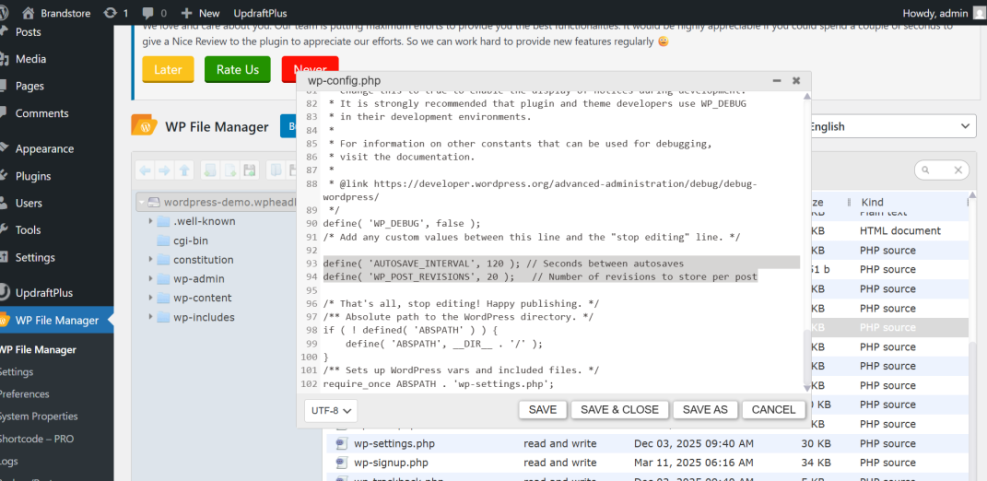
Backup plugins run heavy database exports and file compression, so they often hit PHP memory or maximum execution time limits. You may see messages like “Allowed memory size exhausted” or “Maximum execution time exceeded.” In many cases you can raise limits safely by editing wp-config.php.
define( 'WP_MEMORY_LIMIT', '256M' );
define( 'WP_MAX_MEMORY_LIMIT', '256M' );
Place these lines above the “That’s all, stop editing!” comment. If backups still fail after you increase limits, your host may need to adjust global PHP or web server settings.
Handling Very Large Sites Safely
Large WooCommerce stores and media-heavy blogs can hit size limits even with generous resources. For these sites, you should use incremental backups, exclude bulky logs, and back up large upload folders in smaller chunks. You also run manual backups during low-traffic hours so the process has more room to finish.
Should You Change Server Settings?
You can safely raise memory and execution limits within reasonable bounds. However, extreme values can hide real problems like a bloated database or thousands of junk files. If you need very high limits for backups to succeed, it is usually better to clean the site and move to stronger hosting instead.
From your hosting control panel, open PHP Settings or MultiPHP INI Editor and confirm memory and execution time match the values you configured in wp-config.php.
Plugin Conflicts And File Permissions
Temporarily Disable Conflicting Plugins
Firewall, security, and caching plugins sometimes block background processes that backups need. For example, aggressive rate limiting can kill long-running tasks or block loopback requests. To test this, you temporarily disable these plugins and run a manual backup to see whether the WordPress Backup Errors disappears.
Correct File And Folder Permissions
Backup tools must create archives inside wp-content or a subfolder. If your host sets strict permissions, the plugin may log errors about writing files or creating folders. Typically folders need write access for the PHP user, so your host can help you set safe but usable permissions on backup directories.
Reading Backup Plugin Logs
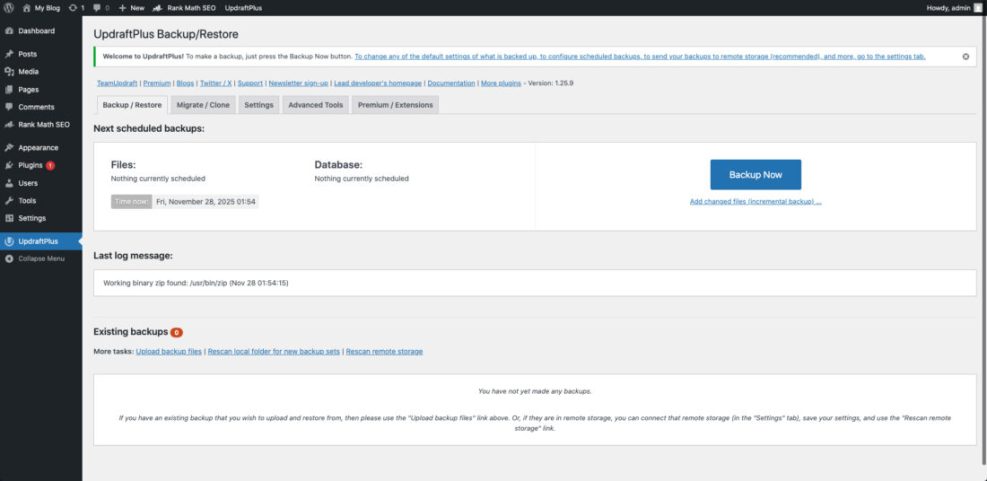
Logs are your best friend when a backup fails. They usually list each step, including database export, file scan, compression, and remote upload. You look for the first “error” line, then match it to storage, resources, or permissions. That single line often points straight to the real cause.
From your WordPress Dashboard, go to the backup plugin’s Tools or Logs page and open the latest log file.
Cron, Schedules, And Missed Backups
How WordPress Scheduling Actually Works
WordPress does not run real cron jobs by itself. Instead, it uses WP-Cron, which only fires when someone visits the site. On low-traffic sites, scheduled backups may run hours late or not at all. On cached sites, cron requests can also be blocked, so backups appear “stuck” in a pending state.
Fixing Missed Or Stuck Scheduled Backups
To fix schedule problems, first run a manual backup to confirm everything else works. Next, check whether DISABLE_WP_CRON is set in wp-config.php, and if so, create a real cron job in your hosting panel that calls wp-cron.php. Finally, avoid overloading the schedule with many overlapping backup tasks.
Bad Backups, Restore Failures, And Testing
Spotting Corrupt Or Partial Backup Files
Sometimes backups “complete” but still fail during restore because the archive is corrupt or incomplete. Common signs include very small file sizes, missing database files, or unzip errors. You should check that every backup contains database and file archives and that their total size looks reasonable for your site.
Testing Restores On A Staging Site
A backup you never test is risky. Instead of restoring straight onto your live site, you can create a staging site with your host or a local copy on your computer. Then you restore the backup there and verify logins, pages, products, and forms before trusting that backup for real emergencies.
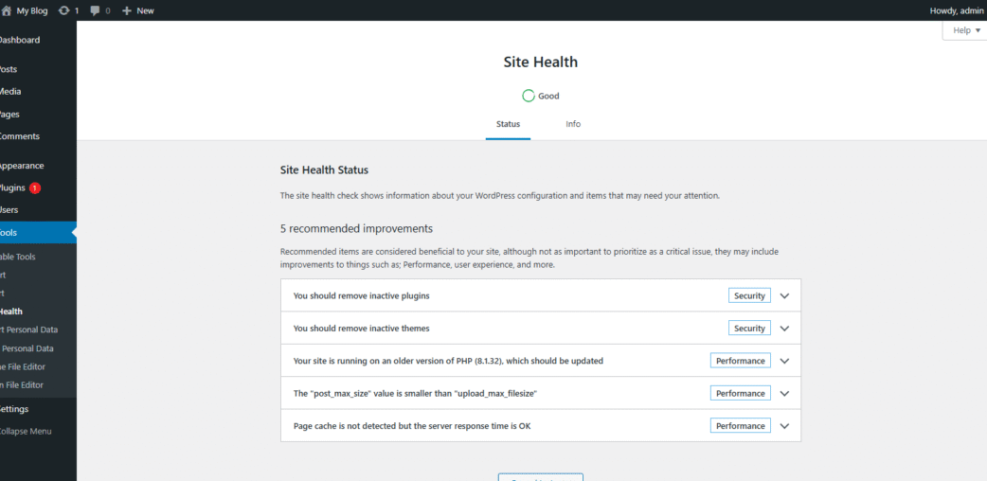
From your WordPress Dashboard, go to Tools » Site Health and confirm there are no critical issues before you perform test restores.
Best Practices To Prevent Backup Problems
Use The 3 2 1 Backup Rule
A simple way to reduce risk is the 3 2 1 rule: keep three copies of your data, on two different types of storage, with one copy off-site. For example, you might keep one backup with your host, one in cloud storage, and one downloaded to your own computer.
Set A Realistic Backup Schedule
Your backup schedule should match how often your content changes. For a busy store, daily or even hourly database backups make sense. For a small brochure site, weekly full backups plus an extra backup before big updates are usually enough. The key is to keep several recent restore points instead of just one.
Document Your Recovery Checklist
When a real problem happens, stress makes it hard to remember steps. A short, written recovery checklist helps you follow the same proven process every time. You can include where backups are stored, how to perform a test restore, who to contact at your host, and how to roll back a failed plugin update.
- Know where your latest backups are stored.
- Keep access details for hosting, domain, and backup tools.
- List the exact steps for a test restore.
- Note when you last tested a full restore.
A simple checklist turns a chaotic emergency into a controlled process you can repeat and improve over time.
WordPress Backup Errors Conclusion
Backup problems are frustrating, but they always come from a small set of causes: not enough storage, tight server limits, plugin conflicts, scheduling issues, or bad archives. Once you know where to look, you can move from guessing to reading logs, adjusting settings, and testing restores with confidence.
Your next step is simple: run a fresh backup today, read the log, and perform a test restore on a staging site. When you confirm that process works, you will have real protection instead of blind faith in a button labeled “Backup Now.”
More WordPress Guides You Might Like
If you want to dig deeper into maintenance and safety, these future guides will fit naturally next to your backup strategy.
- How to choose the best WordPress hosting
- Install WordPress step by step
- Developer hooks for WordPress database and file optimization
- How to publish WordPress site
- Woocommerce performance tips for faster stores
Use these topics as your roadmap for building a complete protection stack around your WordPress sites, from backups and staging to performance and security hardening.
Frequently Asked Questions About WordPress Backup Errors
Why does my WordPress backup keep failing?
How can I tell if my backup is complete?
Should I rely only on my host for backups?
How often should I back up my WordPress site?
Is it safe to increase PHP memory and time limits for backups?